
Complete Campaign Studio Workflow
Follow one private campaign from the Studio shelf through notes, reviewed changes and controlled handoffs.
A narrated walkthrough for Complete Campaign Studio Workflow.
Read transcriptCampaign Studio is an owner workspace for planning, writing and reviewing one campaign. This walkthrough follows The Glasswake Expedition from the campaign shelf to reviewed notes, connected knowledge and two controlled workbench handoffs. Open Campaign Studio to start from the stable public route.
The owned Glasswake illustration introduces the private campaign writing workflow without reproducing product UI.
Enter the campaign through the shelf
1. Open the authenticated campaign shelf
Use /studio and sign in. The shelf lists campaigns that you can use. Select
the campaign you own. The public Campaign Studio tour and the authenticated
shelf are not the owner workbench.
2. Confirm the owner workbench
The owner route opens the campaign's notes, folders and desks inside the shared
application shell. An eligible legacy Workspace link redirects to the Studio
library and preserves supported ws and item query details. If the Studio
check does not pass, the route remains in legacy Workspace.
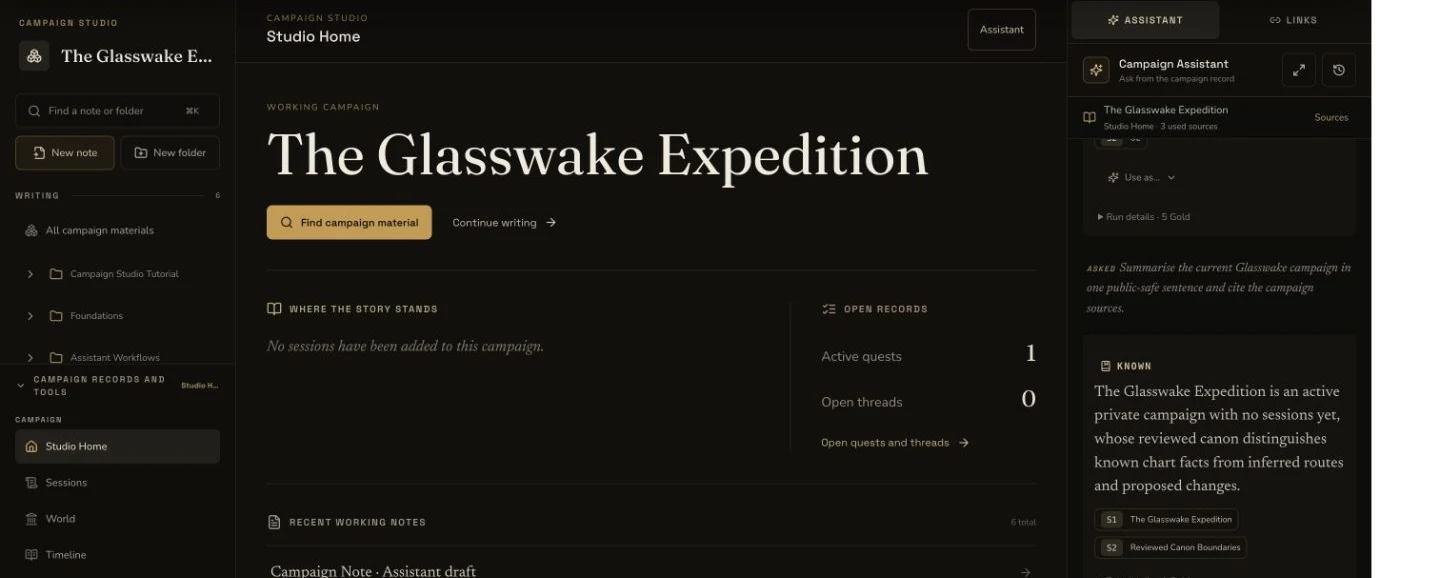
The desktop owner workbench keeps campaign materials, record desks and reviewed Assistant context in one campaign view.
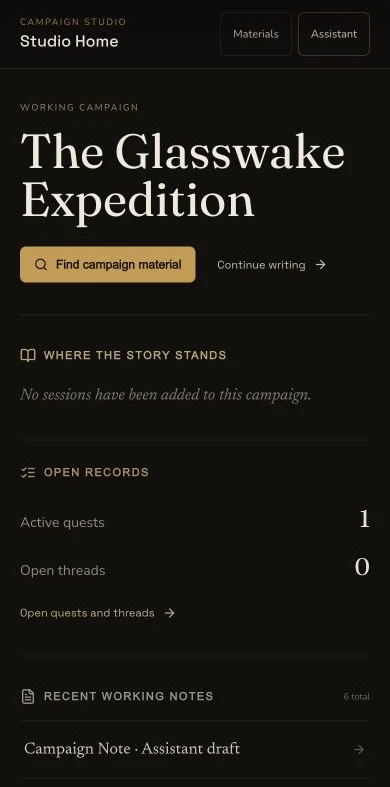
The mobile Studio Home preserves the campaign summary and provides explicit Materials and Assistant controls.
Build a durable writing base
3. Create a small folder and note structure
Create only the folders needed for the work. The retained example uses Campaign Studio Tutorial, Foundations, Assistant Workflows and Workbench Handoffs. The interface calls them folders, while the stored records use the existing campaign collection system.
4. Separate autosave from Save
Edit one existing note and wait for the saved state. This proves the latest draft reached persistence. Use Save when you want a named point in the checkpoint history. Autosave does not add an item to that history.
5. Connect notes deliberately
Use a mention or note link to connect public-safe campaign names. Then inspect Connected notes for outgoing links, backlinks and suggestions. A suggestion does not change the note until you choose Link.
Use AI as a reviewed proposal system
6. Read the mounted quote before one request
Choose the context, mode and depth before submission. The retained workflow used the mounted 1, 3 and 5 Gold depth quotes and spent 22 Gold in total, below its 200 Gold ceiling. Do not copy those values as a permanent price promise. Read the quote that the current product shows.
7. Review sources and truth labels
Treat KNOWN, INFERRED, PROPOSED and DISPUTED as different evidence
classes. Check the source set and the proposed text. Insert and Replace update
the local note draft. A typed campaign change stays separate until you approve
and apply it through the version check.
Finish at the campaign handoff boundaries
8. Review the connected campaign desks
Use World, Timeline, Relationships, Map, Open records and the other desks as views over the campaign's existing records. They do not create a second copy of the campaign.
9. Create one private entity from selected prose
The retained example selected public-safe building prose, opened the mounted generation handoff, created Siltglass Signal House, filed it and attached its accepted native art. The generated record and image finished private. A generation result, a campaign filing and an image association are separate read-backs.
10. Stop Deep Prep at Session Prep prefill
Deep Prep produced a sourced brief for review. Applying the accepted artifact prefilled Session Prep. The final reload recovered the same brief, kept Generate disabled and created no Session Prep generation, job, transaction or extra Gold charge.
Checkpoint
Check your result
/studioleads from the authenticated shelf to one owner campaign workbench, while an ineligible compatibility entry remains in legacy Workspace.- The latest note edit survives refresh, while an explicit Save creates one separate checkpoint that can be reviewed.
- Assistant text and typed changes remain proposals until the user chooses a local edit or an artifact Apply action.
- The retained entity, art, notes and handoffs finish private, and Deep Prep stops before Session Prep generation.
If something looks wrong
Troubleshooting
- Symptom
- The owner workbench does not open.
- Likely cause
- The feature, entitlement, request or network path may not be available.
- Next safe action
- Continue in legacy Workspace. An eligible legacy link redirects to Studio and preserves its supported workspace query details.
- Symptom
- Generated prose looks correct but is not in the note after refresh.
- Likely cause
- A proposal and a persisted note are separate states.
- Next safe action
- Choose the intended Insert, Replace or New note outcome, then verify persistence after refresh.
- Symptom
- Session Prep opens without the reviewed brief.
- Likely cause
- The route handoff may not have rehydrated the accepted artifact.
- Next safe action
- Return through the retained artifact handoff. Do not start a new paid Deep Prep or Session Prep run.