
Continue, Describe, Complicate and Write Dialogue
Use the four inline writing tools while retaining the selected prose and review boundary.
Campaign Studio places four writing tools beside selected note prose. Open Campaign Studio, choose an owned campaign and open a note with public-safe text that you can review after each result.
Prepare one bounded passage
1. Select only the passage you want to change
Use a complete sentence or short paragraph. A narrow selection makes the result easier to compare with the original note. Confirm that Selection is visible in the Assistant composer before you send.
2. Read the campaign-wide quote
The retained tool runs used Campaign-wide context at 3 Gold each. All four 3 Gold runs settled once. This is retained evidence, not a price promise. Read the mounted quote before a new tool run.
Choose the tool for the writing problem
3. Use Continue for the next passage
Continue asks for prose that follows the selected passage or the current note. It should match the existing voice and established lore without repeating the source passage. The retained result was reviewed and then Insert added it to the local note draft.
4. Use Describe for concrete detail
Describe asks for sensory and atmospheric detail without changing established facts. The retained result was reviewed and then New note created a separate private campaign note. This kept the long description out of the source note until it had its own review context.
5. Use Complicate for a constrained development
Retain the selection before Complicate. The tool asks for one development that connects to existing lore without contradicting canon. Review both the constraint and the proposed prose. The retained result used Replace on the selected range in the private draft.
6. Use Dialogue for a short exchange
Dialogue asks for the next line or short exchange based on the people in the selected passage. Check speaker, intent and established knowledge. The retained result was reviewed and then Dismiss removed the proposal with no note mutation.
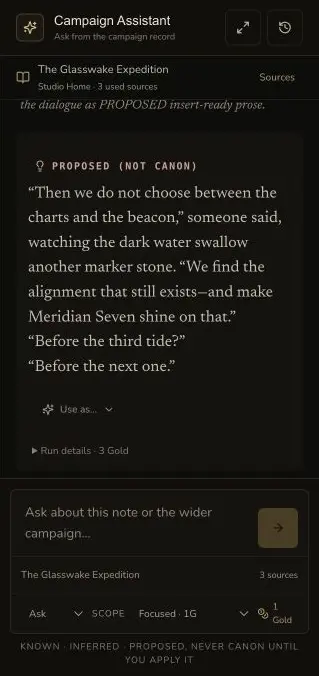
The desktop proposal keeps its not-canon label, review control and run detail together.
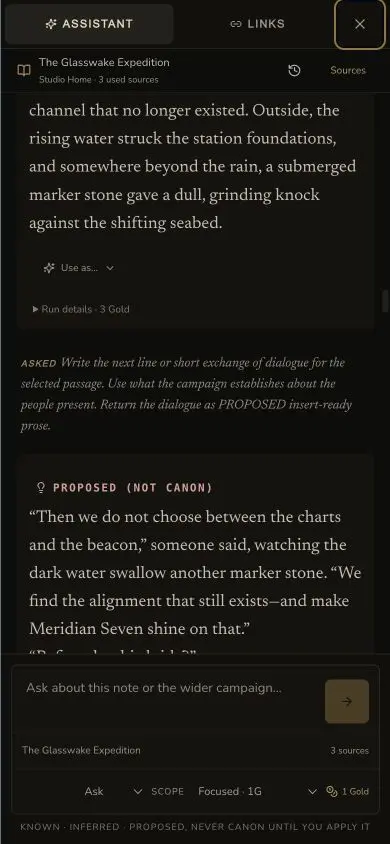
The compact layout retains the original Dialogue prompt and the proposed response classification.
Review the outcome, not only the wording
7. Choose Insert, Replace, New note or Dismiss
Insert and Replace affect the local editor draft. New note persists a separate private campaign note. Dismiss leaves campaign material unchanged. These are different outcomes, so choose the destination before you judge the run as complete.
8. Verify the intended persistence boundary
After Insert or Replace, save the note and refresh before you depend on the text. After New note, open the created private note and check its body. After Dismiss, confirm that the original note is unchanged.
Checkpoint
Check your result
- The intended passage remains selected and appears in the Assistant context before the run starts.
- Continue, Describe, Complicate or Dialogue matches the writing problem and uses the mounted quote.
- The proposed prose is reviewed against campaign sources and established facts before any edit action.
- Insert, Replace, New note or Dismiss produces the intended local, persisted or no-mutation outcome.
If something looks wrong
Troubleshooting
- Symptom
- Replace is not available.
- Likely cause
- The tool run does not have a retained text selection to replace.
- Next safe action
- Select the exact passage again, confirm Selection in the composer and rerun only if you still need new prose.
- Symptom
- The result repeats the source passage.
- Likely cause
- The selection or request may not give a clear continuation boundary.
- Next safe action
- Dismiss the proposal. Narrow the selection and state where the new prose should begin.
- Symptom
- The result adds an unsupported campaign fact.
- Likely cause
- Creative prose can contain proposed material even when sources are present.
- Next safe action
- Keep the detail marked as proposed, revise it or dismiss it. Do not treat it as established canon.