
Inpaint and Outpaint Precisely
Replace a masked region or extend the canvas.
Choose Inpaint for a masked replacement inside the existing image, or Outpaint for extra canvas outside it. Both examples begin with the owned Candlelit Star Chart original. On 1 August 2026, Inpaint displayed 4 Gold and settled at 8 Gold. Outpaint displayed 4.53 Gold, completed with no transaction and was unbilled, which is not evidence that it is free.
Pick the right boundary
Inpaint, also called masked replacement, alters the painted area. Outpaint asks for extra room around an edge. Do not use Inpaint to create space, and do not use Outpaint when only a prop needs replacing.
1. Mask the precise replacement
Draw over the chart, then describe: “A small glowing blue crystal orb held naturally in both hands, matching the warm observatory lighting and painterly realistic style.” Keep the mask no larger than the change.
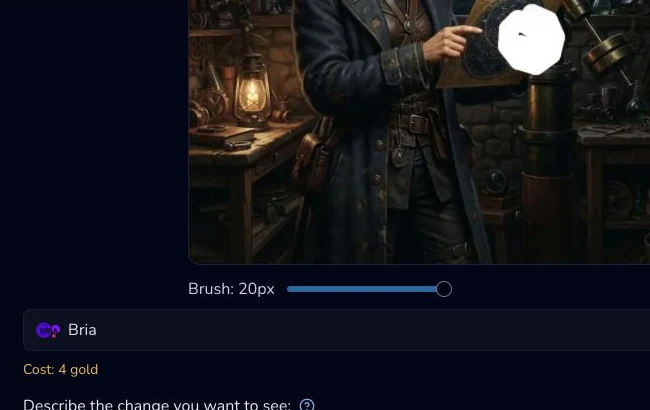
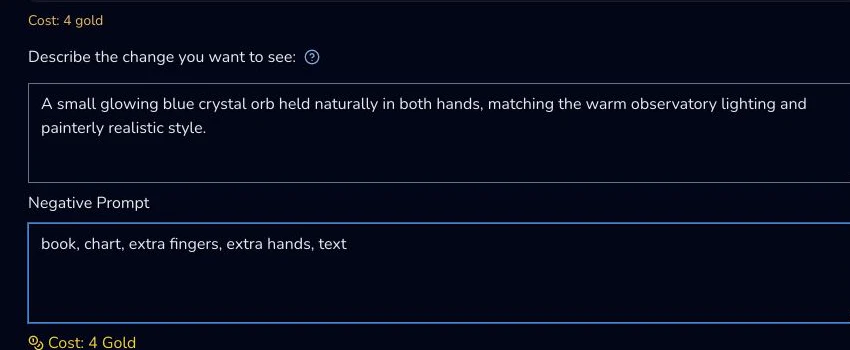
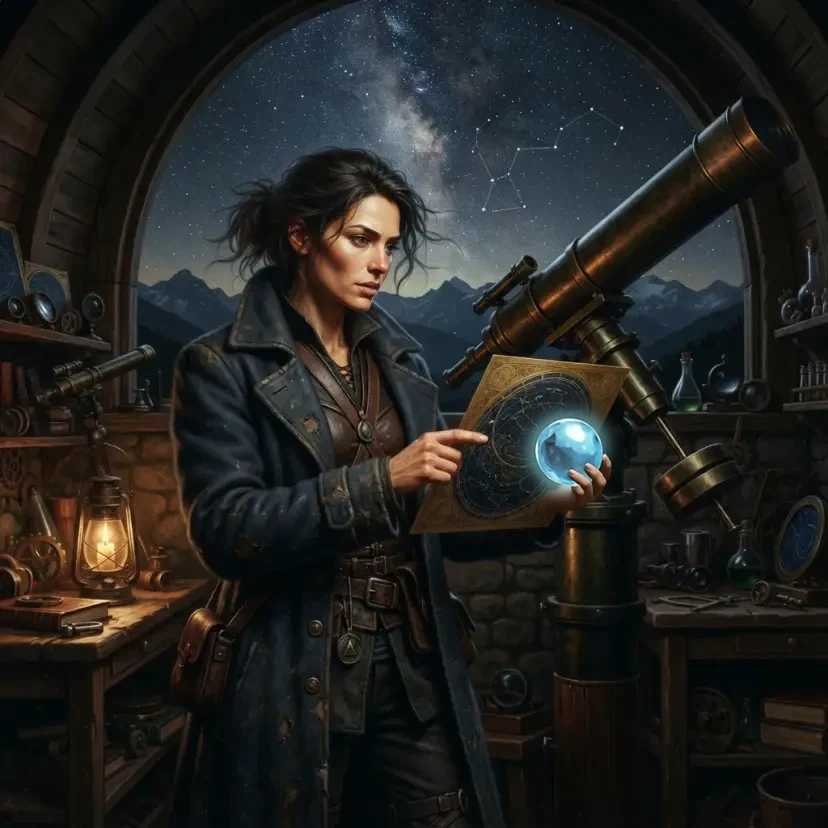
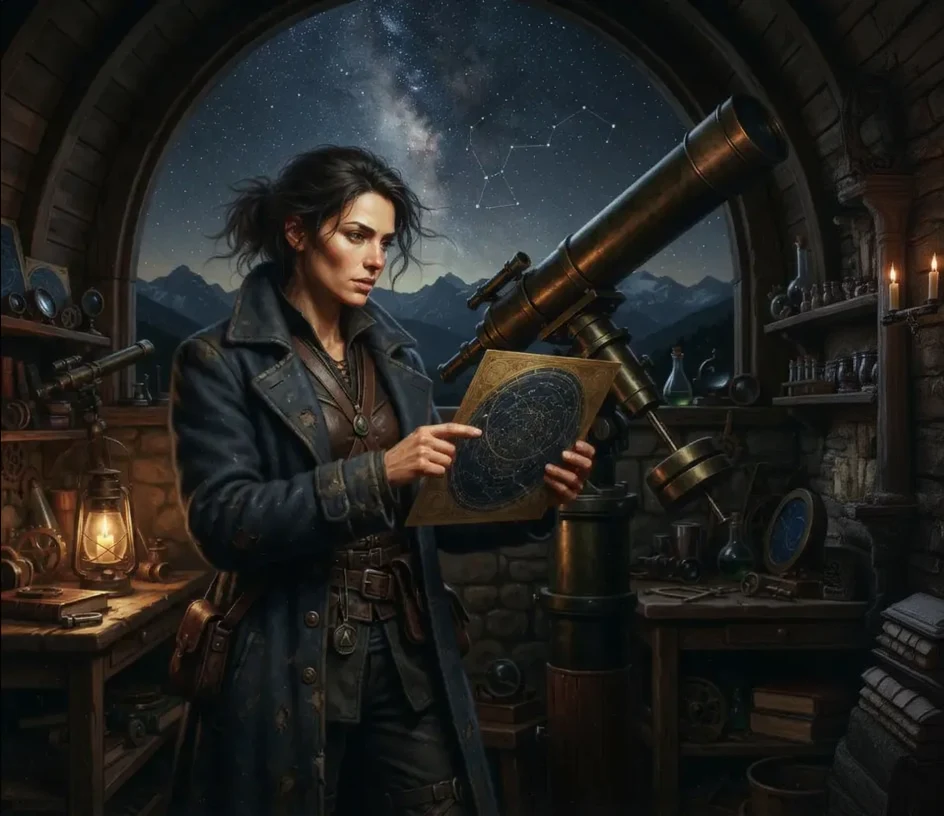
The exact requested change was the blue crystal orb in the masked chart area, held naturally in both hands. The observed result did not fully meet that grip request: it placed the orb in one hand while the other hand pointed at a retained chart. The completed Inpaint request displayed 4 Gold and settled at 8 Gold, so inspect the result and record both values.
2. Extend a canvas directionally
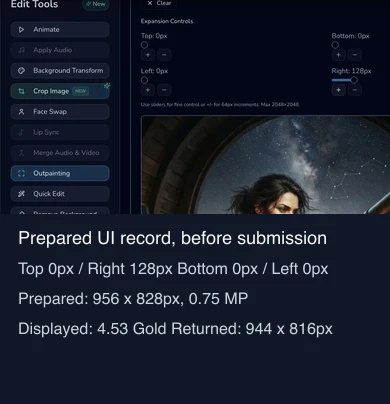
For Outpaint, choose the side to extend. The reviewed UI prepared 956 × 828 at 0.75 MP, with a 4.53 Gold display. The returned file was 944 × 816, so record the output rather than assuming prepared and returned pixels match.
Checkpoint
Check your result
- The original remains intact.
- A mask matches the replacement boundary, or an edge matches the added canvas.
- You checked returned dimensions and the terminal state.
Troubleshooting
If something looks wrong
Troubleshooting
- Symptom
- The replacement leaks into the scene.
- Likely cause
- The mask is too broad.
- Next safe action
- Return to the original and reduce the mask.
- Symptom
- A setting vanished.
- Likely cause
- The active model or tool differs.
- Next safe action
- Use only the controls mounted in the live panel.
- Symptom
- Prepared and returned dimensions differ.
- Likely cause
- Outpaint output dimensions can differ from the prepared UI.
- Next safe action
- Record and assess the returned pixels before planning a destination.
Mask and canvas technique
If the new area has a visible seam, stop and inspect it before adding more canvas. A second expansion compounds the first composition decision and makes diagnosis harder.
For Inpaint, zoom until the object boundary is easy to follow. Paint the whole thing that must be replaced, but avoid neighbouring fingers, clothing and background. A tight mask tells the model where it may work. If the control exposes brush size, use a smaller brush near fingers and a larger brush for a flat central area. The reviewed record proves Draw, Erase, Fill, Undo, Redo and Clear controls, not a universal feather setting, so do not promise feathering where it is absent.
The prompt describes what belongs inside the mask, not a new scene. Name the object, how it is held, light and visual match. Keep negatives, strength and quality as model-specific options. The completed Inpaint result was a distinct Gallery result after reload. Its display was 4 Gold, while the settled charge was 8 Gold, so record both values rather than relying on an old UI estimate.
For Outpaint, choose one side because each new direction changes composition. Extending right gives more environmental room without asking the model to rebuild all four edges. The reviewed UI prepared 956 × 828, yet returned 944 × 816. Calculate the job from returned pixels and inspect the new seam, horizon and duplicated objects. Its 4.53 Gold display completed unbilled with no transaction, which is an observed anomaly, not a free-tier promise. Do not retry an unbilled completion automatically.