
Insert, Replace or Create a Campaign Note Safely
Send reviewed prose to a local draft, replace a selection or start a new note.
Assistant prose and campaign notes have separate state. Open Campaign Studio, select an owned campaign and keep the source note open while you choose the correct proposal outcome.
Review the complete proposal
1. Read all eligible response blocks
Read the full proposed response, not only its first heading or paragraph. Campaign Studio composes the eligible prose blocks for the chosen action. Check the truth labels and source chips before you choose where the text goes.
2. Check the target and selection
Confirm the open note and any retained selection. Insert needs an insertion point. Replace needs a selected range. New note needs no source-note range because it creates a separate document.
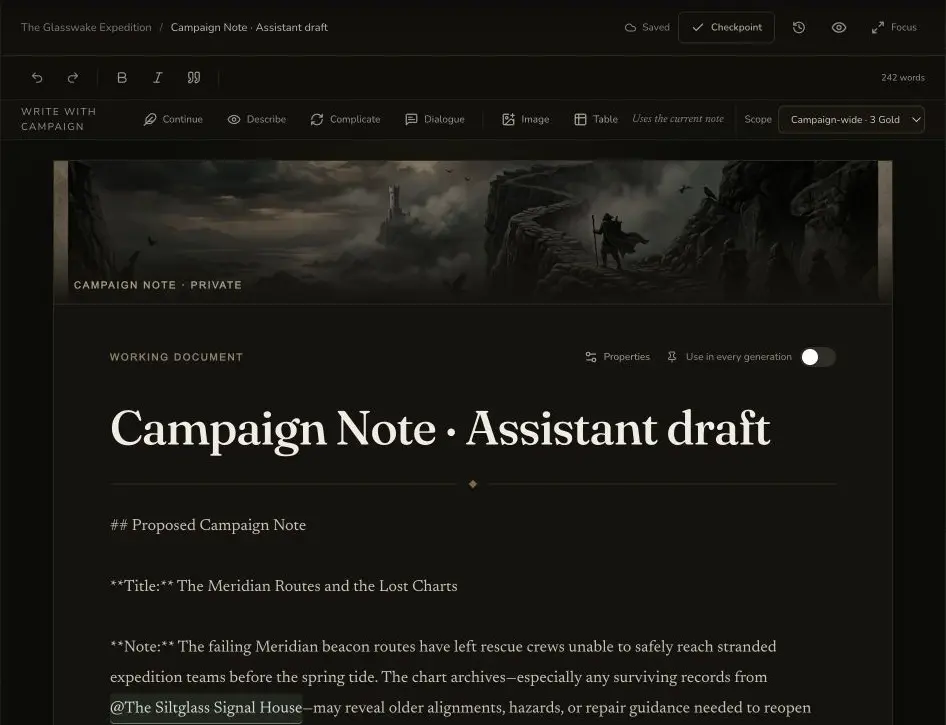
The desktop editor identifies the private working document and keeps the writing tools beside the proposed note content.
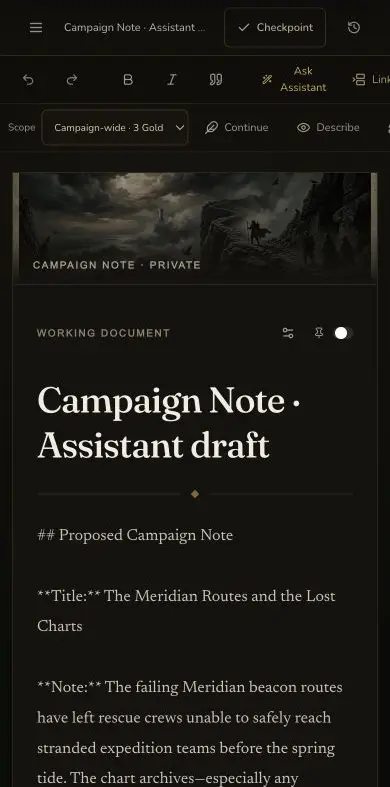
The mobile editor keeps the private-note state and Assistant controls available without changing the persistence boundary.
Choose one explicit outcome
3. Use Insert for the local note draft
Insert adds the reviewed prose at the current anchor in the local note
draft. The retained example advanced the draft version and left the draft
DIRTY. It did not create a separate campaign note or save a checkpoint.
4. Use Replace for the selected range
Replace removes only the retained selected range and places the reviewed
prose at that anchor. Compare the surrounding sentences before you continue.
The retained Replace also advanced the local draft version and left the draft
DIRTY.
5. Use New note for separate material
New note creates and persists a separate private campaign note. Open that note after creation and check the title, body and privacy. A generated default title can be improved later, but the content must still be reviewed first.
6. Use Dismiss for no mutation
Choose Dismiss when the prose is not useful or the intended destination is unclear. The retained Dialogue proposal was dismissed after review. Dismiss made no mutation to a note, artifact or campaign record.
Verify persistence after the local action
7. Save and refresh local draft edits
After Insert or Replace, inspect the draft in context. Then save the note, wait for the saved state, refresh and verify the same text. A successful local edit action alone does not prove server persistence.
8. Read back the separate note
After New note, open the new private note from the materials navigator. Confirm that its body matches the reviewed proposal and that it remains private. Do not publish a private owner link as tutorial evidence.
Checkpoint
Check your result
- The complete proposed prose and its source context are reviewed before an outcome is chosen.
- Insert or Replace changes only the intended local draft position or selected range.
- New note persists one separate private note with the reviewed body.
- A saved refresh proves local edits reached persistence, while Dismiss leaves campaign material unchanged.
If something looks wrong
Troubleshooting
- Symptom
- Inserted or replaced text disappears after refresh.
- Likely cause
- The proposal changed the local draft, but the note was not confirmed as saved.
- Next safe action
- Repeat only the save and read-back step if the reviewed draft still exists. Do not repeat the paid Assistant run.
- Symptom
- Replace changes the wrong passage.
- Likely cause
- The retained selection no longer matches the intended range.
- Next safe action
- Undo the local edit, select the exact range and review the proposal again before another Replace.
- Symptom
- A New note result is difficult to find.
- Likely cause
- The new document has a generated title or is not in the folder you expected.
- Next safe action
- Check All materials and Unfiled, open the private note and then file or rename it after review.