
Manage Campaign Assets
Review existing private campaign assets, Workspace filings and linked media associations.
The Assets desk helps you find existing campaign material through prep bundles and filed results. Filed results can include Workspace filings and linked media. Open Campaign Studio, choose an owned campaign and use Assets to find the record you need. It does not duplicate those records into another store.
Read the relevant asset groups
1. Open the Assets desk
The desk presents Prep bundles and Filed results. Filed results show the record type and the campaign folder that contains the filing. Treat each count as a view of the current campaign links. A zero count is a valid empty state, not a prompt to generate filler.
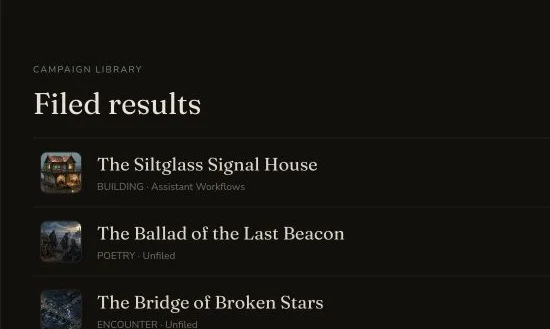
The Assets desk lists filed Building, Poetry and Encounter results.
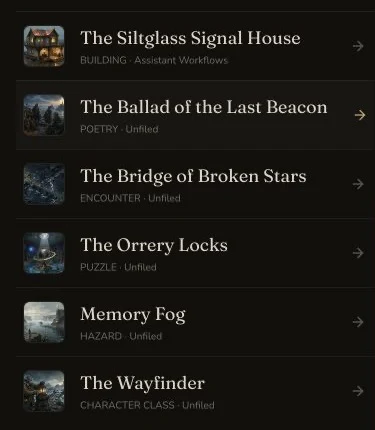
The compact Assets desk shows the same filed result labels.
2. Open a Workspace filing
A Workspace filing records where an existing campaign entity is organised. The retained Building was filed in the private Assistant Workflows collection and linked back to its campaign entity. Open the filing, then open the linked target to verify that both records describe the same item.
3. Review linked media separately
An image appears as linked media only after it has a campaign association. Native generator art can exist before that association. The retained Building reused one accepted existing image, attached it once and retained private read-backs for the image and both associations.
Keep source ownership clear
4. Edit the source record in its own workflow
Use Assets to locate a filing or linked image. Use the source generator, Workspace collection or campaign entity workflow for edits. This prevents an Assets count from being mistaken for a second editable copy.
5. Check privacy after any link change
Review the generation, campaign entity, image, Workspace filing and campaign association separately. A private card in one view does not prove that every underlying record is private. Refresh each authoritative view before you publish or share anything.
Checkpoint
Check your result
- Assets shows prep bundles and filed results as views of existing campaign records.
- The Workspace filing opens the expected private record and its campaign target.
- Linked media resolves to the accepted private image and the correct campaign entity.
- No duplicate record, image generation or full campaign export is created while reviewing Assets.
If something looks wrong
Troubleshooting
- Symptom
- A generated image does not appear under Images.
- Likely cause
- The image can belong to the generator result without a campaign entity-image association.
- Next safe action
- Open the campaign entity, attach the accepted existing image once and verify the campaign association.
- Symptom
- A filed entity appears under the wrong Workspace collection.
- Likely cause
- The filing points to a different collection even though the campaign link is correct.
- Next safe action
- Open the source Workspace filing, move it through the normal filing workflow and verify the target again.