
Navigate Notes, Folders and Studio Desks
Move between the notes library, folder tree and workbench desks on desktop and mobile.
The Campaign Studio navigator combines a note library with eleven campaign desks. Open Campaign Studio, select an owned campaign and use the navigator to decide whether you need a document or a campaign-wide view.
1. Start with the note library
Use All materials to review the complete document list. Open an existing note, or select a folder before you create a new note. Unfiled contains documents that are not currently filed in a visible folder.
2. Create and expand folders
Create a folder only when it gives the campaign a useful boundary. Expand a folder to see its notes. A nested folder follows the existing campaign collection model. Moving a note changes its filing, not the note's identity.
3. Use the eight campaign record desks
The first group contains Studio Home, Sessions, World, Timeline, Relationships, Campaign Map, Open records and Find in campaign. Each desk is a view over existing campaign material. It is not a separate store.
4. Use the three making desks
The second group contains Quests & threads, Session Prep and Assets. Use these desks when the task moves from reading records to tracking work, preparing a session or reviewing linked media.
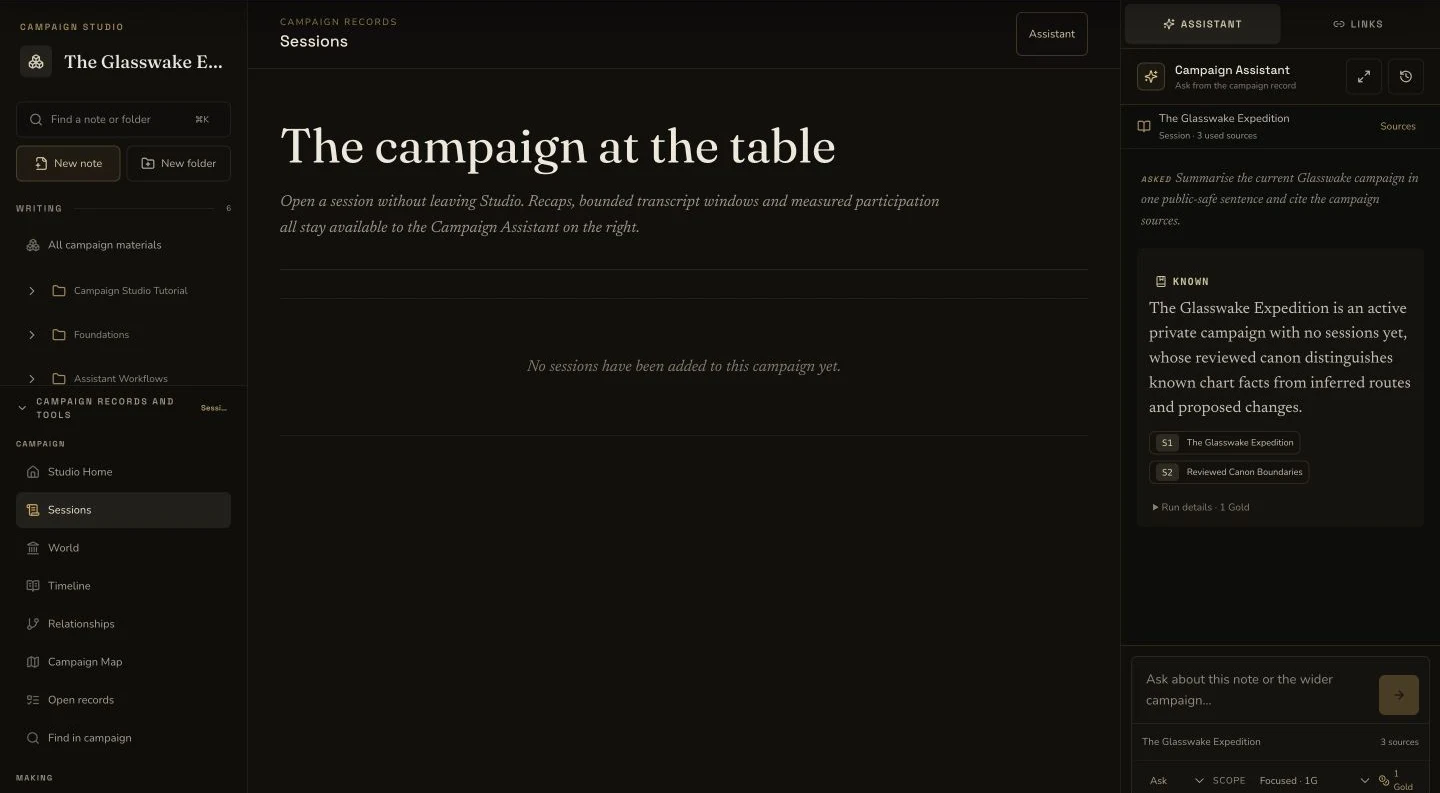
The desktop navigator keeps the note folders and campaign desks beside the selected Sessions view.
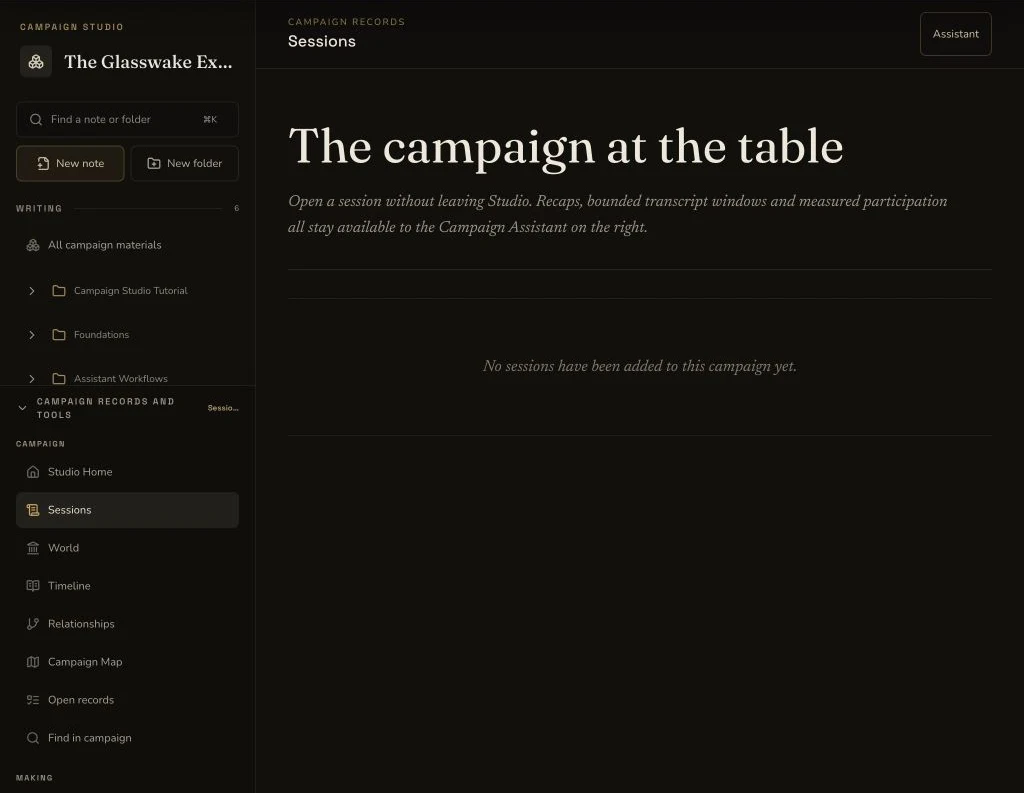
At tablet width, the main desk and materials navigator remain visible while the right rail collapses.
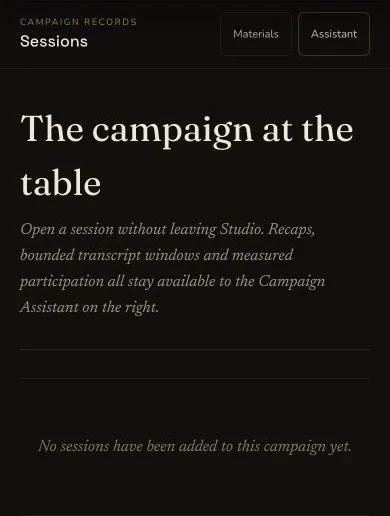
The mobile desk keeps the selected Sessions state after the navigator closes.
5. Search the navigator locally
Use the navigator filter to narrow visible folder and note titles. Use Find in campaign when you need the campaign search surface instead. The two searches have different scopes.
6. Review narrow layouts deliberately
On mobile, open the navigator when you need to change notes, folders or desks, then return to the main work area. Check the current selection after the panel closes. Do not assume a hidden desktop rail remains active.
Checkpoint
Check your result
- All materials, folders and Unfiled each show the expected part of the note library.
- The navigator presents eight campaign record desks and three campaign-making desks.
- Moving a note changes its filing without creating a second note.
- Desktop and mobile navigation finish on the same intended note or desk.
If something looks wrong
Troubleshooting
- Symptom
- A note appears to be missing.
- Likely cause
- The current folder or navigator filter may exclude it.
- Next safe action
- Clear the filter, open All materials and check Unfiled.
- Symptom
- Find in campaign and the navigator filter return different results.
- Likely cause
- The navigator filters visible note and folder titles, while Find uses the campaign search surface.
- Next safe action
- Choose the search that matches the scope you need.
- Symptom
- The mobile page shows a different work area after navigation.
- Likely cause
- The selected desk changed while the navigator was open.
- Next safe action
- Reopen the navigator and confirm the selected note or desk label.