
Open Studio and Preserve Workspace Links
Enter Campaign Studio through its stable route and understand supported Workspace redirects.
Campaign Studio has several entry points because each one serves a different access state. Start at Campaign Studio when you want a stable link that works before and after sign-in.
1. Use the public tour for orientation
Open the Campaign Studio tour when you need a public explanation of the feature. Do not treat the tour as proof that an account can open a specific campaign.
2. Continue through the authenticated shelf
Open /studio, sign in and select an owned campaign. The shelf is the stable
entry point for readers because it contains no private campaign identifier in
the link.
3. Confirm the owner gate
The workbench requires the Campaign Studio feature and owner entitlement. The gate can fall back when the feature is disabled, the user is not entitled, the request fails, the device is offline or the access check times out. A loading or error state is not evidence of access.
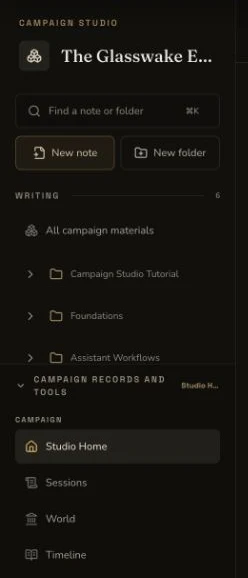
The desktop owner workbench exposes the materials navigator only after access succeeds.
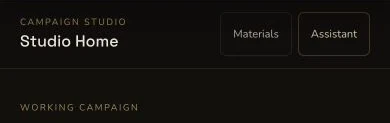
On mobile, Materials opens the same owner navigator from the compact Studio Home header.
4. Let an eligible Workspace link open Studio
When the feature and owner checks pass, the compatibility gate redirects the
legacy Workspace link to Studio. It sets view=library and preserves the
supported ws and item query values. This lets an old folder or item link
reach the corresponding Studio library context instead of dropping the
selection.
5. Keep the legacy Workspace fallback separate
If the feature is paused, disabled, unavailable or not allowed, or if its check fails or times out, the route remains in legacy Workspace. Confirm whether the final page is Studio or Workspace before you edit. The two surfaces share campaign data, but their layout and available actions differ.
Checkpoint
Check your result
- The public tour explains the feature without claiming access to an owned campaign.
/studioopens the authenticated shelf and remains the public tutorial link.- The owner workbench appears only after the feature and owner checks pass. If the access check fails or is unavailable, the route remains in legacy Workspace.
- An eligible legacy Workspace link redirects to Studio with
view=libraryand its supportedwsoritemquery context intact.
If something looks wrong
Troubleshooting
- Symptom
- The public tour opens instead of campaign notes.
- Likely cause
- The tour and authenticated shelf are different routes.
- Next safe action
- Open Campaign Studio from /studio, sign in and select an owned campaign.
- Symptom
- Studio returns to Workspace.
- Likely cause
- The feature or owner access check did not produce an allowed state.
- Next safe action
- Continue in legacy Workspace. Do not describe this fallback as a redirect from Studio.
- Symptom
- A shared tutorial link exposes a long campaign-specific route.
- Likely cause
- An owner deep link was copied instead of the stable shelf route.
- Next safe action
- Replace it with /studio before publication.