
Read World, Map, Timeline, Relationships and Open Records
Read each campaign desk as a view over the same private campaign state.
Campaign Studio brings several campaign views into one workbench. Open Campaign Studio, choose a campaign that you own and use each desk to inspect the same maintained campaign records from a different angle.
Learn the full desk inventory
1. Read the navigation before opening a record
The complete desktop and compact navigation contains these eleven desks:
- Studio Home summarises recent campaign activity.
- Sessions lists session material.
- World presents tracked World Codex records.
- Timeline orders dated campaign events.
- Relationships presents maintained links between records.
- Campaign Map provides the map and map control panel.
- Open records lists continuity items that still need confirmation.
- Find in campaign searches maintained campaign material.
- Quests & threads opens the campaign tracker.
- Session Prep mounts the preparation workbench.
- Assets groups filed records, prep bundles and linked media.
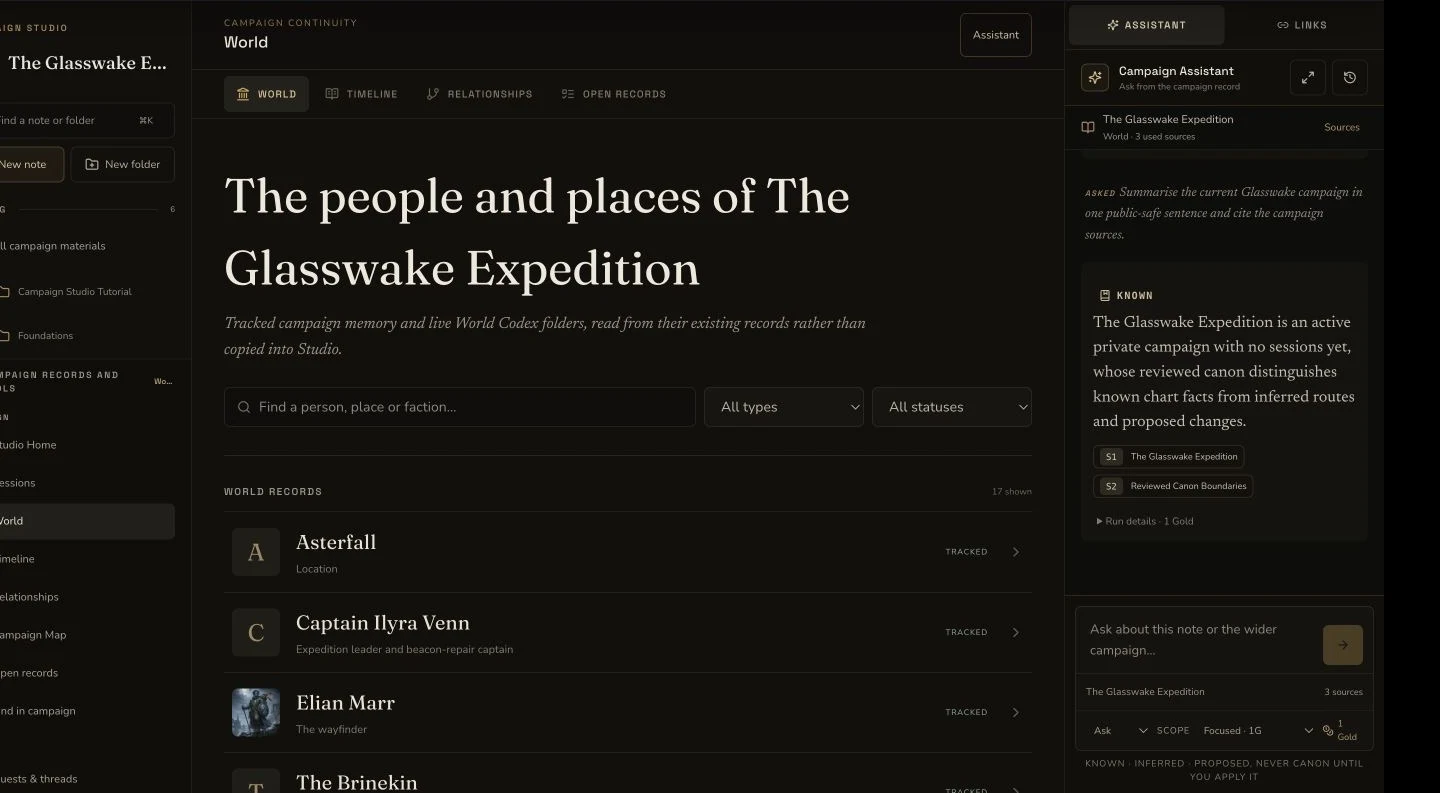
World is a view of retained campaign records. It does not create a separate copy of the campaign.
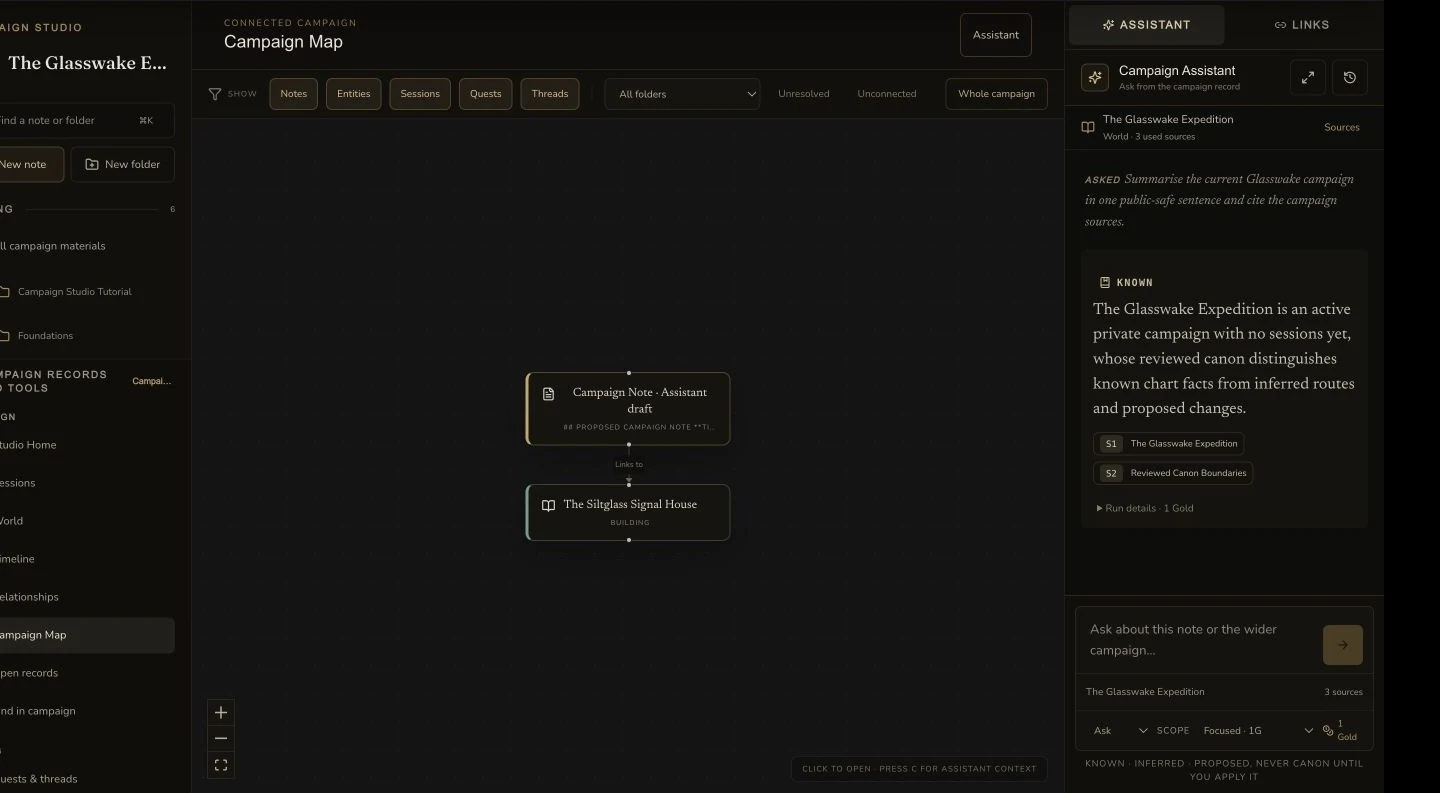
Map presents linked campaign nodes and relationship lines as another view of the same retained records.
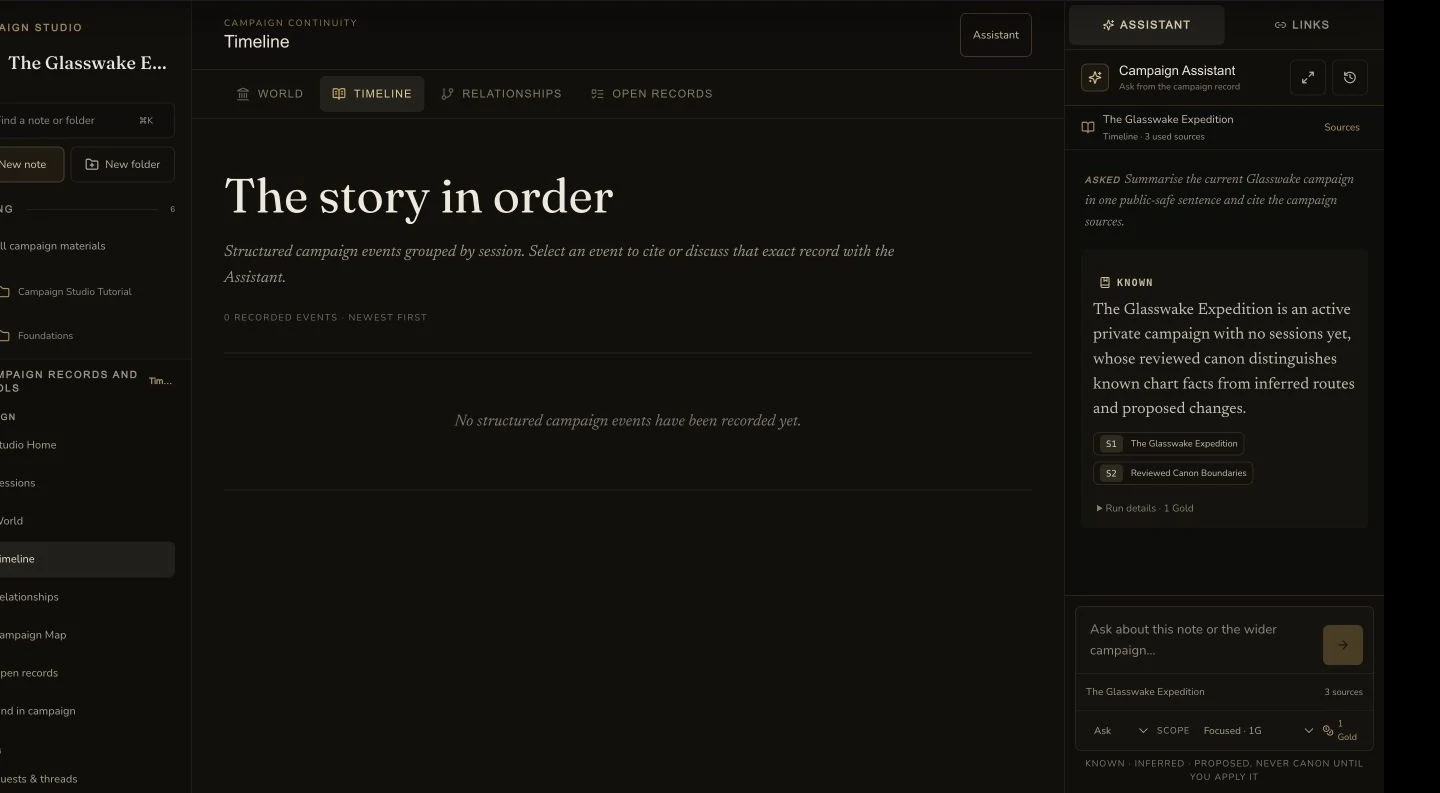
The retained Timeline view reports No events. This is a valid read-only result for this campaign.
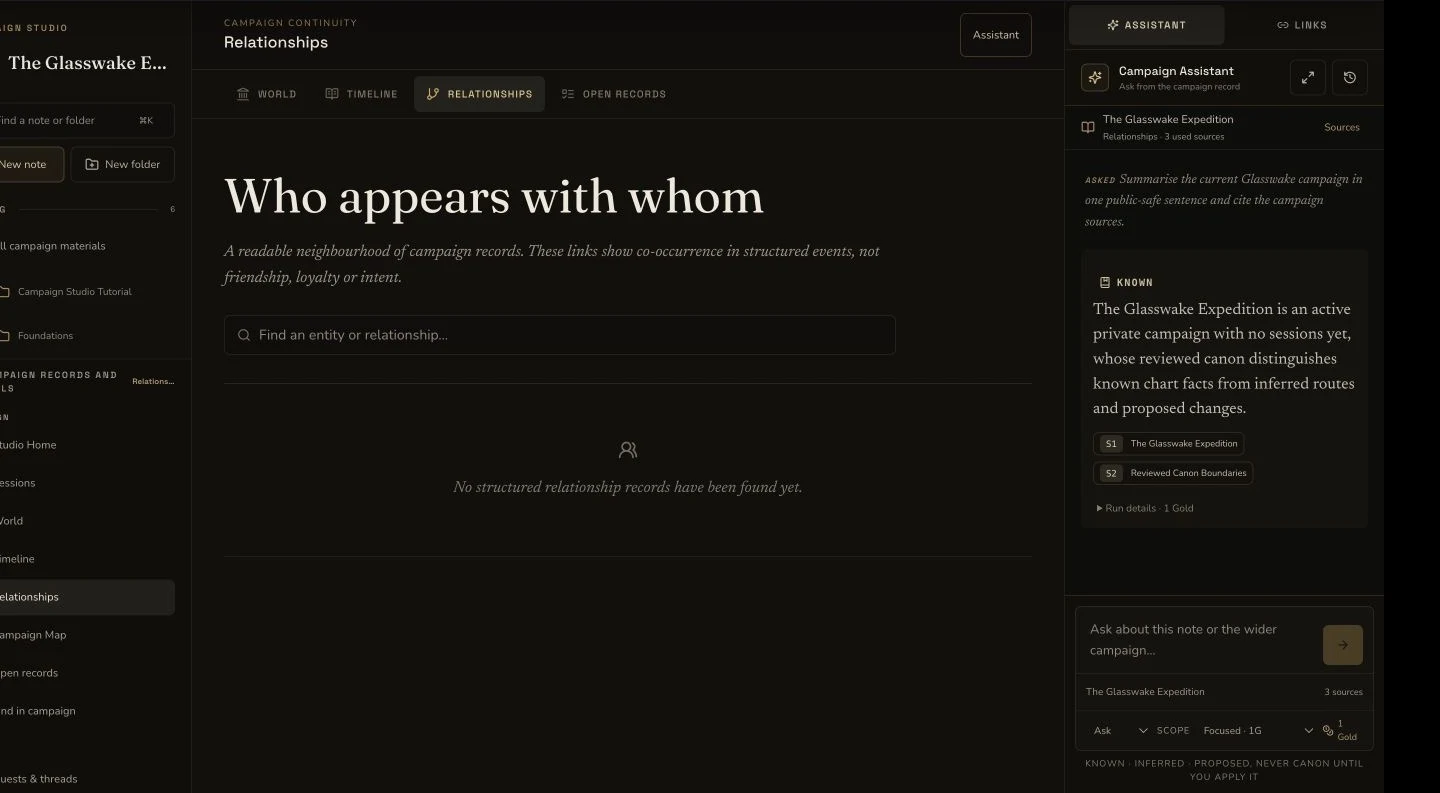
The retained Relationships view reports No relationships. It does not imply that the World records are missing.
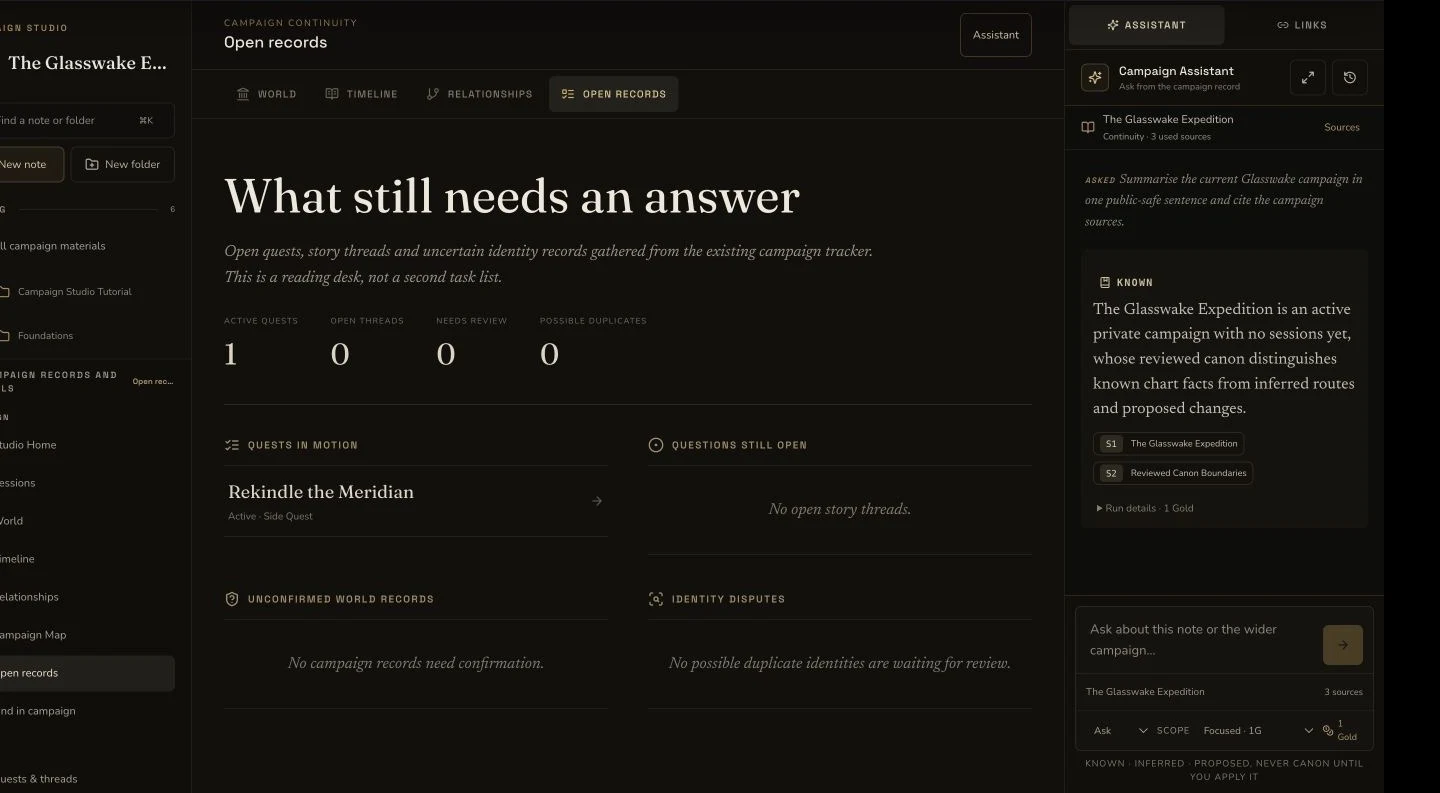
Open Records lists retained private records and their type labels on desktop.
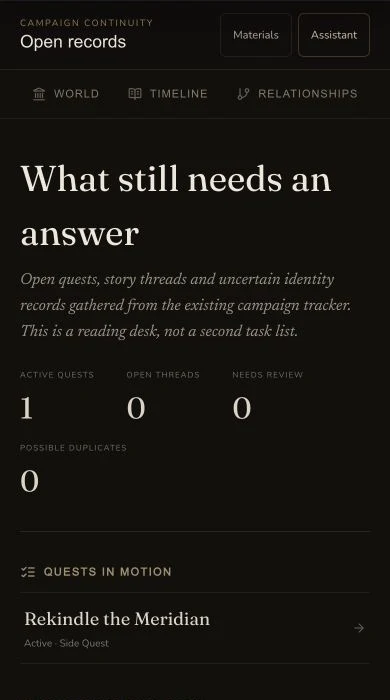
The mobile view shows the Rekindle the Meridian row and its Active · Side Quest type label.
Read connected campaign views
2. Start with World and Relationships
Use World to inspect tracked people, places, buildings and other campaign records. Then open Relationships to check whether maintained links exist. The retained view reports No relationships. It does not erase the World records.
3. Use Timeline only for dated events
The retained Timeline view reports No events. A note can exist in the campaign without appearing on the timeline. Add or correct its date in the source workflow if chronological placement matters.
4. Check continuity in Open records
Open records is the mounted continuity view. It helps you find campaign items that still need confirmation. Treat the empty state as a real result. Do not invent a confirmation simply to populate the desk.
Use Map context without changing the campaign
5. Open the Campaign Map control panel
Open Campaign Map, then open its Control Panel. The retained read-only check showed the keyboard guidance Press C for Assistant context. Pressing C opened World context and showed three used sources. This changes the Assistant context view. It does not create a map record or change canon.
Checkpoint
Check your result
- The navigator presents all eleven campaign desks on desktop and compact layouts.
- World shows retained records, while Timeline and Relationships report their empty states.
- Campaign Map opens World Assistant context with C and keeps the used sources visible.
- Open records reports continuity work without creating or confirming a record.
If something looks wrong
Troubleshooting
- Symptom
- A desk is empty even though the campaign has notes.
- Likely cause
- The desk reads a specific record type, date or maintained link. A general note may not qualify for that view.
- Next safe action
- Open the source record, check its type and required fields, then return to the desk.
- Symptom
- The C shortcut does not open Map context.
- Likely cause
- Keyboard focus may still be in an editor or form control.
- Next safe action
- Move focus to the Map workbench, open the Control Panel and use the displayed keyboard guidance.