
Review and Apply Campaign Changes
Compare current and proposed values, then apply only against the reviewed version.
Propose mode can return a typed change artifact for a campaign note or record. Open Campaign Studio, select an owned campaign and open the artifact review rather than treating the Assistant message as an applied change.
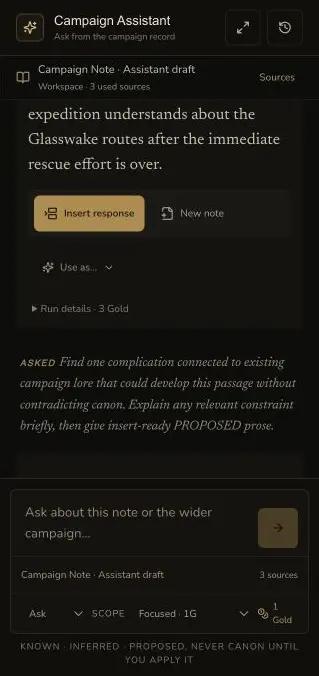
The Assistant response remains proposed at this upstream review boundary. A typed campaign artifact has its own versioned review.
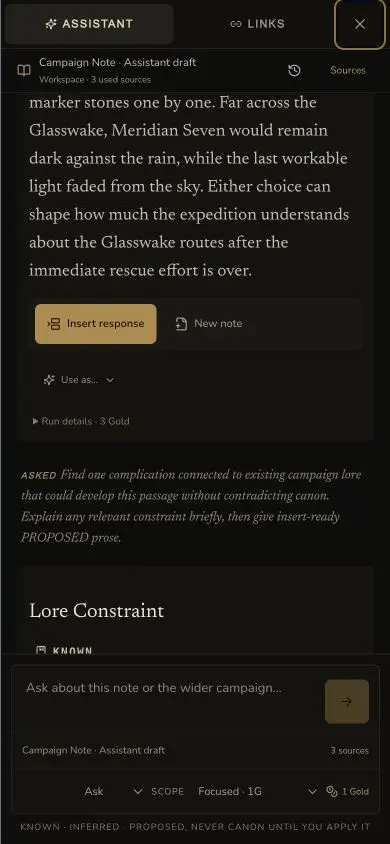
The compact response controls do not bypass the separate artifact comparison and Apply fence.
Review the artifact as a separate record
1. Confirm the destination
Read the artifact type and target. A new campaign note, a note revision, a World Codex change, a quest, a thread and a Session Prep brief use different destinations. Stop if the artifact points to the wrong target.
2. Compare before and proposed values
Use the review comparison to read the before value beside the proposed
value. Check the full field or note body, not only the changed phrase. Open the
used campaign sources and verify any KNOWN, INFERRED, PROPOSED or
DISPUTED claims.
3. Save review edits before Apply
If you edit the proposal in the review, wait for Review draft saved. A recovered browser draft must be compared with the persisted artifact before you continue. Apply uses the saved review state, not an unconfirmed local edit.
Respect the version fence
4. Compare the base version with the current target version
The artifact records the base version it reviewed. Campaign Studio compares that base version with the current target version before Apply. If they match, choose Apply reviewed change and then read back the updated private target.
5. Stop when the target changed
The stale review shows: The target changed after this proposal was prepared. It also explains that applying remains blocked until the latest version is accepted as the new comparison. The Apply control stays disabled.
6. Treat the stale state as a pre-dispatch block
The retained stale check was blocked before dispatch. It sent no Apply request, created no backend Apply event and spent no Gold. Do not describe this as a failed server mutation. The target remained unchanged.
7. Use the latest version only after a new review
Use latest version for this review accepts the current target as the new comparison point. It does not approve the proposed change. Read the new before state, resolve conflicts and review the proposal again before Apply. The retained stale demonstration did not use this control.
Checkpoint
Check your result
- The artifact type, destination, sources and complete before/proposed comparison are correct.
- Any review edit reaches Review draft saved before a terminal action starts.
- Apply reviewed change runs only when the base version matches the current target version.
- A stale target keeps Apply disabled and produces no request, backend event, target mutation or Gold charge.
If something looks wrong
Troubleshooting
- Symptom
- Apply reviewed change is disabled.
- Likely cause
- The target changed, sources are unavailable or the review draft is not saved.
- Next safe action
- Read the mounted warning, restore the source and save state, then review the current target before you continue.
- Symptom
- The before value differs from the note you expected.
- Likely cause
- The artifact targets another record or was prepared from an older base version.
- Next safe action
- Do not apply it. Return to the target, confirm its current version and reopen the correct review.
- Symptom
- The artifact says Applied but the target looks unchanged.
- Likely cause
- The review state and the durable target read-back may be out of sync.
- Next safe action
- Refresh the private target and verify the applied content. Do not repeat Apply until you confirm the recorded state.