
Save, Checkpoint and Recover Campaign Notes
Edit notes, confirm autosave, create a checkpoint and recover a prior revision.
Campaign Studio keeps the latest edit and the checkpoint history as two different persistence paths. Open Campaign Studio, select an owned campaign and use an existing note for this procedure.
1. Open an existing note and inspect its state
Confirm the note title, current body and saved indicator. The editor can show Saved, Unsaved changes, Saving or Save failed. Treat these labels as state, not decoration.
2. Make one bounded edit
Change a small public-safe sentence. Keep the note open while the existing-note autosave delay runs. The current implementation waits about 1.8 seconds before it sends a quiet update.
3. Verify autosave after refresh
Wait for Saved, refresh the note and confirm the same body. This proves the latest edit persisted. Autosave does not create an item in Saved checkpoints.
4. Choose Save for a checkpoint
Make the next bounded edit and choose Save. Wait for the saved state, then open note checkpoint history. The retained Glasswake example changed the count from zero checkpoints to one and read back the same body after refresh.
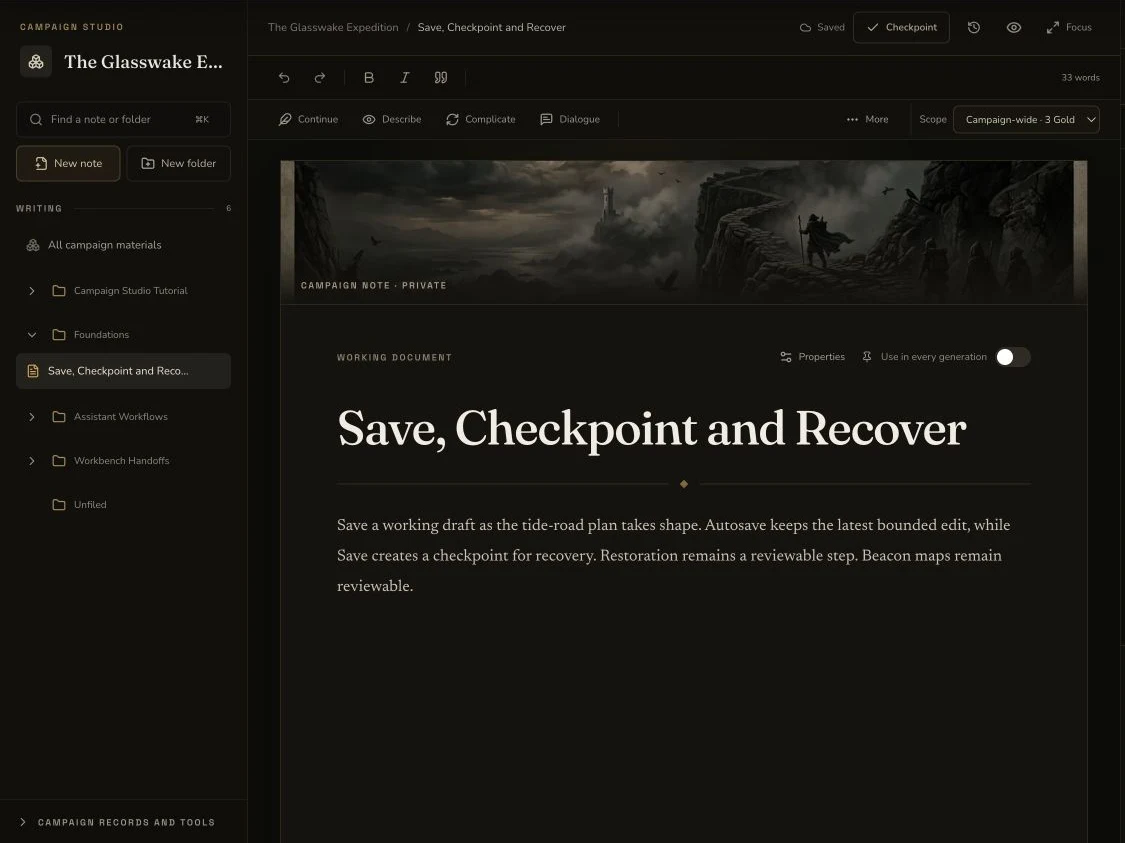
The desktop note shows the persisted state, Checkpoint action and checkpoint-history control as separate elements.
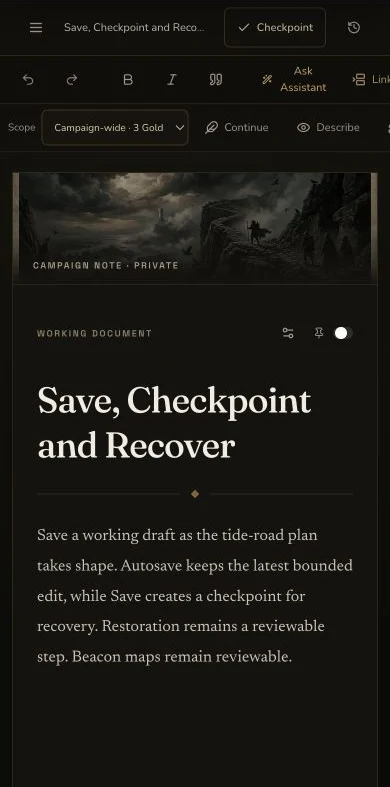
The compact editor keeps the checkpoint controls and the note's autosave guidance available.
5. Review before you restore
Open Saved checkpoints and inspect the date, excerpt, word count and note kind. Choose Restore only when that snapshot is the intended recovery point. A restore is a deliberate write, not a preview.
6. Recover a local unsent draft carefully
Campaign Studio also keeps a browser-session draft against the note's current update time. If the session offers a matching local draft after an interruption, compare it with the persisted note before you continue. A stale local draft is not automatically newer canon.
Checkpoint
Check your result
- The editor reaches Saved after the bounded edit and the same body returns after refresh.
- Autosave persists the latest existing-note state without adding a saved checkpoint.
- Save adds one reviewable checkpoint with the expected excerpt and body state.
- Restore remains a deliberate action, and no procedure depends on a draft-cancel control.
If something looks wrong
Troubleshooting
- Symptom
- The editor stays on Unsaved changes or Save failed.
- Likely cause
- The update did not reach a confirmed persisted state.
- Next safe action
- Keep the note open, check the connection and use Save only when you can verify the result after refresh.
- Symptom
- Checkpoint history is empty after autosave.
- Likely cause
- Autosave does not create checkpoints.
- Next safe action
- Choose Save to create an explicit recovery point.
- Symptom
- A recovered browser draft conflicts with the refreshed note.
- Likely cause
- Local recovery and server persistence have different version boundaries.
- Next safe action
- Compare both versions and keep the intended text before any new save.