
Create a Consistent Party Portrait
Build a roster and generate one group scene.
Build a private party at Party Portrait, give each member a clear owned reference, then generate and review one group scene. This lesson uses three fictional tutorial characters: Branna the dwarf paladin, Pip the halfling wizard and Tala the goliath barbarian.
Before you begin
Have a signed-in CharGen account, enough Gold for the model you intend to use, and one permitted reference for each member. Prepare a short description and an approximate height for every character. Decide whether the party may be public before creation. The reviewed party stayed private.
The creation form accepts a Gallery reference or a reference URL for a member. It does not provide a file-upload control. If you use an external URL, confirm that you control the image and that it can be loaded without exposing a private signed link.
Create the party privately
1. Name the party and leave Public off
Enter a clear party name and a short description, then leave Public off. Private is the safer starting point because visibility is chosen during creation. The reviewed interface has no post-create visibility toggle, so do not create a public party as a temporary test.
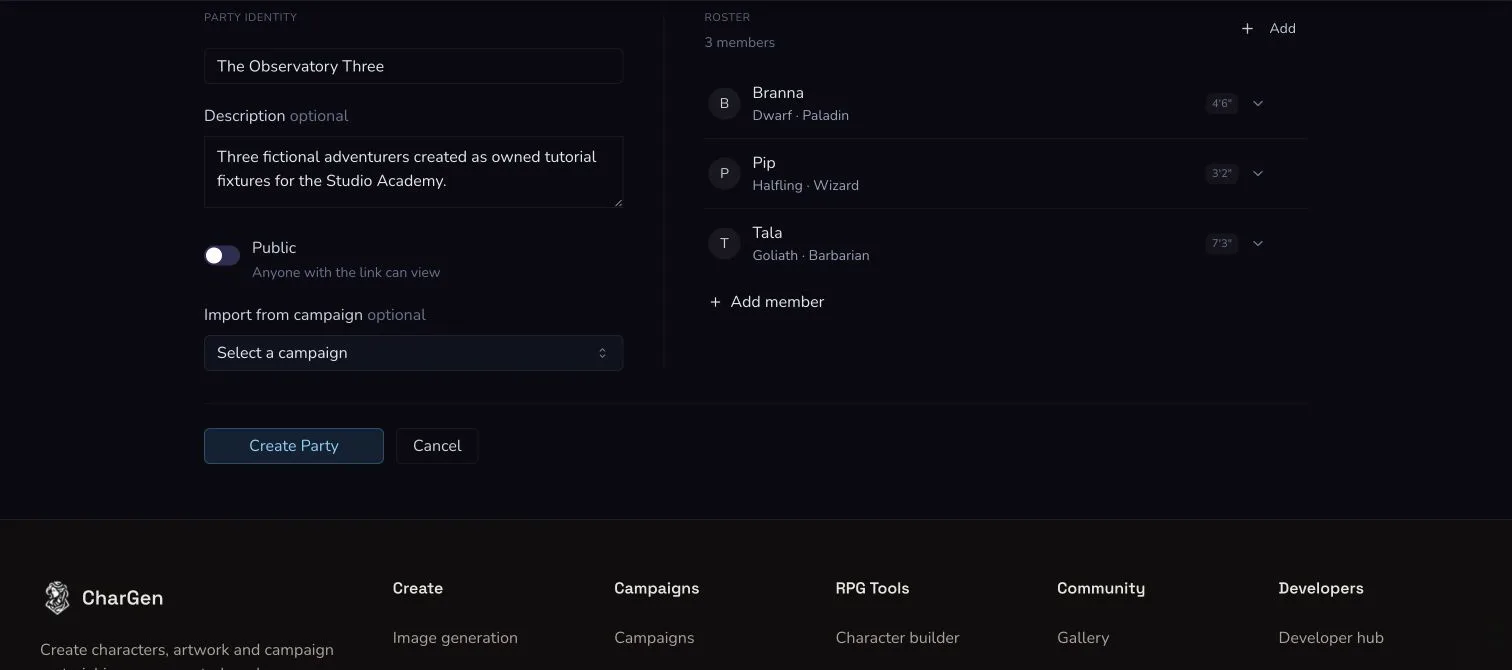
The worked party is private. Visibility, member records and references are reviewed before Create Party is selected.
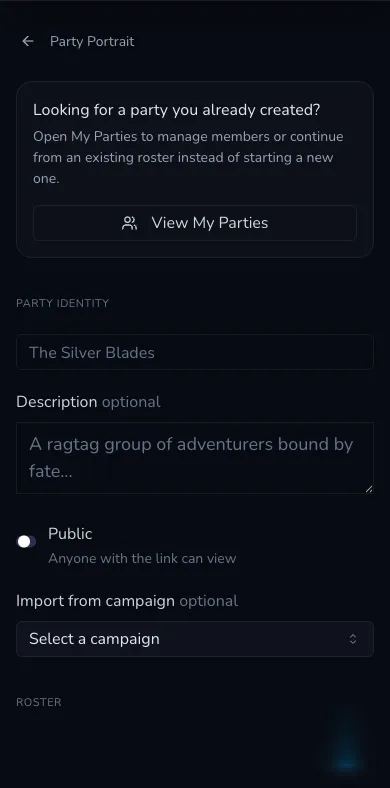
On a narrow screen, check the Public control before moving down to the roster. It defaults to private in the reviewed form.
Build a roster you can verify
2. Import once or enter the members manually
Import from campaign copies the campaign's current player details into the creation form as a one-time prefill. It replaces the form roster at that point. It is not a live preview of later campaign edits, so review and correct every imported record before creating the party. For full control, add the members manually instead.
3. Give every member distinct guidance
Record each member's name first. Add race, class, approximate height and a short appearance description where they help distinguish the character. Attach the matching owned reference through Gallery or a permitted URL.
The worked roster used Branna, a 4 foot 6 dwarf paladin with copper braids and brass-and-blue armour; Pip, a 3 foot 2 halfling wizard in a plum coat; and Tala, a 7 foot 3 goliath barbarian with pale geometric tattoos and dark green armour. These measurements tell the model the intended relative direction. They do not force exact scale.
Before selecting Create Party, check that every name, description and reference belongs to the same character. A polished reference in the wrong member record is more damaging than a short description.
Direct one group scene
4. Select the members, scene and poster text
Open the created party and confirm all three members are selected in the generator. Choose one scene preset as a starting point, then edit the Scene Description so it names the setting, positions and the few member traits that matter. Add a title and subtitle only if you want text rendered into the artwork.
The worked scene placed the three characters on a moonlit observatory platform. Its poster text was The Observatory Three with Keepers of the Moon Dial beneath it. Keep the scene readable. Extra creatures, several actions and complicated staging give the model more opportunities to omit or duplicate someone.
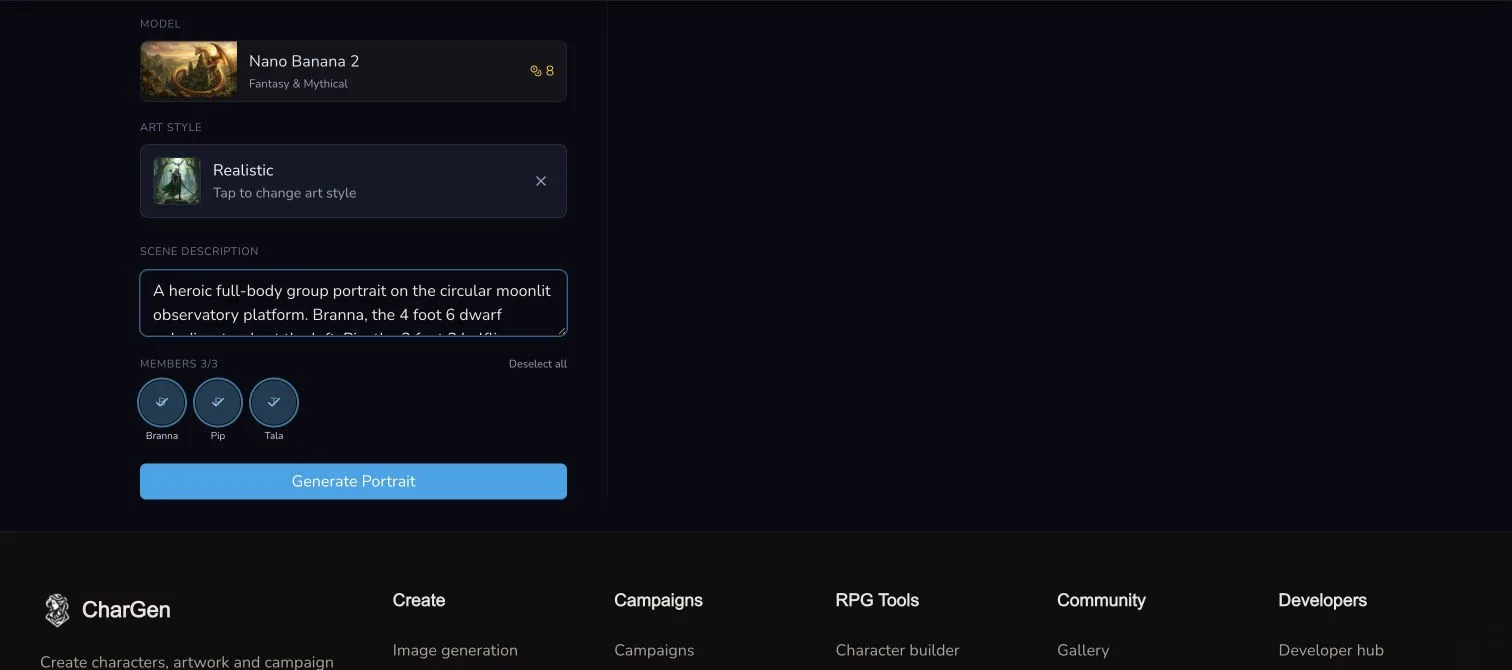
The preset starts the scene, but the editable description, poster text, style and selected member row define the submitted brief.
5. Choose a model and read the estimate carefully
Open the model picker and choose a model that supports the mounted Party Portrait workflow. Then choose an art-style preset and return to the model row to review its Gold estimate before submitting.
The retained production run selected Nano Banana 2. At capture time the picker displayed 8 Gold, but the request settled at 12 Gold because Party Portrait uses a fixed 2048 × 1152 pricing context. That historical display underquoted the request. The correction included with this lesson shows 12 Gold for the same Party context. Read the live quote before any future submission and report a display-versus-settlement mismatch rather than treating either historical amount as permanent pricing.
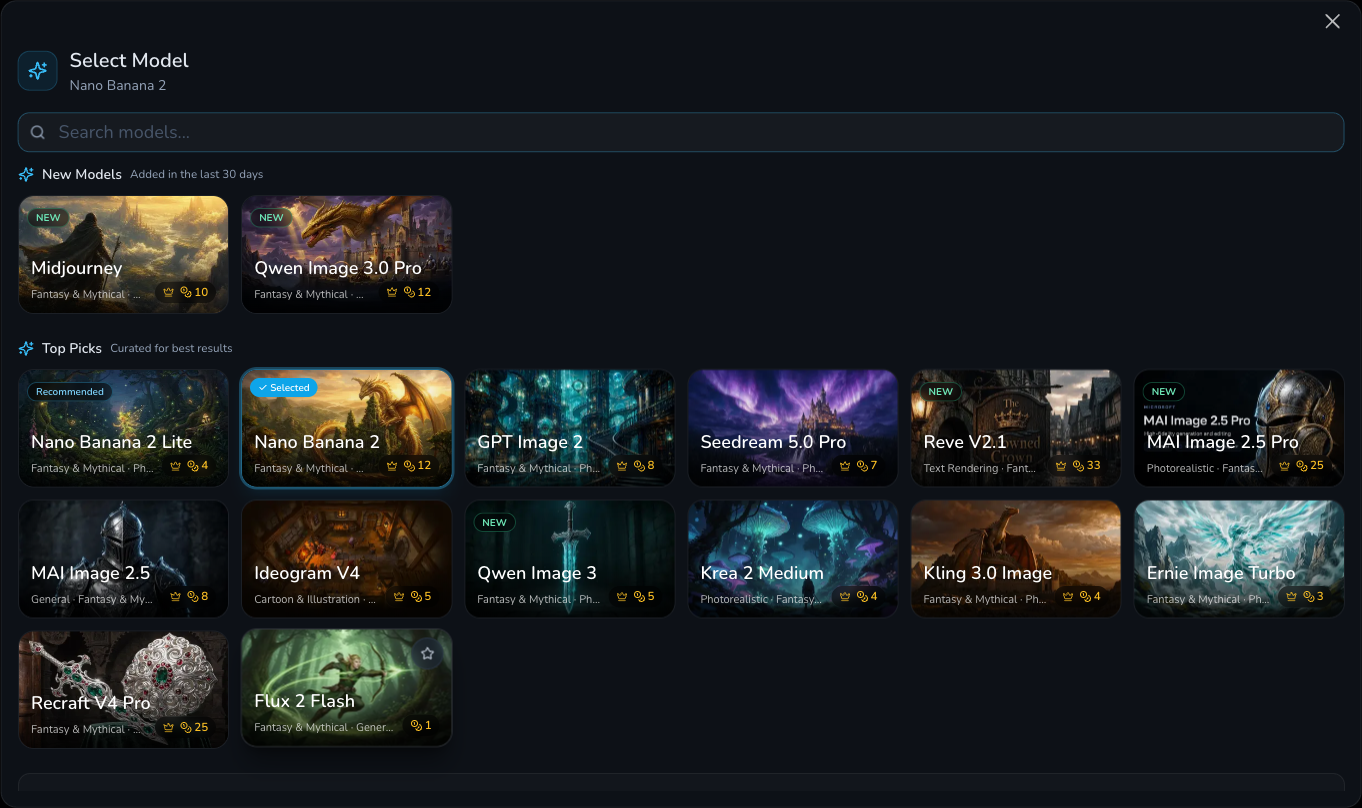
This 12-Gold picker is from the corrected review branch, not the deployed production interface observed for the paid run. The retained production evidence remains 8 Gold displayed and 12 Gold settled.
Submit once and keep the request in view
6. Generate once, then keep the party page open
Recheck the three selected members, scene, poster text, model, style and displayed estimate. Select Generate Portrait once. Keep the party page open while its local status checking continues. Party portraits can take several minutes, and leaving the page interrupts that local view of progress.
Do not press Generate again because the button stays on Starting or the result takes longer than expected. Check the existing party gallery and your Gold activity before considering any deliberate retry.
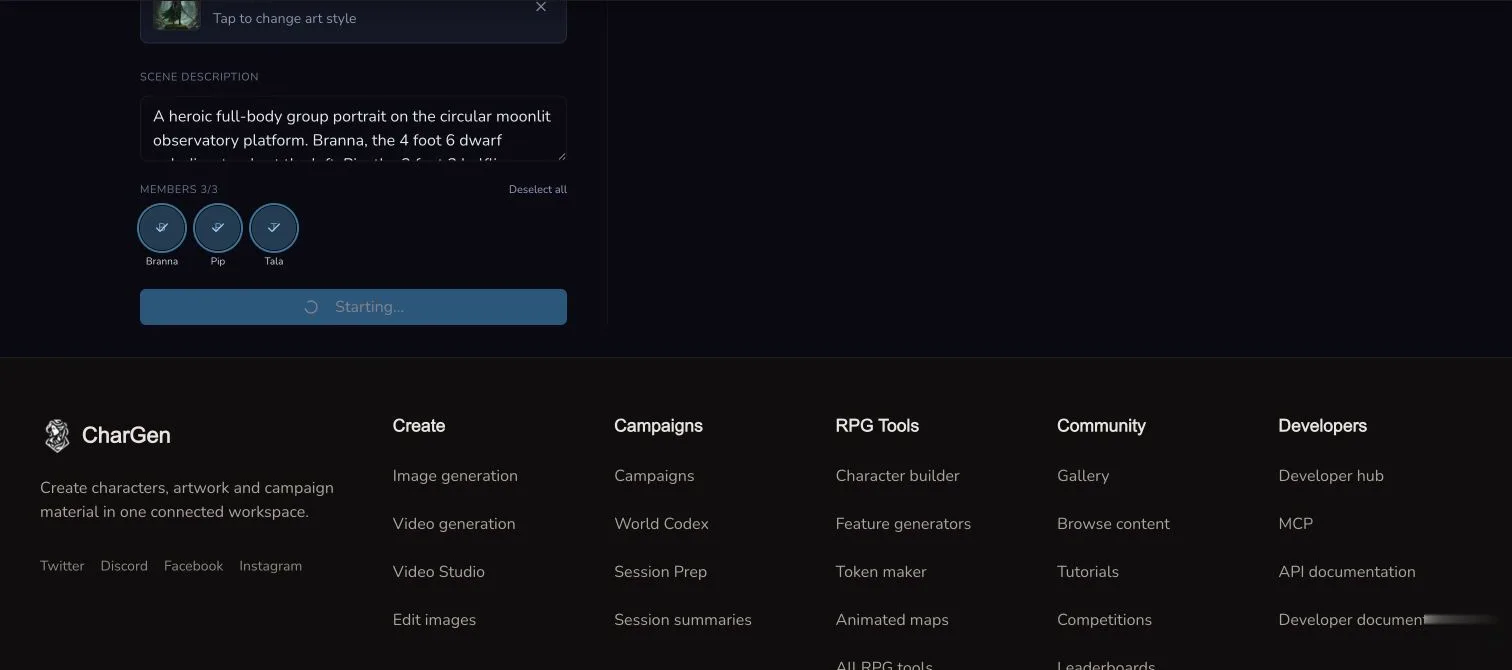
Starting belongs to the existing request. Keep the page open and do not create a duplicate submission while its state is unclear.
Review the party, not just the picture
7. Check identity, count, height direction and composition
Open the completed portrait in the party gallery. Count the figures before judging style. The retained result contains exactly Branna, Pip and Tala: Branna on the left in brass-and-blue armour, the shorter Pip in the centre wearing plum, and the much taller Tala on the right in dark green armour.
Compare each figure with its own reference and description. Look for a missing member, an extra or duplicated face, swapped clothing, merged anatomy and unwanted text. Then check relative height direction. Pip should read as shortest and Tala as tallest, but the measurements are not a ruler. Finally, inspect spacing, edge crops and whether the title covers a face.
Use Download to keep the accepted file. If you own the party, Set Cover can promote that portrait to the party cover; visitors can review and download public results but do not receive the owner-only cover action.
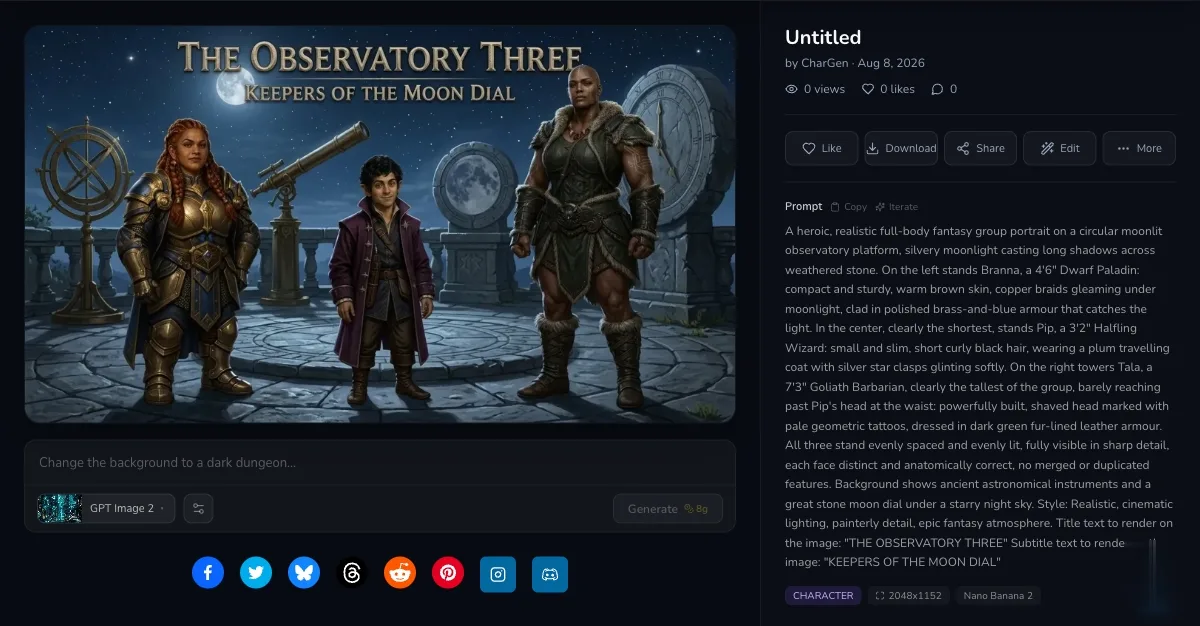
The retained result has three distinct members and the intended height direction. Recognition and composition still require a visual review.
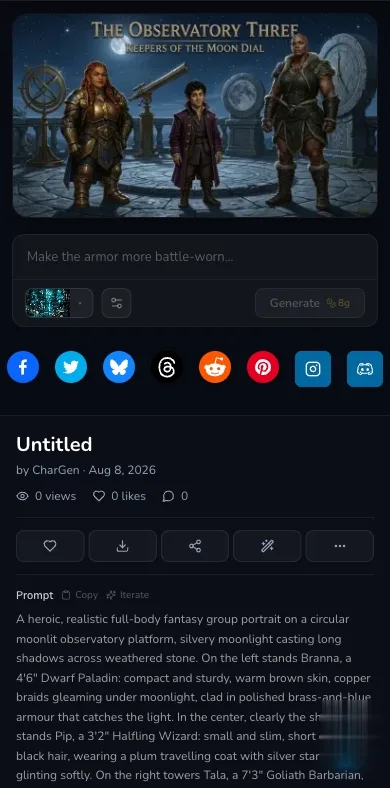
The mobile result keeps the artwork and Download action reachable. Use the prompt beneath it to compare the requested lineup with the image.
Checkpoint
Check your result
- The party remains private, and every member reference is owned, permitted and consented where a real likeness is involved.
- The completed portrait contains exactly Branna, Pip and Tala, with no missing, duplicated or merged member.
- Each member keeps recognisable visual cues, while Pip reads as shortest and Tala as tallest without treating entered heights as exact scale.
- The title, subtitle, spacing and scene remain usable, and the retained 8-Gold display versus 12-Gold settlement is recorded rather than presented as price parity.
Troubleshooting a party portrait
If something looks wrong
Troubleshooting
- Symptom
- Choosing a campaign removed the roster you had started manually.
- Likely cause
- Campaign import is a one-time prefill that replaces the current member rows in the creation form.
- Next safe action
- Import before manual editing, then review every copied field and restore any missing reference, height or description before creating the party.
- Symptom
- A member reference is missing or appears under the wrong name.
- Likely cause
- The Gallery choice or URL was not saved to the intended member record.
- Next safe action
- Open each member, match the reference to the name and description, and replace private or expiring URLs with a permitted stable source.
- Symptom
- The result duplicates a member, swaps identity cues or ignores height direction.
- Likely cause
- The model treated references and measurements as guidance within a scene that may be too crowded or ambiguous.
- Next safe action
- Keep the original result, simplify the scene, strengthen one distinguishing detail per member and make only one deliberate follow-up after checking the cost.
- Symptom
- Starting remains visible or the result does not appear quickly.
- Likely cause
- The original request may still be processing, while leaving the party page can stop its local progress view.
- Next safe action
- Keep the page open when possible. Check the existing party gallery and Gold activity before deciding whether the request failed. Do not submit a duplicate automatically.
- Symptom
- The displayed Gold estimate and the settled charge do not match.
- Likely cause
- A model estimate can be using different pricing context from the final Party Portrait request. The retained Nano Banana 2 evidence exposed an 8-Gold display versus a 12-Gold settlement before the Party-specific correction.
- Next safe action
- Record the live display and settled charge, stop before another paid run, and report the mismatch. Do not assume that a historical amount is the current price.