
Search and Export a Session Transcript
Search by text, narrow by speaker and verify the downloaded plain-text transcript.
The Transcript tab is a reading and retrieval surface for sessions created from transcript or audio sources. Open your Session Library, choose a completed private audio or transcript session, then use its /sessions/{sessionId} detail route to find a passage, narrow speakers and retain a plain-text copy.
Find a passage
1. Open Transcript and search text
Select Transcript on the retained Crossing the Mire session. Enter a distinctive word or phrase in Search transcript…. Search checks the transcript text and reduces the visible utterances without modifying them.
2. Combine search with speaker filters
Select one or more speaker chips. Speaker filters are combined with the text
query using AND logic: an utterance must match the search and one selected
speaker. The retained review searched for compass, selected Mirren
Quill and found nine matching utterances in one result group.
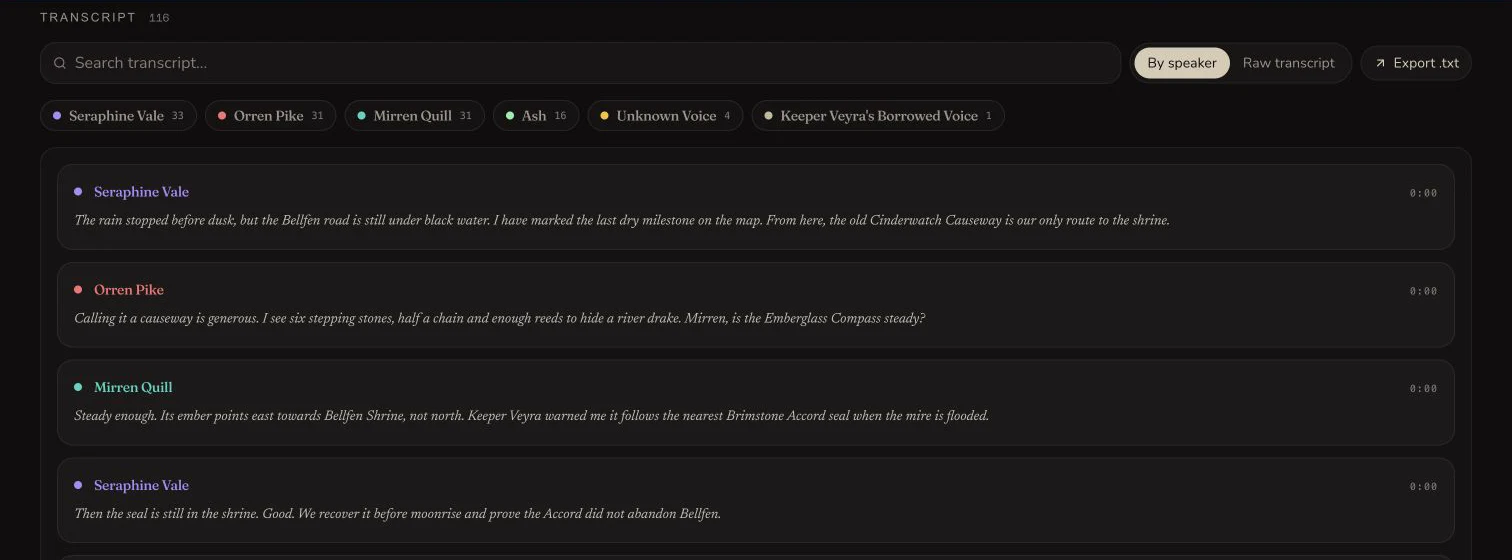
Text search and speaker selection narrow the same read-only transcript.
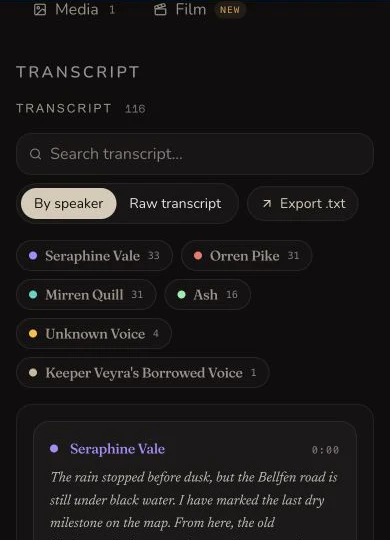
The narrow view keeps the core search, filter, view and export controls together.
Change the reading view
3. Compare By speaker and Raw transcript
By speaker groups utterances under attributed names. Raw transcript keeps the source order. Use Raw when sequence matters, then return to By speaker to compare one participant's contributions. Both views show the same 116 retained entries.
4. Read timestamps as labels
Each utterance includes its transcript timestamp. These labels help orient you in the session, but clicking one does not seek the source audio in the current interface.
Export and verify
5. Download the plain-text transcript
Choose Export .txt. The retained download is
crossing-the-mire-transcript.txt. It contains 116 entries and 233 lines,
including the title, timestamped speaker labels and transcript text.
6. Open the file instead of trusting the download
Open the downloaded .txt in a text editor. The retained artifact is 9,907
bytes with SHA-256
e574406c99788447f3e65ebe05f39ad097e93d7c05a4db173937fe0848130385. Its
first timestamped line begins with Seraphine Vale and its final entry is
attributed to Ash.
Checkpoint
Check your result
- Text search returns only utterances containing the query.
- Speaker selections combine with the query using AND logic.
- By speaker and Raw transcript retain the same source-order entry set.
- The downloaded
.txtopens locally and matches the retained filename, entry count and checksum.
Troubleshooting
If something looks wrong
Troubleshooting
- Symptom
- Search returns no utterances.
- Likely cause
- The phrase may differ from the transcript, or a selected speaker may exclude the matching line.
- Next safe action
- Clear speaker filters, search for a shorter distinctive term, then add speakers back one at a time.
- Symptom
- The transcript tab is absent.
- Likely cause
- A written-summary Session Note does not produce audio, transcript or speaker features.
- Next safe action
- Confirm the session source type. Use an audio or transcript result for this workflow.
- Symptom
- The downloaded file looks incomplete.
- Likely cause
- A filtered screen can look narrower than the complete export, or the wrong file may have been opened.
- Next safe action
- Open the newly downloaded .txt and compare its filename, first and last entries, and entry count with the Session Note.
Limitations
- Transcript text cannot be edited in the current Session Notes interface.
- Speaker names cannot be remapped from this view.
- Timestamps are labels, not click-to-seek audio controls.
- Transcript export is
.txtonly. The current UI does not offer PDF or JSON transcript export.