
Build Campaign Documents
Create, upload and review campaign papers as deliberate context sources.
Campaign Documents keep world primers, house rules and reference files beside a campaign without turning them into session attachments. Open the campaign's Documents tab as its owner, then choose whether to write a paper in CharGen or upload an existing file.
Check access before writing
1. Open Documents as the campaign owner
Open the campaign and select Documents. Writing requires the campaign owner and a paid plan. A reader who can view a campaign does not gain access to its private Documents or Workspace.
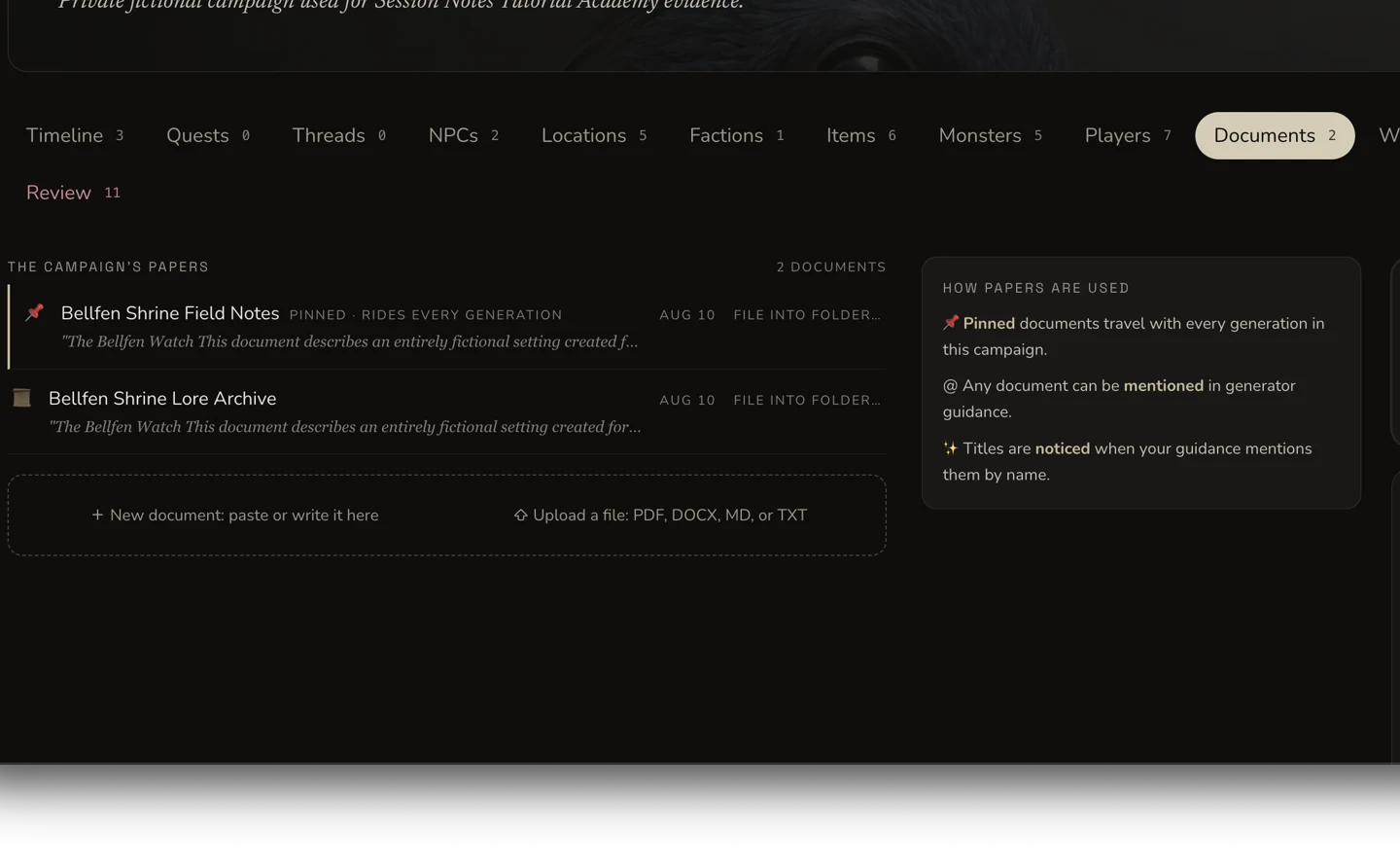
Written papers and uploaded files are separate campaign context sources.
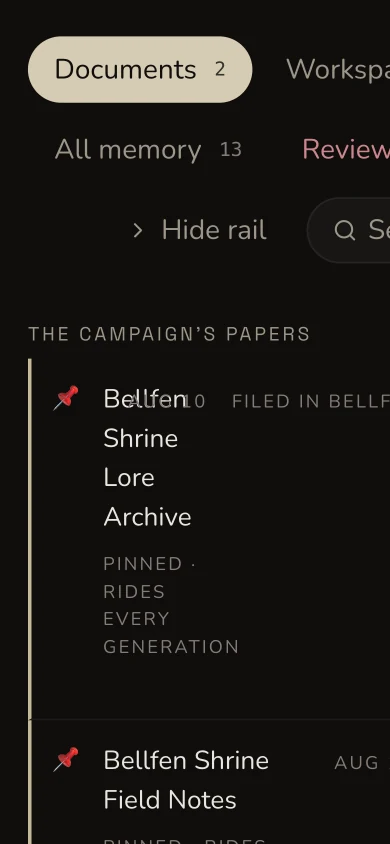
The current narrow view keeps both papers readable, but clips some row metadata horizontally. Use desktop for detailed document management.
Write or upload a paper
2. Create a written document
Choose New document: paste or write it here, enter a clear title and add the reference text. Save once, then reopen the paper to confirm the body persisted. A manual paper has no original file to download because the editor is its source.
3. Upload an allowed file
Choose Upload a file for a PDF, DOCX, Markdown or plain-text source. The retained tutorial example used an owned 2,604-byte Markdown file. Its upload row appeared before extraction was proved, so the journey waited for extraction to reach READY and reviewed the extracted text.
Do not treat an upload row as proof that the service read the file. If extraction fails, use the mounted retry control after checking that the source is supported and readable.
4. Edit and verify persistence
Edit the uploaded document body, save once and refresh the campaign. The tutorial edit remained after refresh. Renaming or editing the in-app text does not rewrite the retained original file.
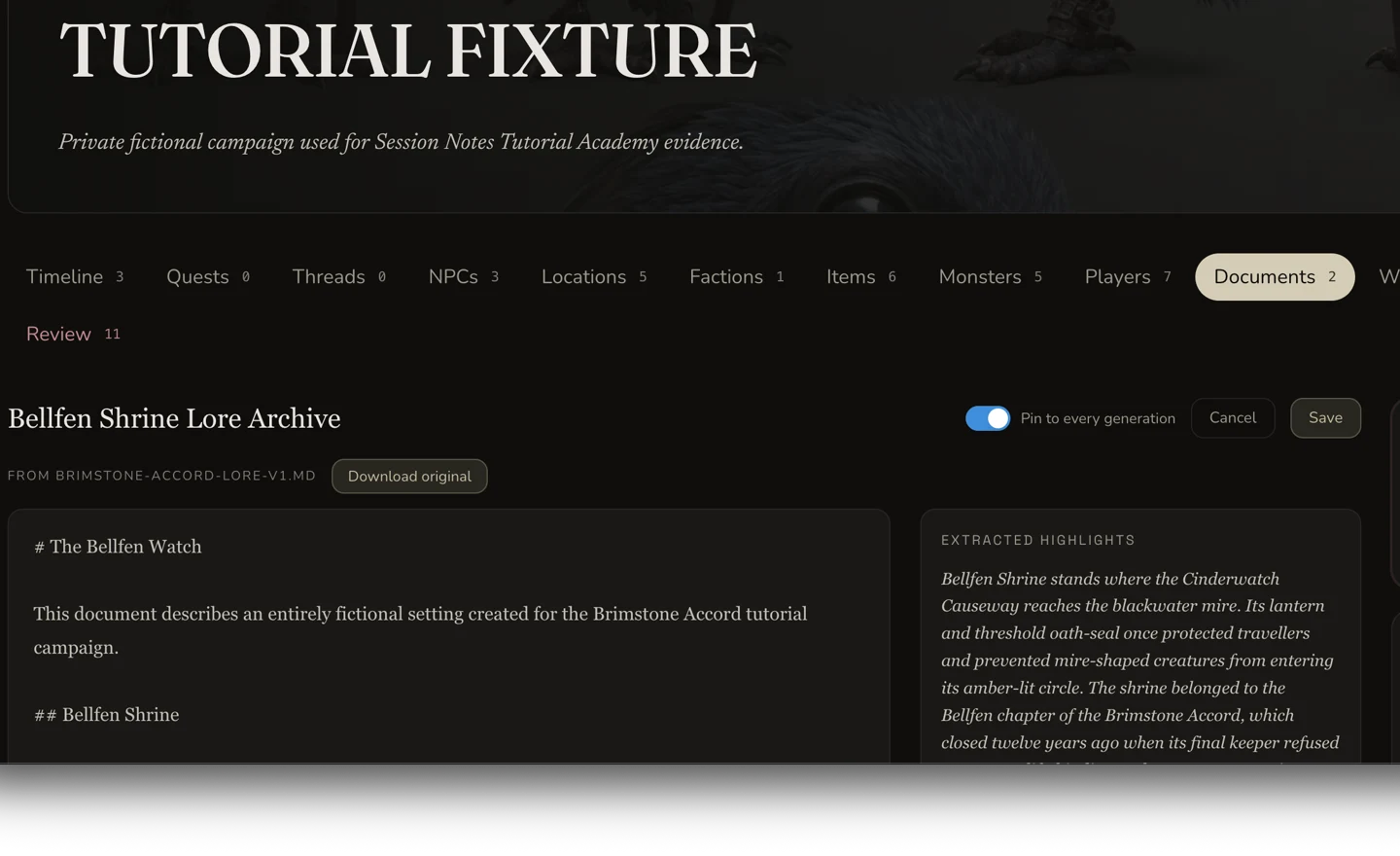
The editable paper and its downloadable original have different jobs.
Use the digest deliberately
5. Review the extracted highlights
The digest moves through its own processing states and can become READY, STALE or FAILED independently of file extraction. Read its summary and key facts against the source before using them as campaign context.
6. Track a proposed name only after review
When the digest proposes people or places, Track creates a campaign-memory entry. The fixture journey reviewed and tracked Blackwater Mire as a Location, then refreshed and confirmed the tracked entity still existed. A suggestion is not canon until you accept it.
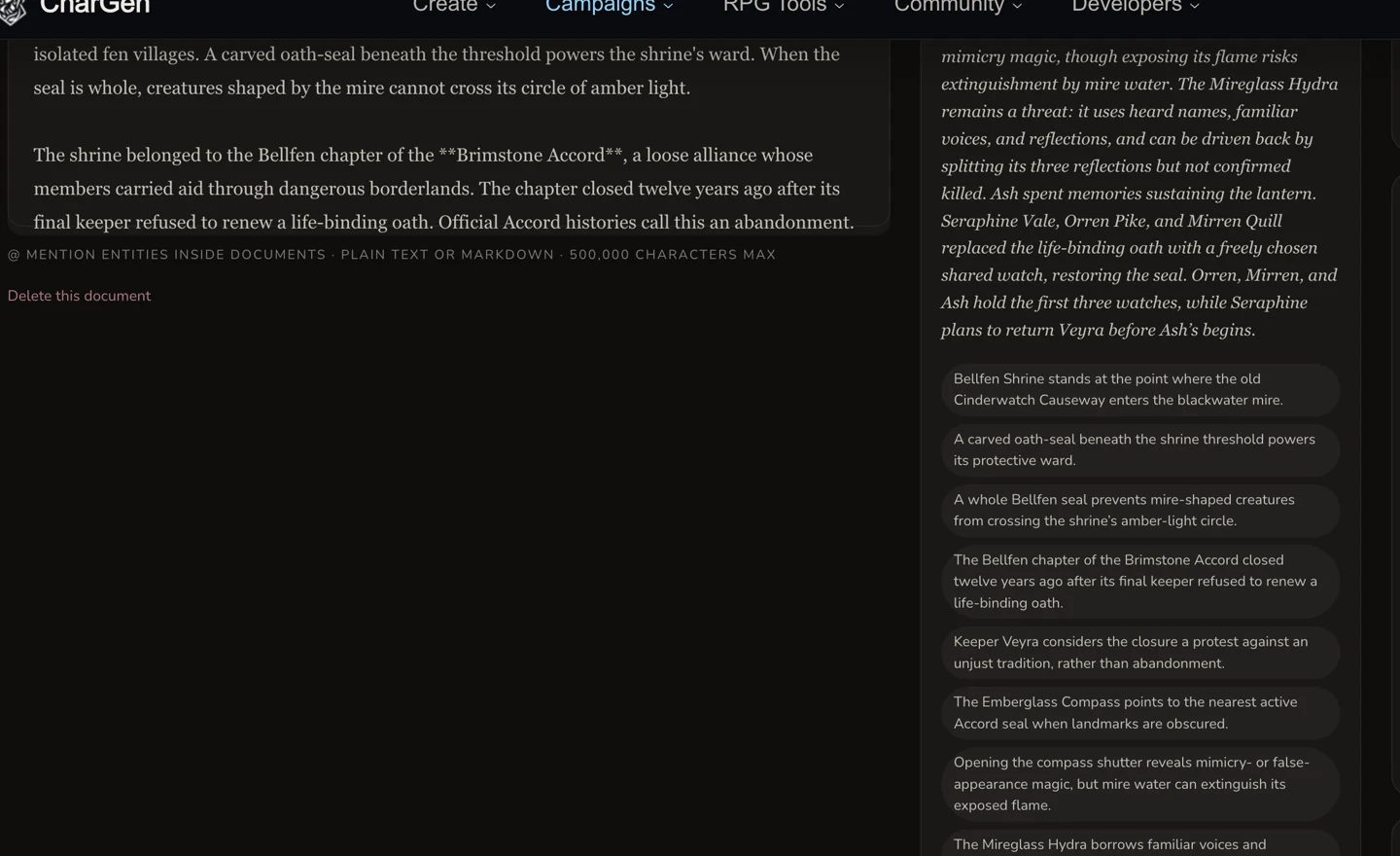
Review extracted prose and key facts instead of relying on the upload row.
Decide whether to pin it
7. Pin only campaign-wide guidance
Turn on Pin to every generation only when the paper should travel with every supported generation in this campaign. For occasional material, leave it unpinned and mention the document explicitly when the mounted context picker allows it.
8. Download and inspect the original
Use Download original on an uploaded document, then open the downloaded
file. The retained Markdown export was byte-identical to the owned source:
2,604 bytes with SHA-256
27c74522cbefa099f38cf5f69d7447988ab463eea86a1489fb4693ff9fac4e3a.
Checkpoint
Check your result
- The written and uploaded papers reopen under the intended private campaign.
- Extraction and the digest were reviewed independently, not inferred from the upload row.
- Pinning and each tracked proposal reflect an explicit campaign decision.
- The downloaded original opens and matches the retained source file.
Troubleshooting
If something looks wrong
Troubleshooting
- Symptom
- The uploaded document exists, but no highlights appear.
- Likely cause
- The file row can exist while extraction or digest processing is still pending or has failed.
- Next safe action
- Check both statuses, inspect the source file, and use the mounted retry action for the failed stage.
- Symptom
- A generation ignores a document.
- Likely cause
- The paper may be unpinned, outside the current context selection or beyond the context budget.
- Next safe action
- Pin only genuinely campaign-wide guidance or select and mention the paper explicitly when that control is available.
- Symptom
- A proposed name is the wrong type or should not be canon.
- Likely cause
- Digest proposals are suggestions, not authoritative campaign records.
- Next safe action
- Do not Track it. Correct the source or manage the candidate in Campaign Memory instead.
- Symptom
- The edited paper differs from Download original.
- Likely cause
- The in-app document body is editable campaign context, while Download original preserves the uploaded source file.
- Next safe action
- Export or copy the edited body separately when you need that revision outside CharGen.
Limitations
- Documents are separate campaign context sources. They are not attached automatically to an individual Session Note.
- Extraction READY does not make every extracted statement correct. Review the digest against the source.
- Pinning increases context priority but does not guarantee that every generated sentence follows the paper perfectly.
- The narrow Documents list currently clips some secondary row metadata. Use desktop when filing or reviewing every document control.
- Deleting a document is permanent in the mounted flow. Export anything you need before using that control.