
Complete Session Notes Walkthrough
Follow one source from creation through recap, transcript and campaign handoff.
Turn one safe session source into a recap you can correct, search, file and reuse as campaign context. This walkthrough follows the fictional Brimstone Accord campaign from a pasted transcript to its campaign records. Open Create Session Notes to follow along.
Before you begin
You need:
- a signed-in CharGen account with enough Gold for the estimate shown before submission;
- a campaign you own, with its player characters ready to select;
- an owned transcript, direct transcript link, audio source or written summary; and
- the names and roles of the people represented in the source.
This worked path uses an owned, fictional transcript of 1,537 words. It was reviewed as a Standard transcript request, displayed a 30 Gold estimate and settled at 30 Gold after one submission. The current source choices and their different costs are compared in Choose the Right Session Source.
Begin with one reviewable source
1. Choose the campaign and source
Open Create Session Notes, select the campaign, then select Transcript Text. Paste the complete plain-text transcript and give the session a clear name and number.
The five visible choices do not produce the same result. Use Create Session Notes from Audio for an owned file or direct audio URL. Use Create from a Transcript or Written Summary for the other text paths.
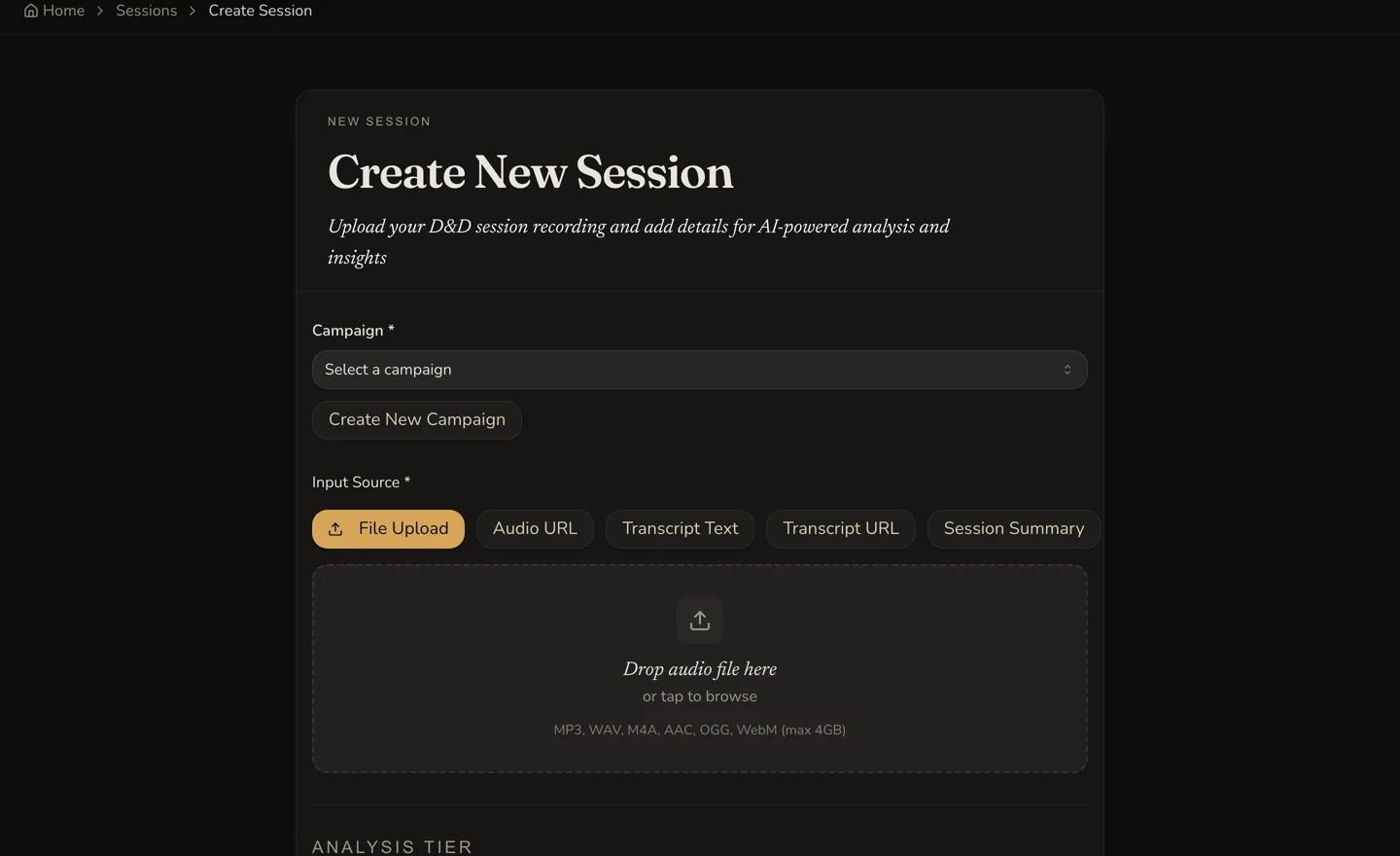
The selector opens on File Upload. This walkthrough switches to Transcript Text before submission.
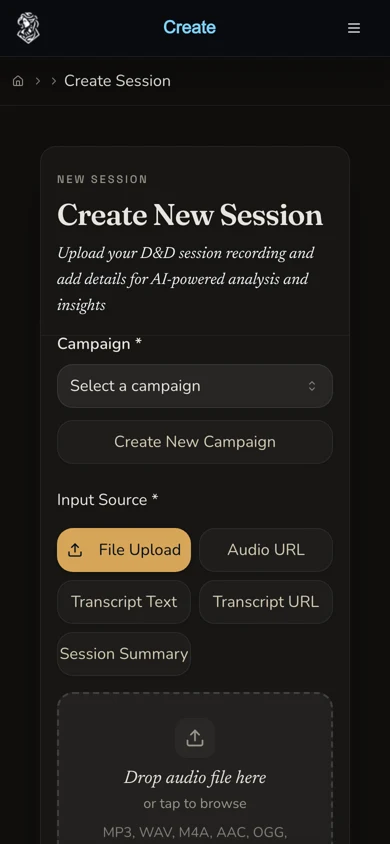
2. Review participants, language and analysis tier
Select the player characters who took part and check their speaker roles. Add only the details that belong to this session. Choose the summary language you want, then select Standard or Pro when the tier control is available.
Participant choices help the result associate names with the campaign roster, but they do not guarantee perfect attribution or entity matching. Keep the original source until you have reviewed the completed result.
3. Read the final estimate and submit once
Read the amount beside the submission control after the source and tier are final. For the reviewed transcript, Standard displayed 30 Gold, estimated one hour. The request settled at the same 30 Gold.
Press the create control once. A second click or a fresh matching submission can become a separate paid request.
Follow the request you already made
4. Track processing without resubmitting
Follow the processing route for the session. A request can move through PENDING, TRANSCRIBING, ANALYZING and INTEGRATING before it reaches an outcome. The transcript example was observed in ANALYZING and then COMPLETE. A separate audio example moved through TRANSCRIBING, ANALYZING, INTEGRATING and COMPLETE.
You may leave the page and return through the Session Library. If progress looks slow, find the existing session before considering any further paid action. Follow Processing and Recover Safely explains COMPLETE, DEGRADED, FAILED and CANCELLED, plus the recovery paths that can spend more Gold.
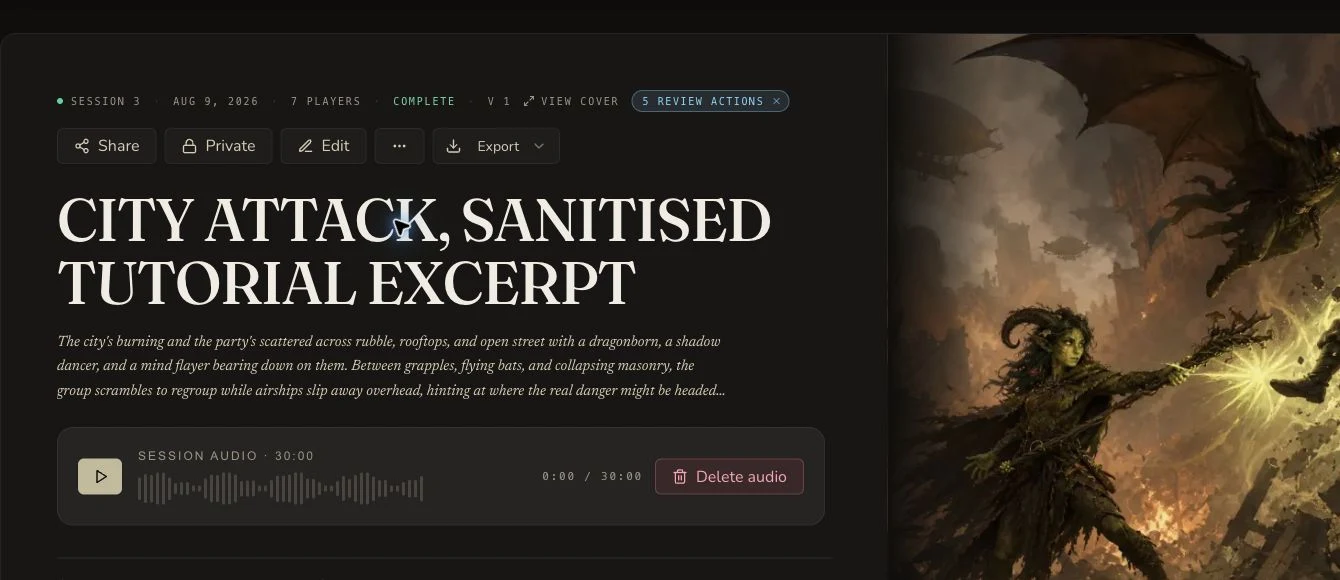
This retained terminal view proves the completed outcome. The active processing states and single-submission history remain receipt-backed because no authentic active-processing screenshot was retained.
Turn the result into a useful record
5. Read the recap before correcting it
Open the completed session and read the short plot, events, actions, highlights, cast, places, quests, threads and DM notes that are present. Compare names and consequential facts with the source.
In the worked result, the party crossed the Cinderwatch Causeway, restored the Bellfen Shrine seal and survived the Mireglass Hydra. A correction to the short plot was saved once, refreshed and read back successfully. Export a backup before using a broad replacement. Read and Correct a Session Recap covers supported edits, source-summary editing and the actions that regenerate or reprocess content.
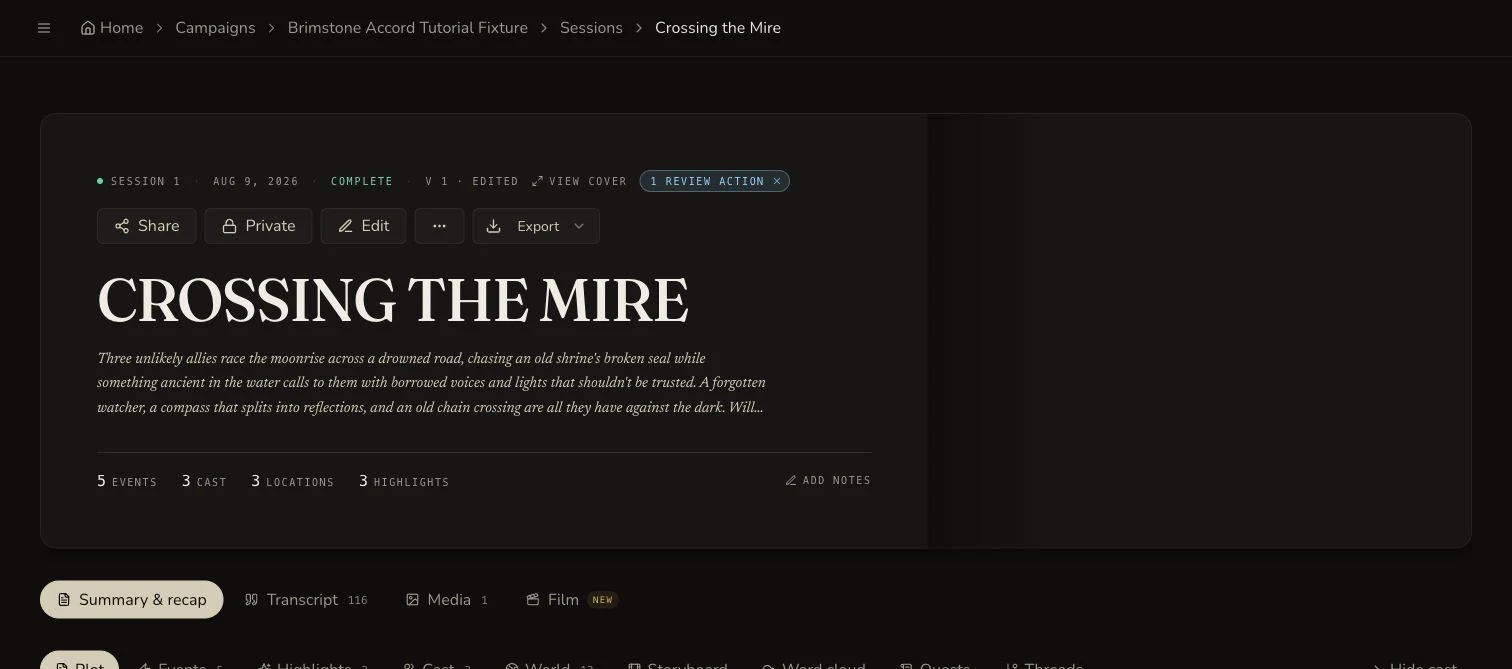
Review the recap against the retained source before you reuse it as campaign knowledge.
6. Search the transcript for the source moment
Open Transcript, search for a distinctive term and narrow by speaker when needed. The reviewed result searched for compass, selected Mirren Quill and found the known line “Keep the Emberglass Compass level”. Check both By speaker and Raw views when order or attribution matters.
Download the transcript as .txt when you need a local copy, then open it and check its contents. Search and Export a Transcript covers filters, timestamps and the current export boundary.
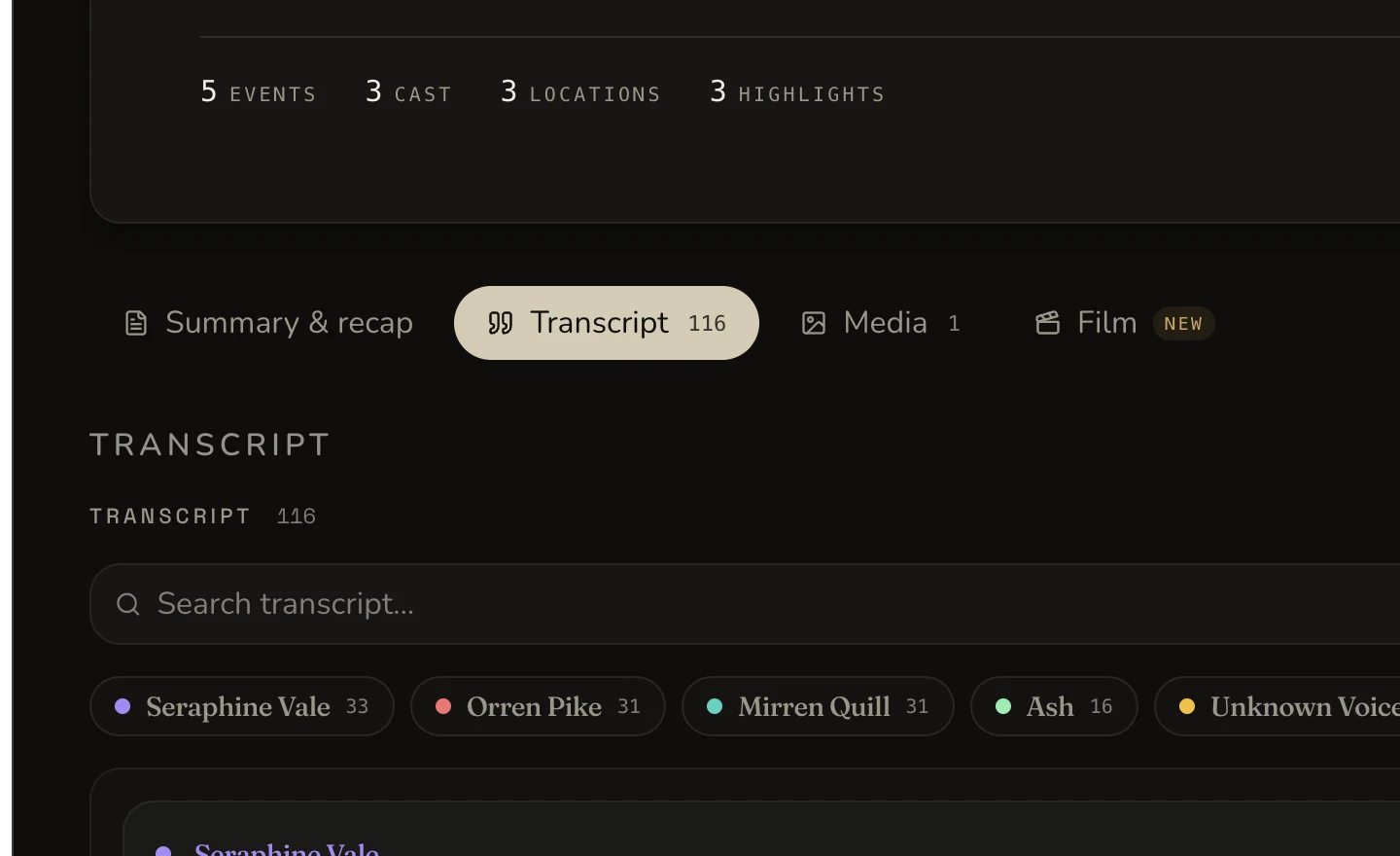
The visible controls support text and speaker filtering. The retained compass search result is verified by the session result receipt.
7. Review detected campaign entities
Open the review for detected people, monsters and places. Decide whether each mention is new, ambiguous or already linked. Accept a supported suggestion only after checking the source and campaign record.
Recap mentions are not automatically the same as tracked Campaign Entities. Review and Link Detected Entities owns the full reconciliation procedure and its limits.
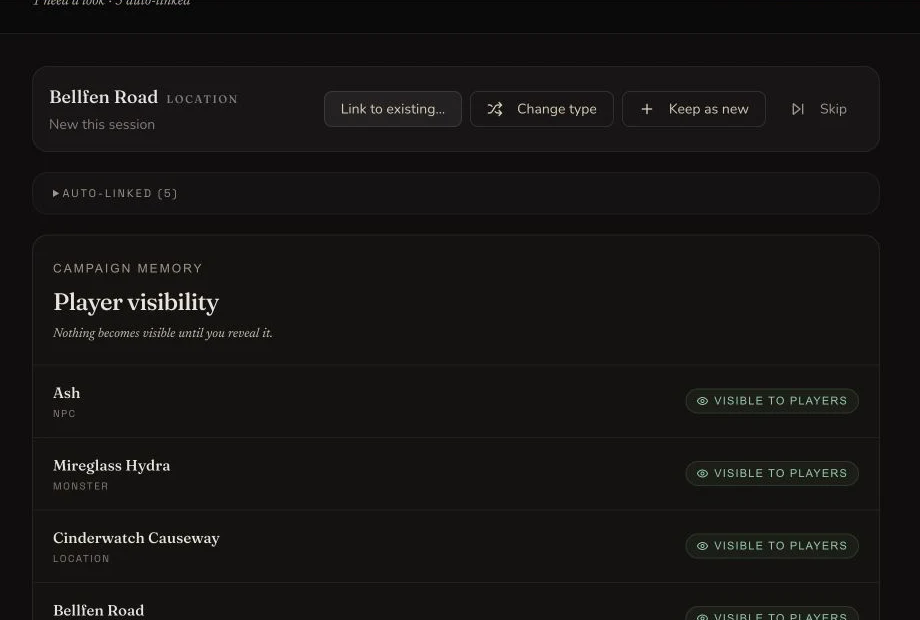
The retained review has one new Location candidate and five auto-linked records. No reconciliation action was submitted for this capture.
8. Choose session artwork deliberately
Open the Media area and use an owned upload, a suitable Gallery image or an AI generation whose displayed cost you have reviewed. Preview the candidate before setting it as the cover.
Artwork ownership and public Gallery visibility are separate decisions. Manage Session Covers and Media covers cover removal, downloads and subject artwork without making an unnecessary generation part of this walkthrough.
Export, share and carry the session forward
9. Export a backup and review privacy before sharing
Export the recap in the format you need and open the downloaded file. The worked result retained and verified generic Markdown and JSON recap exports, plus a separate .txt transcript export.
Sessions begin private. If you publish, decide explicitly whether to publish only the session or its campaign too, then check the URL in a fresh logged-out window. Public session responses can expose recap, transcript, media and playable audio where those exist. DM notes and the original written source summary remain owner-only. Return the session to private when the public check is finished. Share, Publish and Export Safely covers every format and the destructive controls.
10. Find the same record in Library and timeline
Return to the Session Library, find the completed session and open it from the existing row. Then open the campaign and confirm the session appears in its timeline.
The Library can help you distinguish a completed record from one still processing, but its Edit and Duplicate actions are not implemented. Use the Session Library and Campaign Timeline covers the supported routes and deletion warning.

The three retained source journeys remain distinct Ready records in the Session Library.
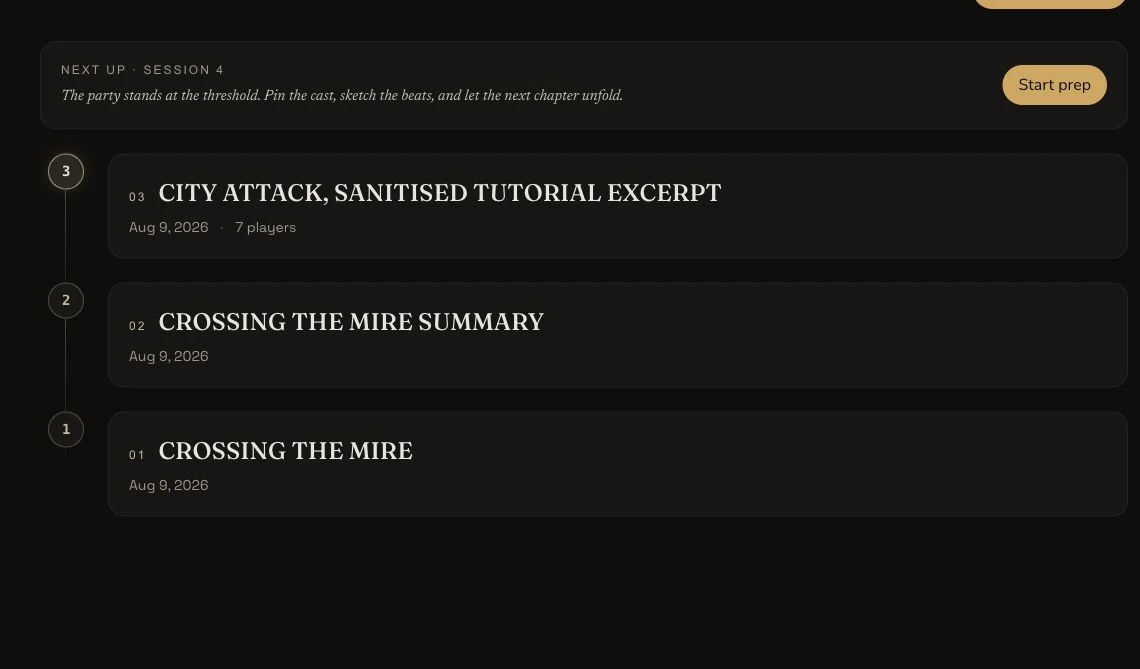
The campaign timeline provides the campaign-specific view of the same retained sessions.
11. File knowledge into the campaign workspace
Campaign Documents and Workspace filing are deliberate follow-up actions. Create or upload the lore that should act as a campaign source with Build Campaign Documents. Then open the campaign Workspace, choose a folder and add the existing session or related records with Organise Campaign Workspace and Link World Codex.
Creating Session Notes does not automatically create a Campaign Document or file the session into a Workspace folder.
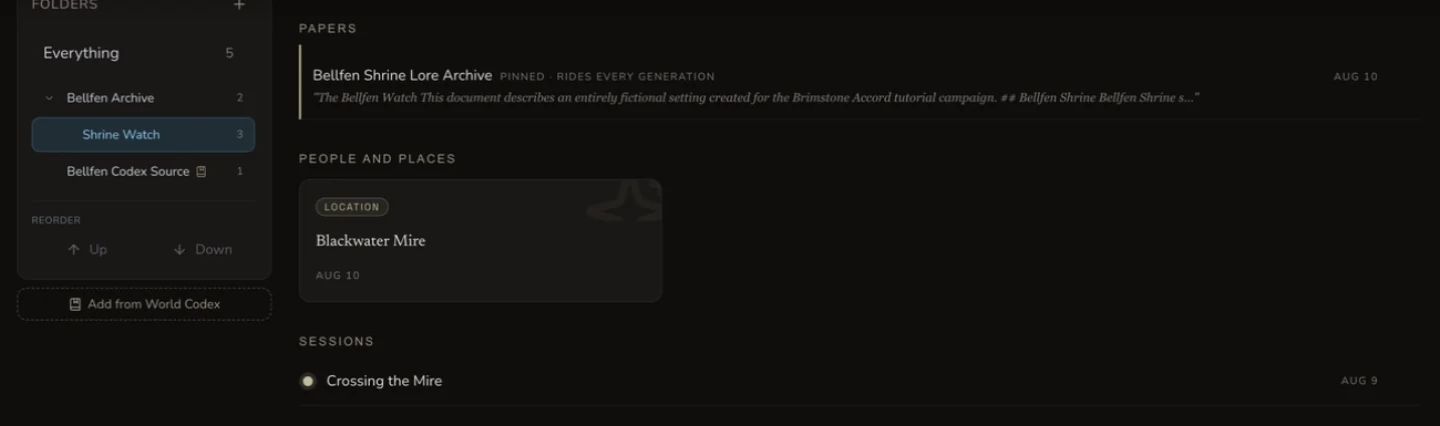
Workspace filing is a deliberate follow-up action, separate from the Session Notes creation request.
12. Select campaign memory for the next generation
Open Campaign Memory and check the tracked, archived and candidate records before using them as context. Select the relevant session-derived entities and pinned documents for the next generation rather than relying on every campaign fact at once.
Curate Campaign Memory and Generate with Canon explains source priority, aliases, relationships, mentions and context limits. Campaign context improves grounding, but it does not guarantee perfect canon.
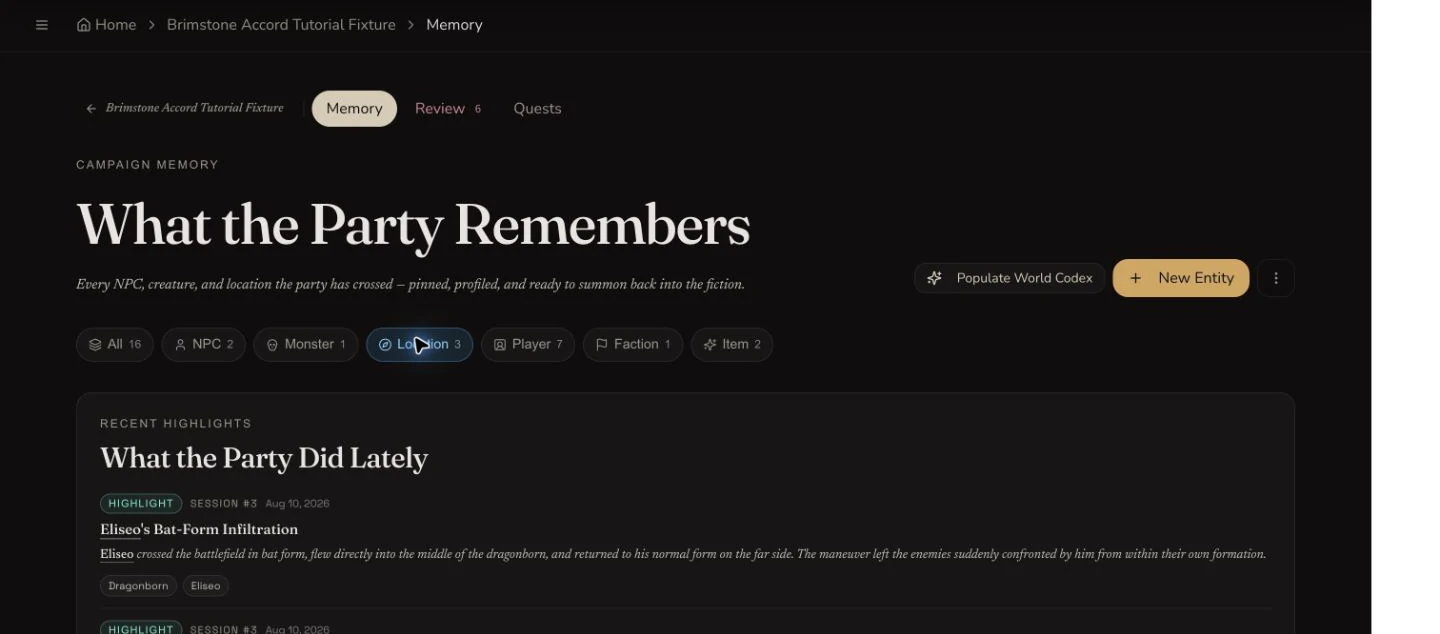
Campaign Memory is the final review surface before selected entities and pinned documents are reused as generation context.
Checkpoint
Check your result
- The original request reached a clear terminal outcome without a duplicate submission.
- The recap was checked against the retained source, and any saved correction survived a refresh.
- The transcript search found the expected source moment and any downloaded export was opened and checked.
- The same session is identifiable in Library and the campaign timeline, with later Workspace and Memory use treated as deliberate actions.
Troubleshooting
If something looks wrong
Troubleshooting
- Symptom
- The processing page looks stuck.
- Likely cause
- The original request may still be processing, or the local view may not show its newest state yet.
- Next safe action
- Revisit the existing processing route and Session Library. Do not submit the same source again while its outcome is unclear.
- Symptom
- A name or event in the recap is wrong.
- Likely cause
- Generated analysis can misread a source or resolve an ambiguous campaign mention incorrectly.
- Next safe action
- Compare it with the retained source, export a backup, then use the supported recap or entity review control for that specific correction.
- Symptom
- The session is missing from a Workspace folder.
- Likely cause
- Session creation adds the campaign timeline result, but Workspace filing is a separate action.
- Next safe action
- Open the intended Workspace folder and add the existing session deliberately.
Limitations
- This walkthrough demonstrates the pasted-transcript path. Audio, transcript URL and written-summary requirements differ.
- The current Session Notes interface does not edit transcript text or remap speakers.
- Entity reconciliation covers NPCs, monsters and locations, not every kind of recap mention.
- Recap export does not include PDF, and transcript export is
.txtonly. - Session creation does not automatically create Campaign Documents or file the result in Workspace.
- Campaign context can improve grounding, but it cannot guarantee that a later generation follows every fact.