
Use the Session Library and Campaign Timeline
Find existing session records and use the campaign timeline for a campaign-specific view.
The Session Library is the account-wide index for Session Notes, while a campaign timeline is the campaign-specific reading order. Use the Library to reopen a known result or processing route, then use the timeline to confirm the session belongs to the intended campaign.
Reopen the correct Session Note
1. Open the Session Library
Go to Sessions. The Library lists Session Notes across the account and shows each session number, status, campaign name, title and date. Choose New Session when you intend to start a separate creation flow.
2. Read the status before opening
Ready opens the completed detail route. Active processing states should
return to /processing, while Failed identifies a result that needs
recovery review. Do not create a duplicate because a processing card is
taking longer than expected.
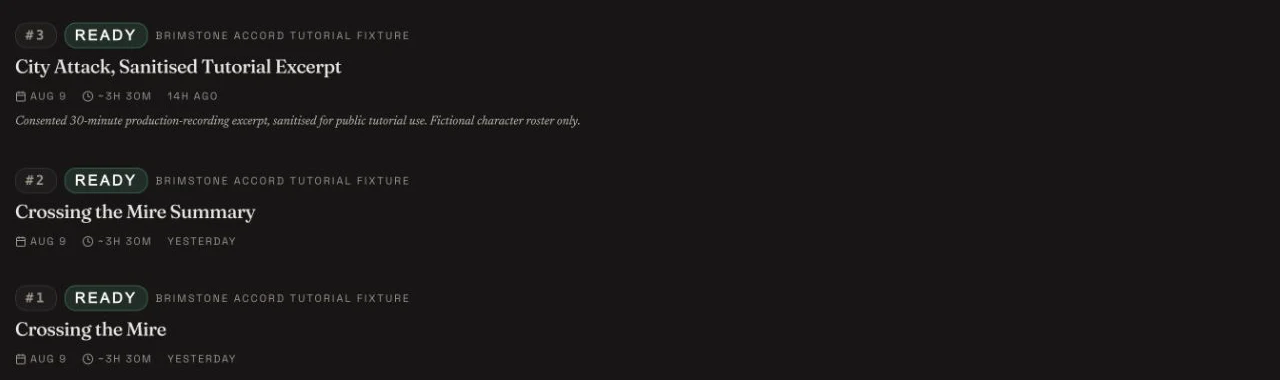
The retained crop contains only the three consented fictional tutorial sessions. It is a privacy crop, not a campaign-filter control.
3. Use the available Library controls honestly
The current /sessions route does not mount its text-search or status
filter controls. It also has no campaign selector. Use a known title or
session number to identify the correct row visually, and use the campaign
timeline for a campaign-only view. Do not describe the retained crop as a
filtered Library state.
4. Open the correct route
A completed row links to /sessions/{sessionId}. An active or failed
processing outcome may need /sessions/{sessionId}/processing so you can
inspect its existing state before considering retry or reprocessing.
Confirm the campaign timeline join
5. Open the campaign Timeline
Open the campaign and select Timeline. The retained Brimstone Accord campaign shows the same three session IDs as the Session Library evidence: Crossing the Mire, Crossing the Mire Summary, and City Attack, Sanitised Tutorial Excerpt.
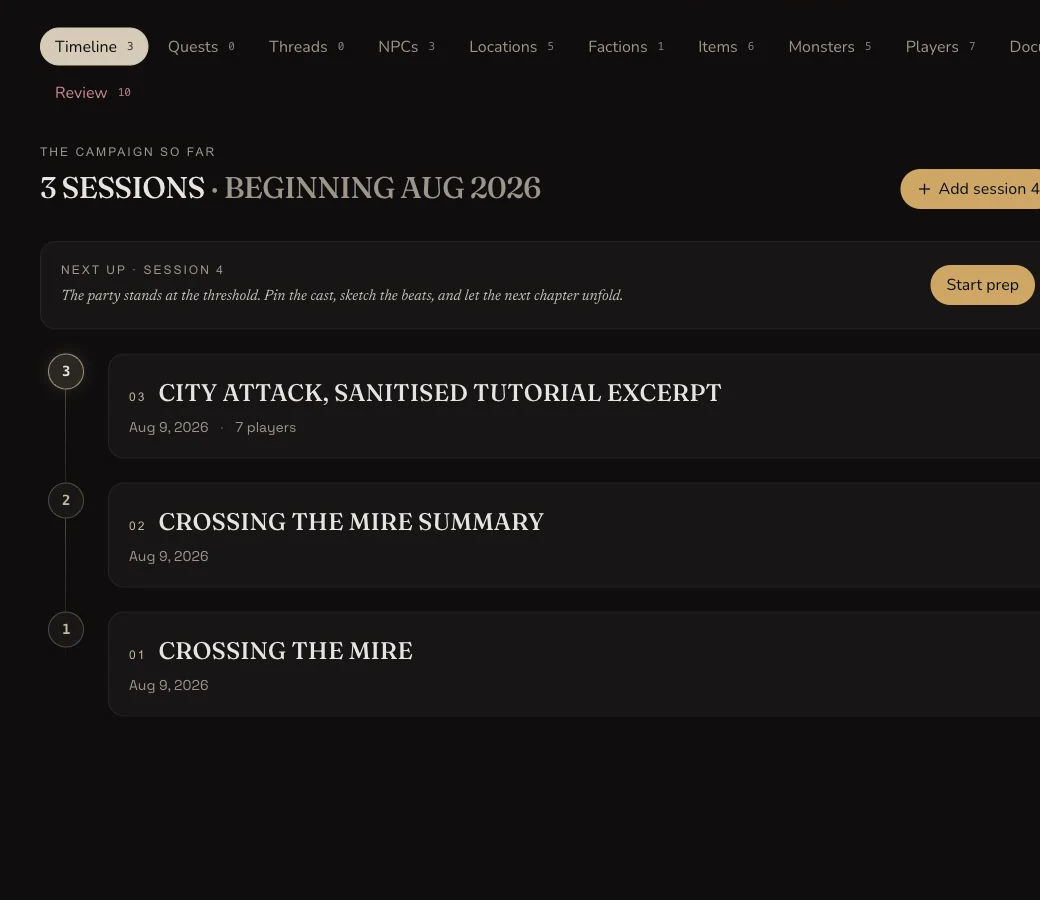
The campaign timeline provides the campaign-specific order that the account-wide Library currently does not filter for you.
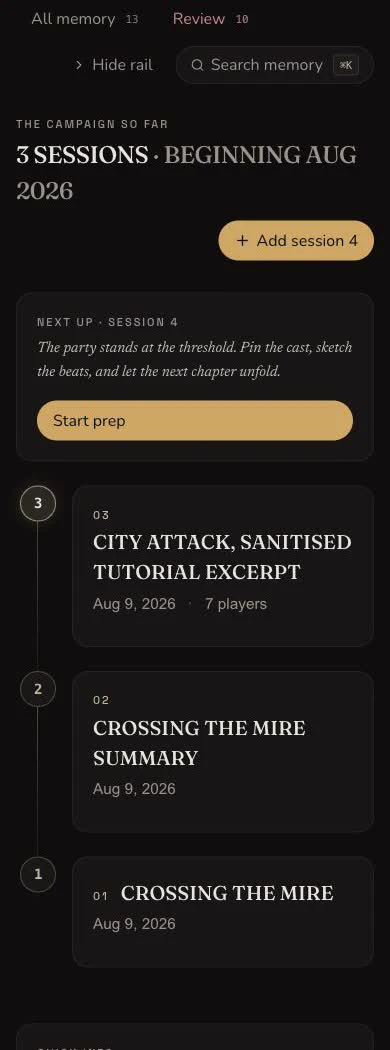
At 390 pixels, the timeline keeps the next-session action and all three Session Note links readable without account chrome or the party rail.
6. Use the next-session action deliberately
Add session 4 and Start prep open a creation route already scoped to this campaign. Review the campaign and source fields before submitting. These links do not duplicate an existing Session Note automatically.
7. File the session into Workspace separately
Session creation adds the campaign timeline entry, but it does not automatically place the session into a Campaign Workspace folder. Open Workspace and use Add Existing when the recap belongs in a particular folder.
8. Delete only from an owner-confirmed decision
The Library action menu can open the permanent deletion dialog. Read the session title and processing state in that confirmation before proceeding. This tutorial does not submit deletion.
Checkpoint
Check your result
- Each retained Session Library row is Ready and links to the exact retained session ID.
- The campaign timeline contains the same three session IDs in its campaign-specific order.
- The completed detail route and processing route are treated as different destinations.
- Workspace filing remains a separate Add Existing action and no deletion is submitted.
Troubleshooting
If something looks wrong
Troubleshooting
- Symptom
- The Library contains too many campaigns to scan safely.
- Likely cause
- The current route does not mount its search, status filter or campaign selector.
- Next safe action
- Open the intended campaign timeline for a campaign-only view, then follow the exact session link from there.
- Symptom
- A session opens the processing page instead of the recap.
- Likely cause
- Its processing status is not a completed result yet, or recovery still needs review.
- Next safe action
- Inspect the existing processing route and Session Library status before considering any retry.
- Symptom
- A completed session is missing from Workspace.
- Likely cause
- Timeline creation and Workspace filing are separate operations.
- Next safe action
- Open the intended Workspace folder and add the existing session deliberately.
- Symptom
- Edit or Duplicate appears in an action menu but does nothing.
- Likely cause
- Those Library handlers are not implemented in the current interface.
- Next safe action
- Open the session detail page for supported edits. Do not rely on Duplicate.
Limitations
- The current
/sessionspage does not mount its text-search or status-filter controls and has no campaign selector. - Library Edit and Duplicate handlers are not implemented, so this lesson does not teach them as working actions.
- A timeline entry proves campaign membership, not Workspace folder filing.
- The Library crop is publication-safe evidence of the three fictional rows, not evidence of a mounted filter.
- This tutorial reviews permanent deletion without submitting it.