
Generate Music, Sound Effects and Background Audio
Choose correctly between Music and Background workflows.
Build a small scene-audio kit in Audio Studio: use Music for a composed cue or song, and Background for ambience and sound effects. Sound effects belong under Background, not in a separate workflow. This lesson makes one owned result from each tab at Audio Studio.
Choose Music for a cue, Background for ambience
1. Make the workflow decision before writing a prompt
Choose Music when the scene needs a composed cue. Choose Background for location ambience and sound effects, such as wind, mechanisms or a bell. The reviewed tabs show TTS, Music and Background, with Mureka V9 BGM selected in Background. Select the tab first, then read only the controls currently mounted for its selected model.
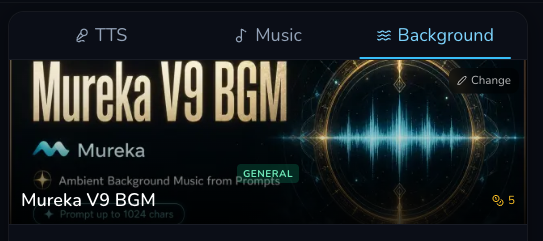
Music and Background are distinct tabs. The visible Mureka V9 BGM card is a dated Background example.
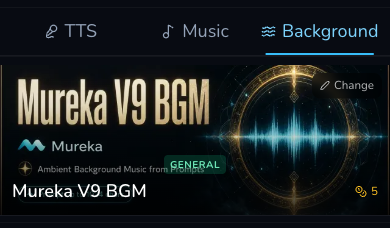
On mobile, choose the workflow before inspecting the model-specific form below it.
Make the music cue
2. Use a purpose, mood and sound prompt for Music
The reviewed Lyria 3 Clip Music request used this exact prompt:
Purpose: quiet observatory scene underscore. Mood: watchful and hopeful. Sound: low strings, soft hand drum and distant glass tones. Keep the opening clear for narration.
Its mounted form showed Prompt and Negative Prompt. The reviewed Negative Prompt was left empty. Treat those as Lyria 3 Clip controls, not universal Music controls. The footer displayed 4 Gold on 1 August 2026. Check your own current footer before submitting.
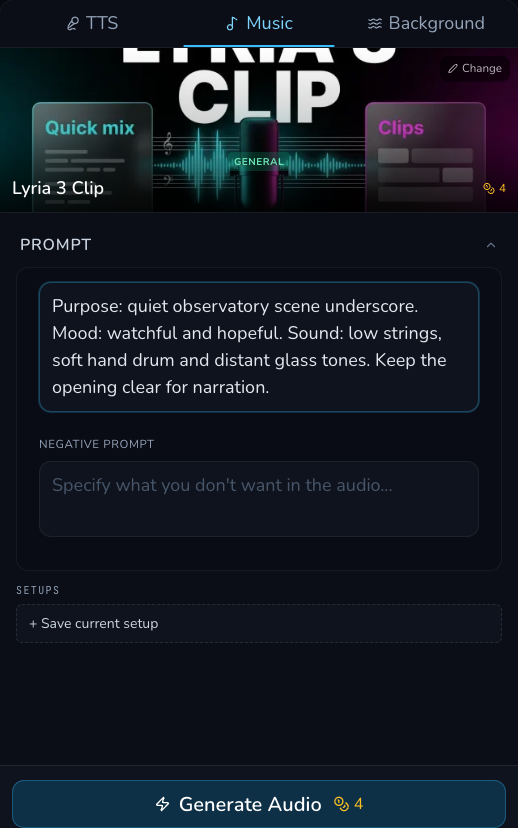
The selected Music form shows the purpose, mood and sound prompt with its dated 4 Gold estimate.
3. Submit the Music request once and reconcile it first
Submit the Music request once, then wait for that original request to reach a terminal result. The reviewed Music request completed with a request-linked 4 Gold debit and a 30.772167-second output. Reconcile the selected configuration, original request, terminal result, request-linked transaction and Gallery arrival before beginning the Background request.
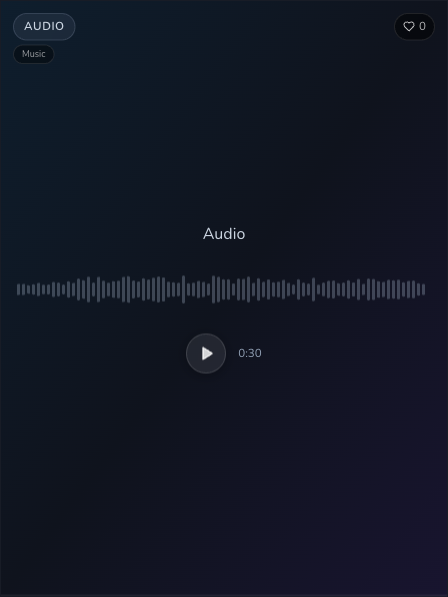
The completed Music card visibly shows a waveform, play control and duration. Its waveform is a navigation aid, not proof of loudness or dynamics.
Make the background ambience or sound effect
4. Use Background for the environment and sound effects
After the Music request is fully reconciled, switch to Background and select Mureka V9 BGM. The reviewed prompt was: “Night observatory ambience with soft wind through stone arches, distant brass mechanisms and one low bell. No voices, melody or sudden impact.”
The selected Background configuration screenshot showed a prompt and its own counter, with a 5 Gold footer estimate, but no Loop control. The delivered Background result metadata recorded Loop: true. Check your own mounted form and delivered metadata, because a duration alone is not evidence that audio will loop.
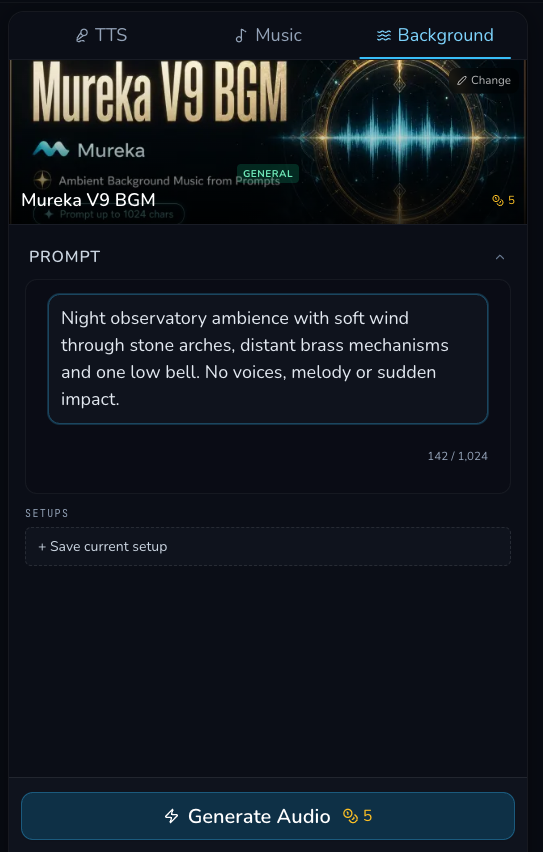
The reviewed Background prompt uses location, sound sources and exclusions. The visible character count and estimate are model-specific, dated details.
5. Submit Background once, then inspect the delivered asset
Submit once and keep the original Background request until it reaches a terminal result. The reviewed request completed with a request-linked 5 Gold debit and a 198.03-second output. Reconcile that request before moving on, then use playback, download the accepted audio and retrieve it from Gallery.
Use the waveform to move through the result and listen for the wind, brass mechanisms and low bell. It is navigation, not evidence that the waveform proves loudness, dynamics or a loop boundary.
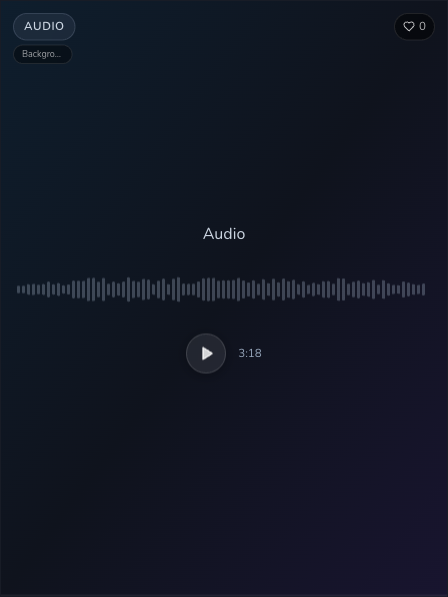
The completed Background card visibly shows a waveform, play control and duration. Check the delivered asset before deciding whether it fits the scene.
Checkpoint
Check your result
- Music is used for the composed observatory cue, while Background carries the ambience and sound effects.
- Each selected model is checked for its own mounted controls and live footer estimate.
- Music is reconciled before Background is submitted, with one original request per workflow.
- Each completed result is played, downloaded and found in Gallery, while the waveform is used only for navigation.
Troubleshooting without retries
If something looks wrong
Troubleshooting
- Symptom
- The music cue competes with narration.
- Likely cause
- The prompt does not reserve enough space for the spoken line.
- Next safe action
- Keep the completed result, simplify the prompt around the cue's purpose and make one later deliberate request.
- Symptom
- The Background result contains an unwanted sound.
- Likely cause
- The source or exclusion in the ambience prompt is too broad.
- Next safe action
- Preserve the completed asset, name the unwanted sound and change that one part of a later prompt.
- Symptom
- A failure alert appears while the completed audio card is available.
- Likely cause
- The interface is presenting contradictory status information.
- Next safe action
- Do not retry. Preserve the original request and reconcile its terminal result, request-linked transaction and Gallery projection first.