
Studio Quick Start: Make, Review and Save Your First Image
Create one image, review it and find it again.
Use this walkthrough to learn one complete Image Studio loop: prepare a small request, read its live cost, submit once, review the result and find it again. The worked example is an original fictional astronomer created for the Academy.
Open Image Studio
1. Choose Image and Studio
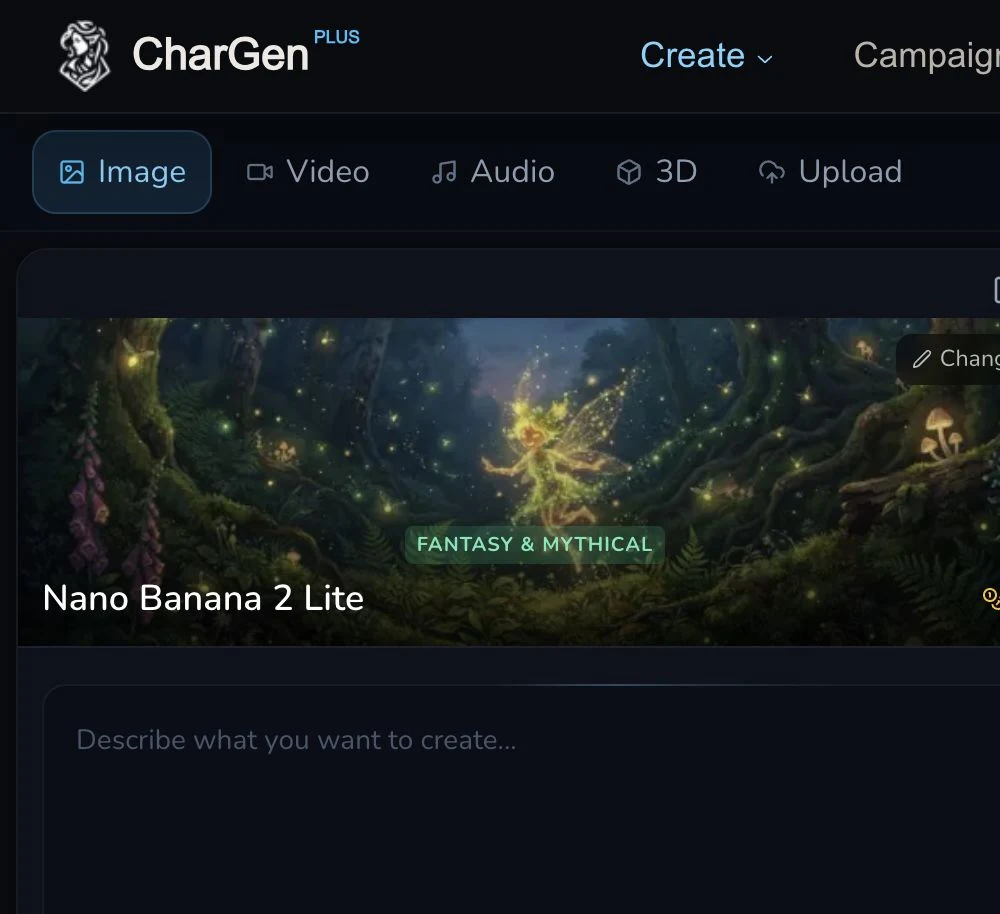
Open Image Studio. Select Image in the media row and Studio in the workspace menu. The main panel should show a model, prompt field, Size, Count and Generate.
2. Start with one practical request
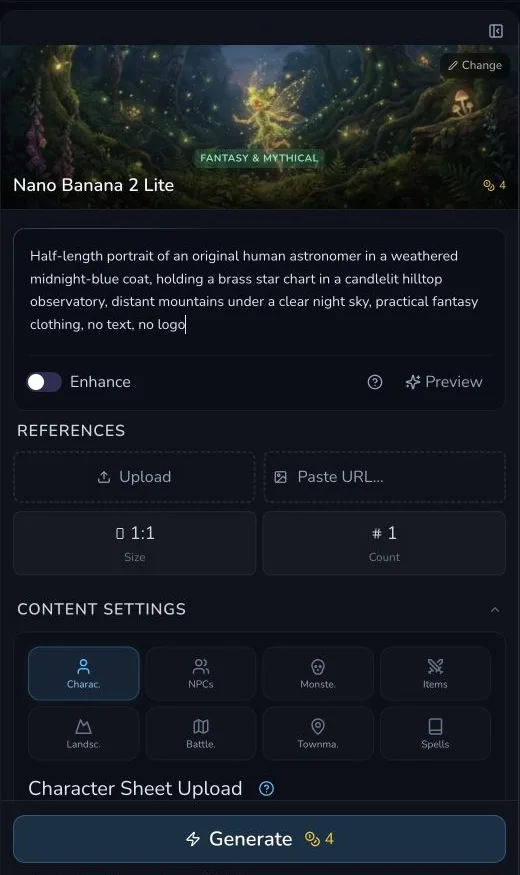
The reviewed request used Nano Banana 2 Lite, 1:1 and Count 1. No reference image was attached. This model showed no separate quality selector, so there was no extra quality setting to choose.
For a first check, keep the request small. One square image is easy to review and makes the displayed estimate unambiguous.
Write a prompt you can review
3. Describe subject, setting and constraints
The worked prompt was:
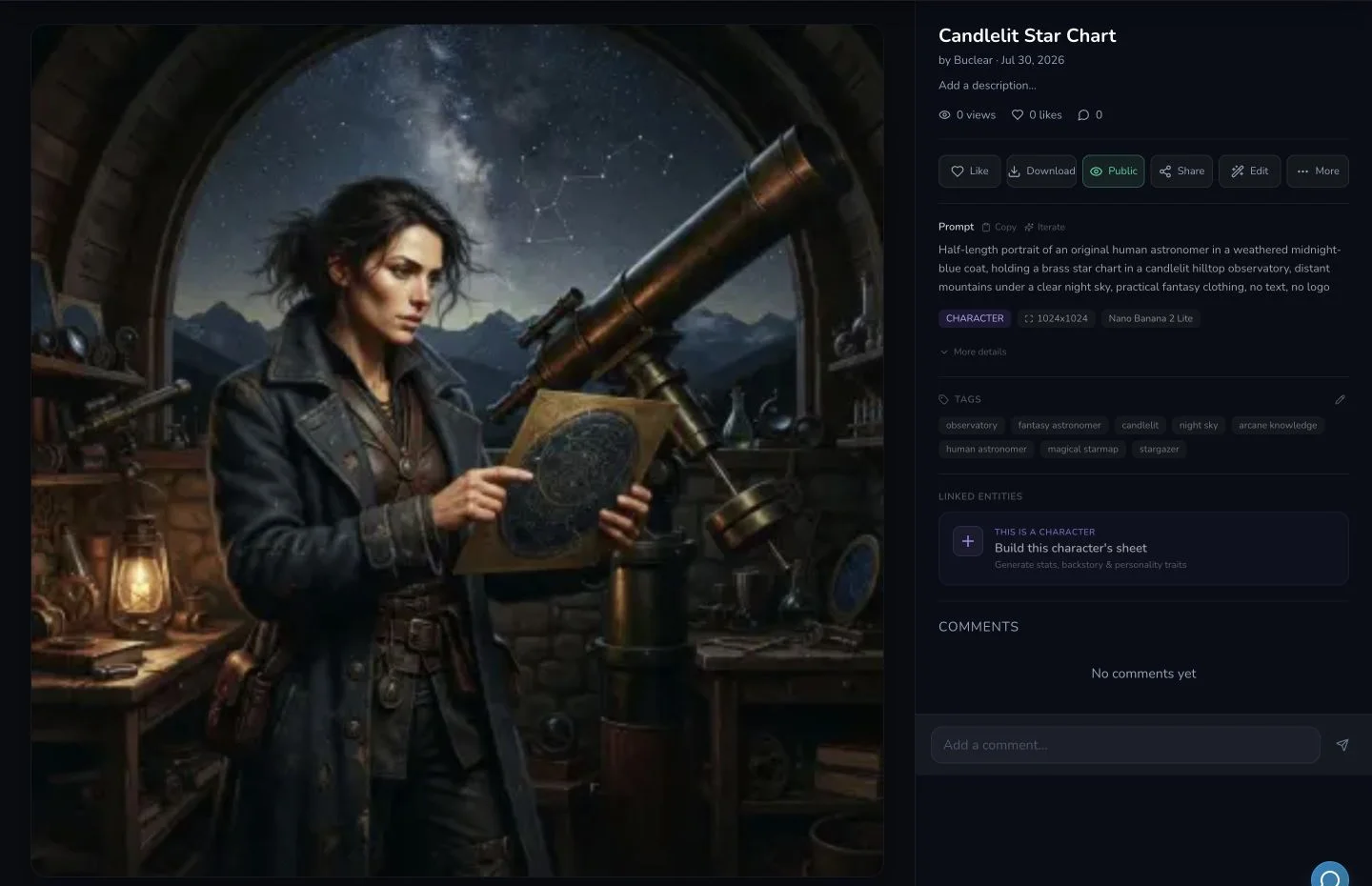
Half-length portrait of an original human astronomer in a weathered midnight-blue coat, holding a brass star chart in a candlelit hilltop observatory, distant mountains under a clear night sky, practical fantasy clothing, no text, no logo
It names the subject, clothing, prop, setting, light and framing. The final constraints make unwanted text and logos less likely. You can replace those details, but keep the request specific enough that you can decide whether it worked.
Submit once and wait
4. Read the estimate, then press Generate once
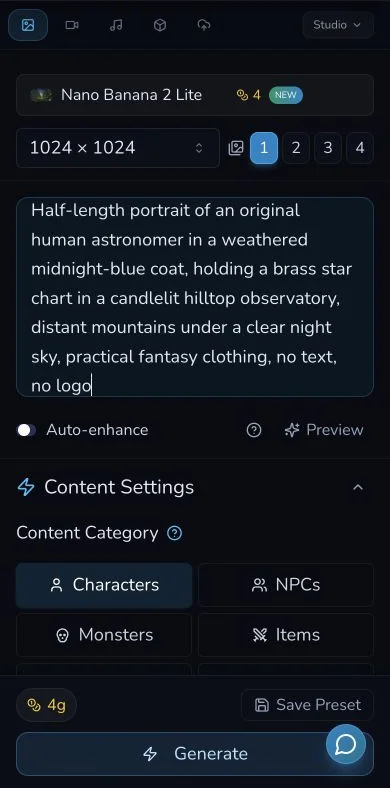
On 30 July 2026, this exact count-one configuration displayed 4 Gold. Confirm that your prompt, model, size and count are correct, then press Generate once.
Treat the first click as a real request. Do not double-click, refresh because progress looks slow or submit the same request again while the original state is unclear.
5. Wait for a terminal result
The page shows a generating state while the request runs. Wait for either a completed result or a clear failed state. The reviewed request completed and charged the same 4 Gold shown before submission.
Review and retrieve the result
6. Check the completed image
Review the main subject before looking at fine detail. In this example, check that the astronomer, midnight-blue coat, brass chart, telescope, observatory and square framing are present. Then inspect hands, facial detail, unwanted text and distracting changes in the background.
7. Find it in My Library and download it
Open My Library in Gallery and select the result. The reviewed result was titled Candlelit Star Chart and remained available after a reload.
Use Download on the card or result detail when you want a local copy. The reviewed Download control was invoked, and the exact rendered WebP asset was separately verified. The browser did not expose a normal download event during this capture, so the evidence does not claim more than that.
Checkpoint
Check your result
- Your result has reached a clear completed state.
- The image matches the main subject and framing in your prompt.
- The same result appears in My Library after reload.
- You can identify the current Download control.
Retry safely
Only consider another submission after the original request has a clear terminal state.
- Check whether the result is already in My Library.
- Check the current Gold balance.
- Preserve the original prompt and settings long enough to understand what happened.
- If you retry, change one cause at a time and submit only once.
If something looks wrong
Troubleshooting
- Symptom
- The request still says Generating.
- Likely cause
- The original request may still be processing.
- Next safe action
- Wait and check My Library before considering another submission.
- Symptom
- The result is complete but misses the subject.
- Likely cause
- The prompt may be too broad or contain competing instructions.
- Next safe action
- Rewrite one unclear part of the prompt, then make one deliberate test.
- Symptom
- The page reports an error and the balance changes.
- Likely cause
- A frontend balance update is not proof of a backend refund.
- Next safe action
- Record the request state, check My Library and verify account transactions before retrying.