
Organise, Share and Download Work in Gallery
Retrieve, organise and safely share an existing result.
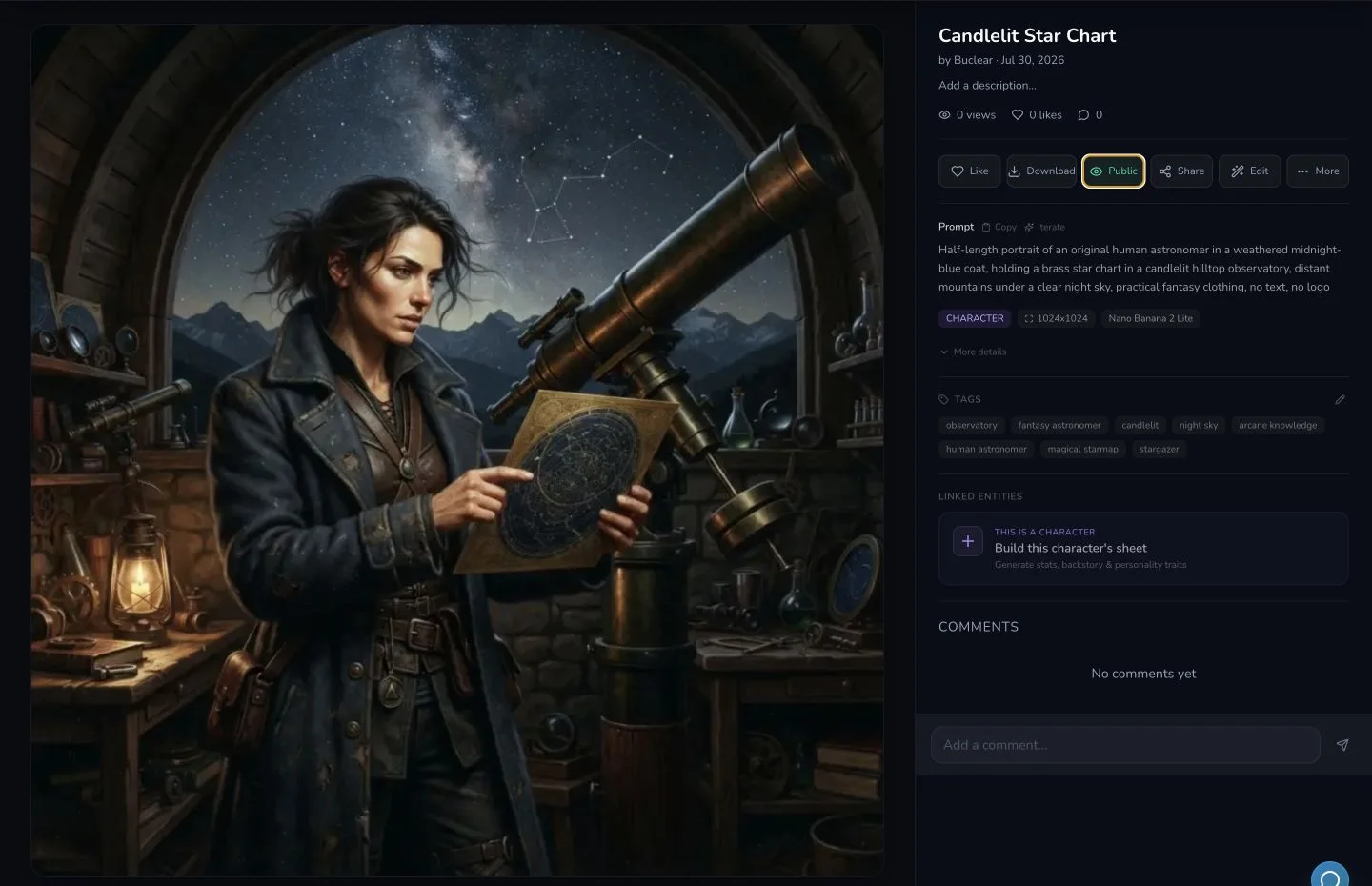
Gallery is where you retrieve and manage completed Studio work. This walkthrough uses the owned public instructional fixture Candlelit Star Chart. It covers retrieval, Download, visibility, Share and one temporary folder cycle.
Find the owned result
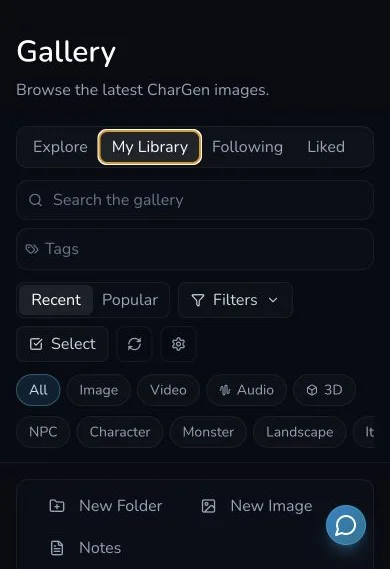
1. Open My Library
Open Gallery in Studio and choose the scope you need:
- Explore shows work available for browsing.
- My Library is the place to retrieve your own results.
- Following shows work from accounts you follow.
- Liked shows work you have liked.
Choose My Library for this workflow.
2. Open the result detail
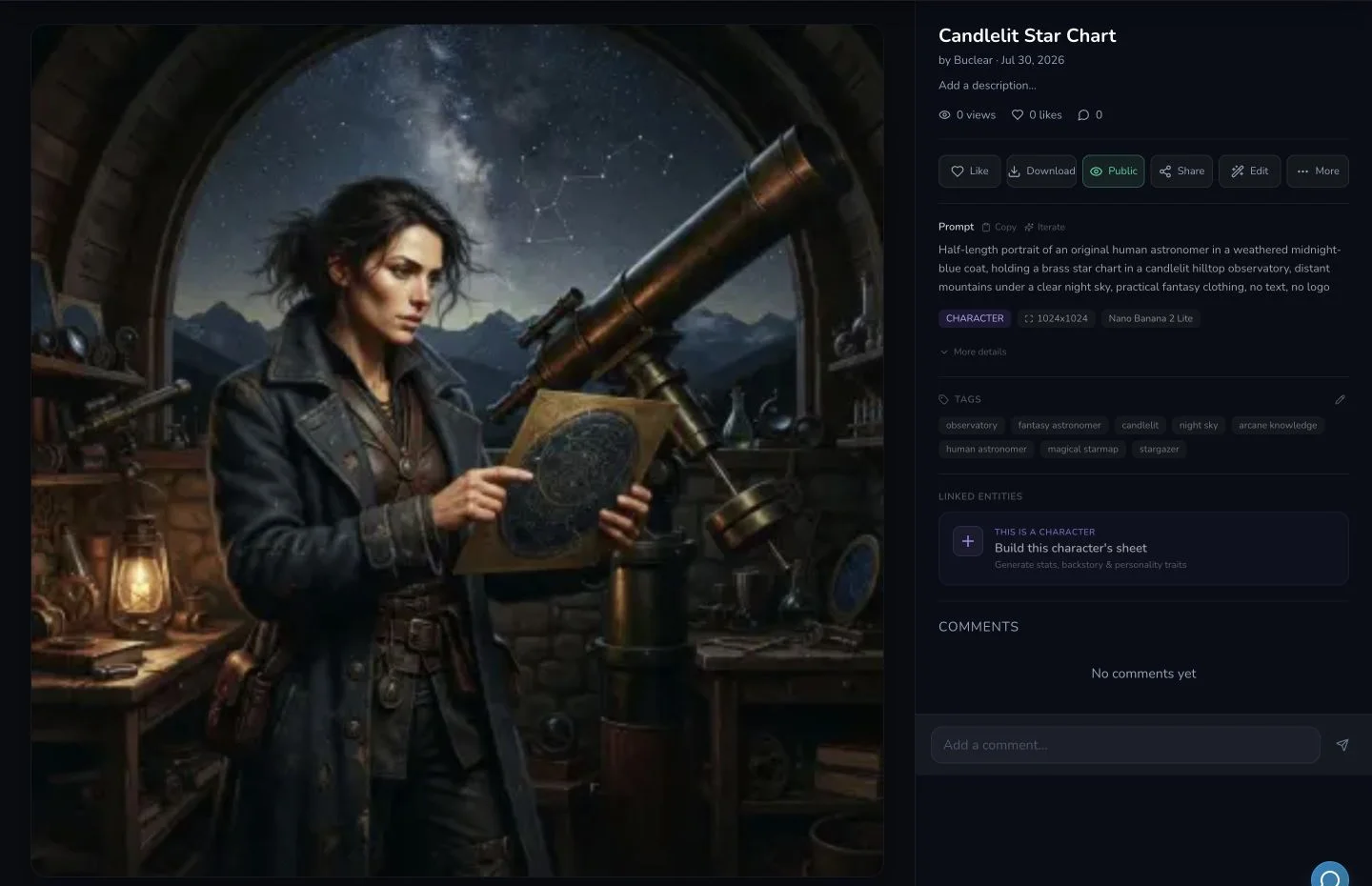
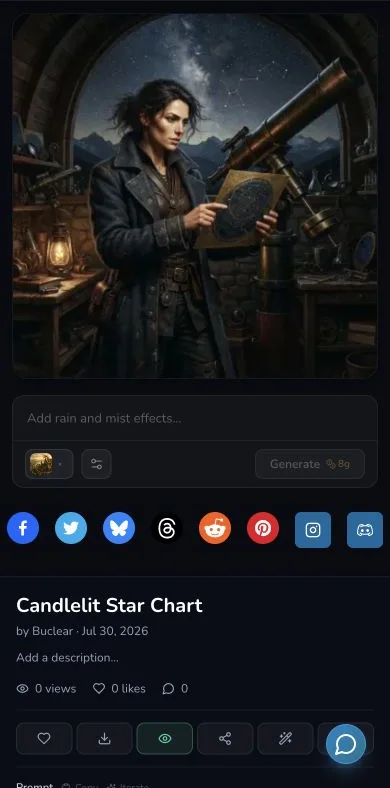
Find the owned result and open it. The reviewed detail page showed the title, prompt, model information and the actions Download, Public or Private, and Share.
Download and control visibility
3. Use Download for a local copy
Choose Download on the card or in result detail. During this review the visible control was invoked, but the browser did not emit a normal download event. The exact rendered WebP for the result was separately captured and checksum-verified, so the lesson describes the control without claiming an unobserved browser event.
4. Read the current visibility before changing it
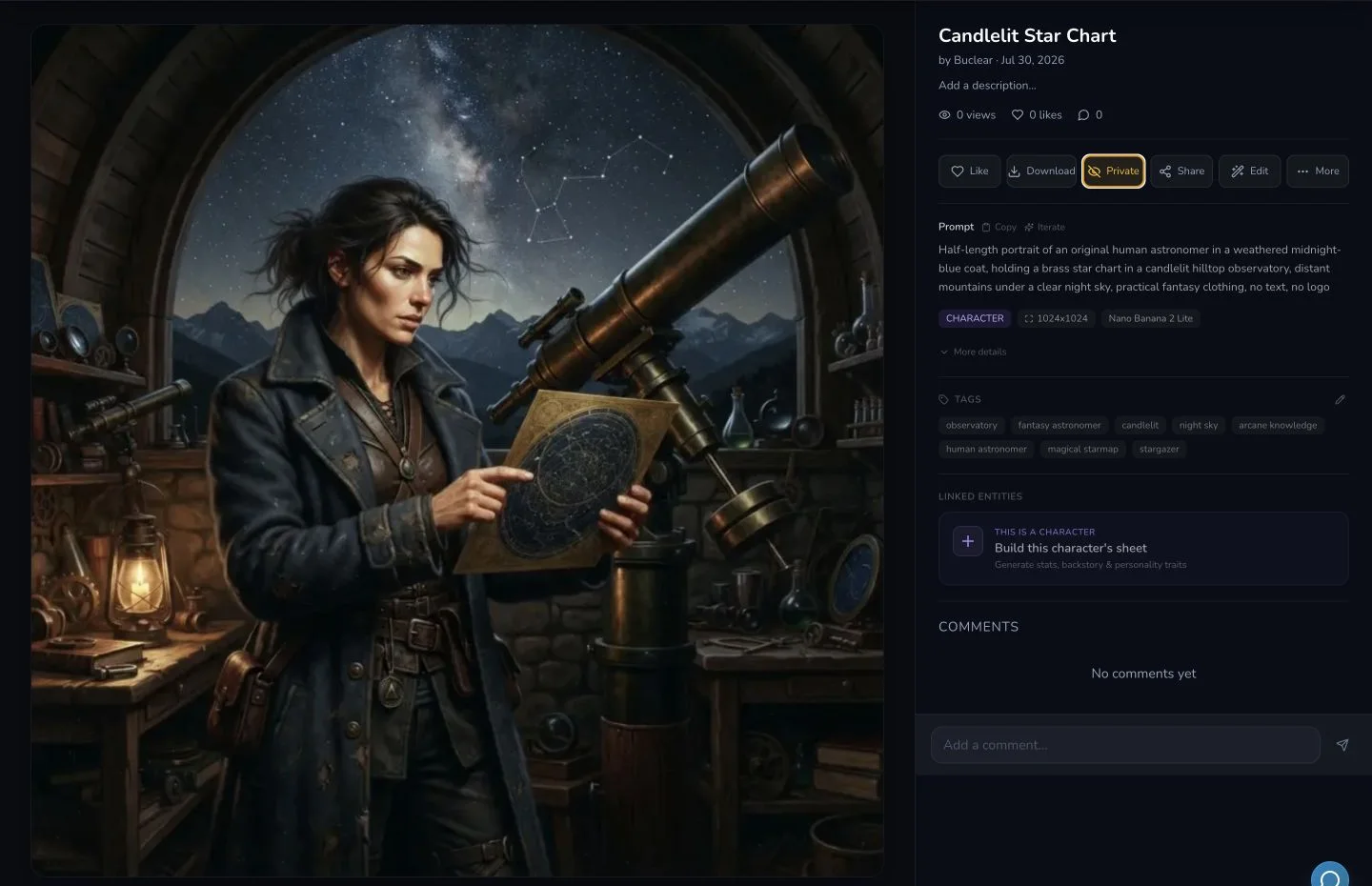
The visibility control describes the result's current state. Public means the reviewed result is public. Private means it is private.
The Academy fixture began Public, was changed to Private for the walkthrough, then restored to Public. A reload confirmed the final public state.
Compare
Visibility states
| State | What to assume |
|---|---|
| Public | The result is intended to be publicly visible. Review rights and private details before leaving it this way. |
| Private | Treat the result as private to the account. Do not assume a copied link bypasses that state. |
Copy a share link
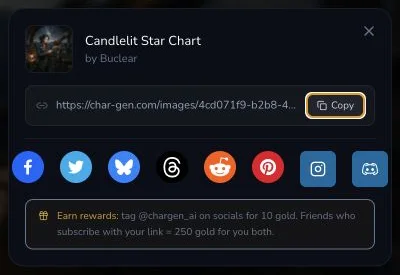
5. Open Share and choose Copy
Choose Share, review the result shown in the dialog, then choose Copy. The reviewed interface confirmed Link copied!. The link was not sent to another person during the evidence run.
Copying did not change the result's visibility. Check Public or Private separately before sharing.
Organise with a temporary folder
6. Select the result and choose Add to Folder
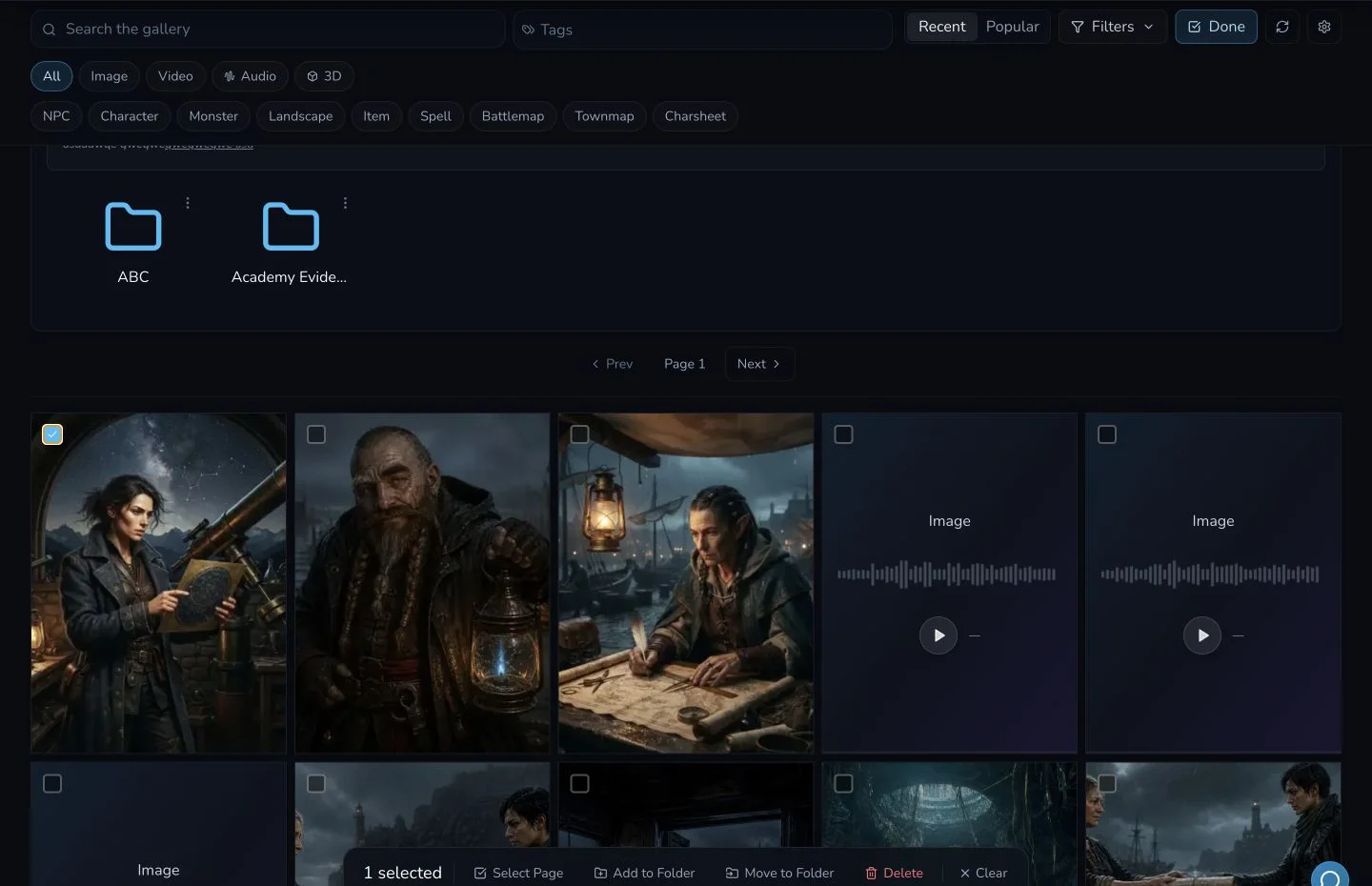
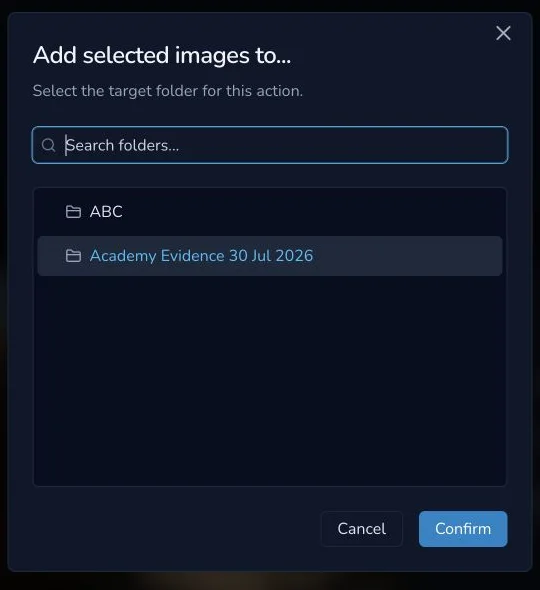
In My Library, choose Select, select the result and use Add to Folder in the selection toolbar. Create or choose a private folder, then confirm the target.
7. Remove the result from the folder
Open the folder, choose Select, select the result and use Remove from Folder. Removing folder membership does not delete the underlying result.
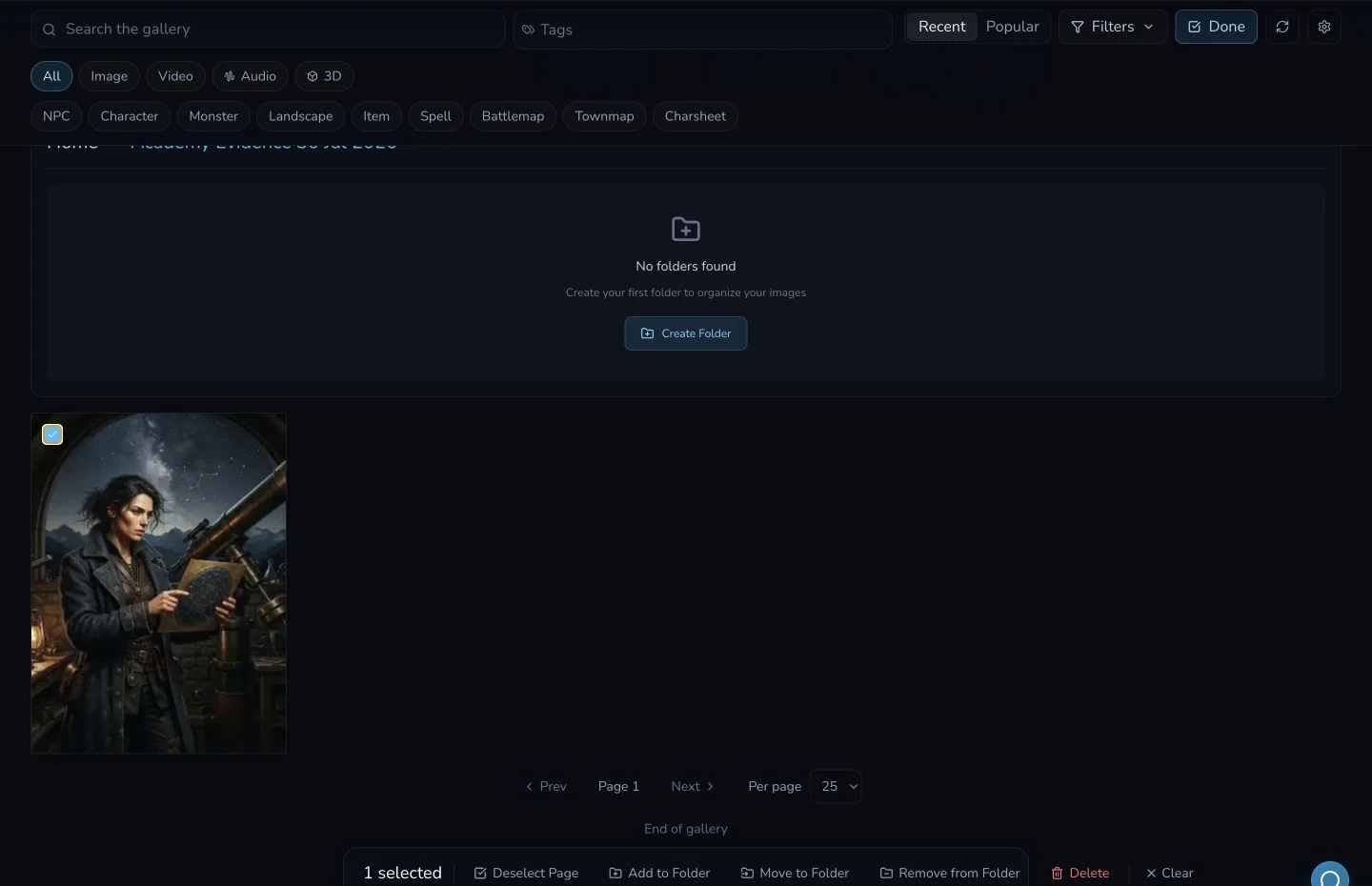
8. Delete the empty temporary folder and verify cleanup
After the result has been removed, delete the empty temporary folder. Return to My Library and reload.
The reviewed cleanup confirmed all three conditions: the temporary folder no longer existed, Candlelit Star Chart remained in My Library and its visibility remained Public.
Checkpoint
Check your result
- The owned result remains in My Library after reload.
- Download, visibility and Share are separate controls.
- Copying a link did not change visibility.
- Removing folder membership did not delete the result.
- The temporary folder is gone and the fixture is back in its intended state.
If something looks wrong
Troubleshooting
- Symptom
- The result is missing from the root of My Library.
- Likely cause
- It may currently belong to a folder.
- Next safe action
- Open the folder and use Remove from Folder if you want it back in the root view.
- Symptom
- You copied a link but do not know who can open it.
- Likely cause
- Copy does not establish visibility or anonymous access.
- Next safe action
- Check the Public or Private control and share only after reviewing the result's rights and contents.
- Symptom
- Folder controls are unavailable.
- Likely cause
- Folder access may depend on the reviewed account's entitlement.
- Next safe action
- Use My Library without folders and check the features available to your account.