
How I Use an AI Battlemap Maker for Foundry VTT: Map Guide
Use an AI battlemap maker for Foundry VTT to draw a plan, paint a map, then export scene data and check each wall before play.
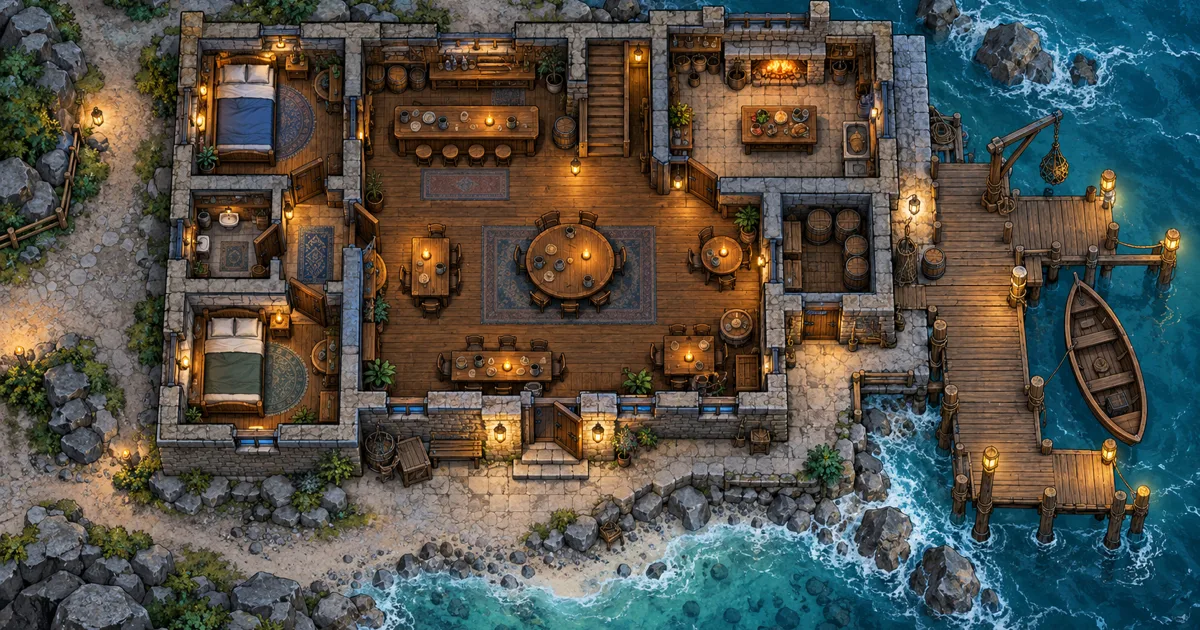
I use an AI battlemap maker for Foundry VTT when I want more than a nice picture. I want room shapes I can edit, then walls and lights I can test in play.
CharGen's Battlemap Maker keeps those jobs in one place. I draw a plan or describe it, paint the map, then choose a Foundry Scene JSON file, a Universal VTT file, or a PNG.
The export choice matters. A painted door in the background image is only part of the picture. A Foundry door is a separate wall segment with an open, closed, or locked state.
AI battlemap maker for Foundry VTT: what the files contain
A battlemap has two parts. The image shows timber, stone, furniture, water and light. The scene data tells the VTT where tokens can move, what blocks sight, and which lights affect a room.
CharGen's Battlemap Maker starts with the second part. You draw or draft rooms, walls, openings, stairs and other plan details. Painting adds the visual treatment. The export uses the plan's geometry for its walls and doors. It does not inspect every dark line in the painted image and turn it into a wall.
That distinction is easy to miss. A painting can show a thick stone wall while the plan has no wall on that edge. A door can look closed while the plan has no door opening. The result may still look right. It will not behave as you expect in Foundry.
The Maker offers three file choices in its Export tab:
| File | What it carries | When I choose it |
|---|---|---|
| Foundry scene | Scene JSON with the painted image reference, grid, walls, doors and lights | I am importing the scene into Foundry and want its plan data |
| Universal VTT (.dd2vtt) | A Universal VTT file with an embedded map image and supported wall, door and light data | My VTT or importer reads the Universal VTT format |
| PNG with grid | A 70-pixel-per-square map image, with a grid and either GM room numbers or no numbers | I need an image file or want to place the grid myself |
The Foundry JSON points to the painted image by URL. It does not contain the image bytes. Keep the image URL available when you import the scene.
The .dd2vtt file embeds a copy of the map image. It is easier to move between compatible tools, but import support depends on your VTT and its installed add-ons. Check that support before session day.
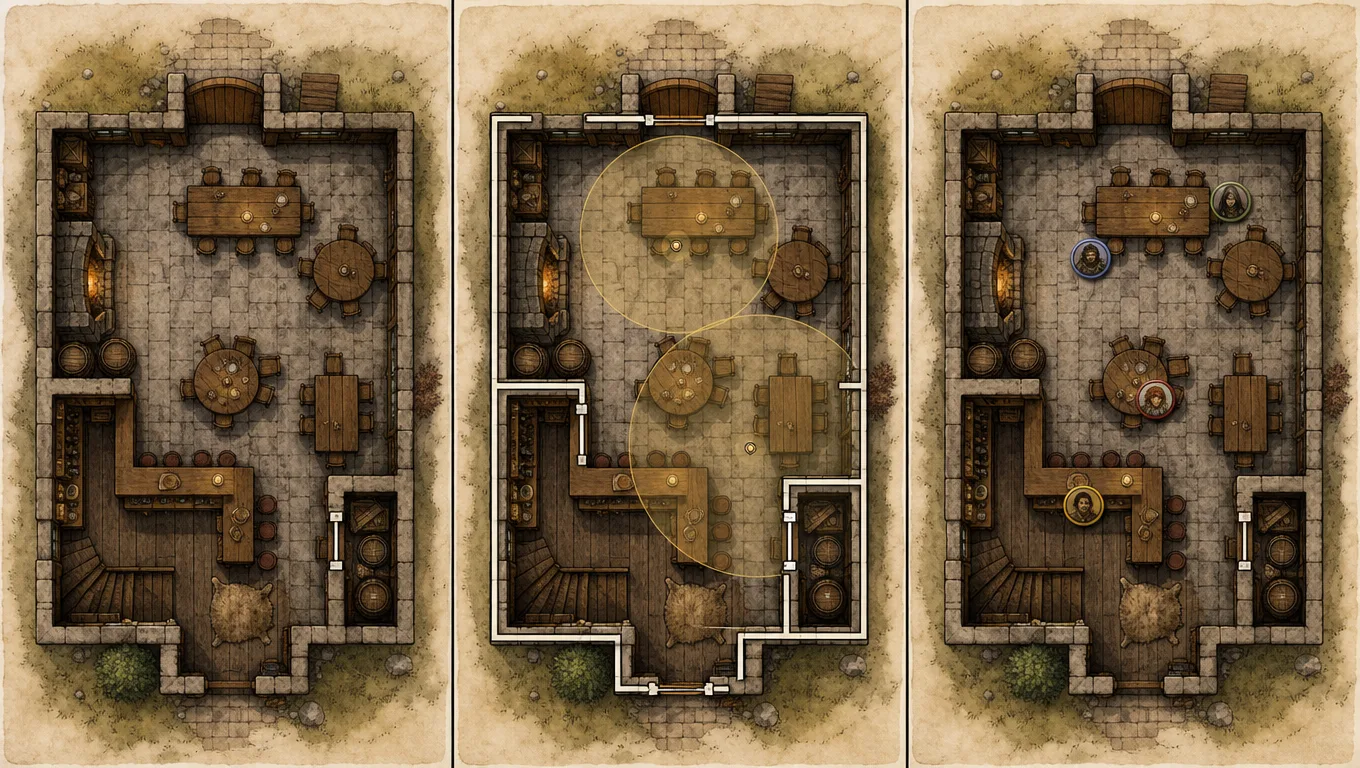
Start with rooms and walkways
Open the Battlemap Maker. Select the menu beside the map name, then choose New map. If you are signed in, the Maker saves your plans to Your maps. If you are not signed in, the current browser keeps the plan.
The Maker has a Rooms tab and a Describe tab before you paint. Use Rooms when you know the shape. Drag to add rooms, then add corridors, doors, stairs, terrain and furniture. Rooms that touch share a wall.
I use Describe when I know the place but not the layout. Type a few sentences in Describe the place, then select Draft the plan. For example:
A toll house on a flooded road. Put the public room beside the entrance, a narrow office behind the counter, two bunks upstairs, and a dry store near the back door. Add a short bridge to the east bank. Leave a clear route from the entrance to the office.
The draft is free. It gives me a plan to edit, not a finished encounter. I can move rooms, add or remove doors, and adjust the route before I spend gold on the painted map.
If the plan already contains work, Draft the plan asks before it replaces the whole layout. Choose Replace my plan to continue, or Keep it to cancel. The Maker offers Undo after the draft replaces the plan.
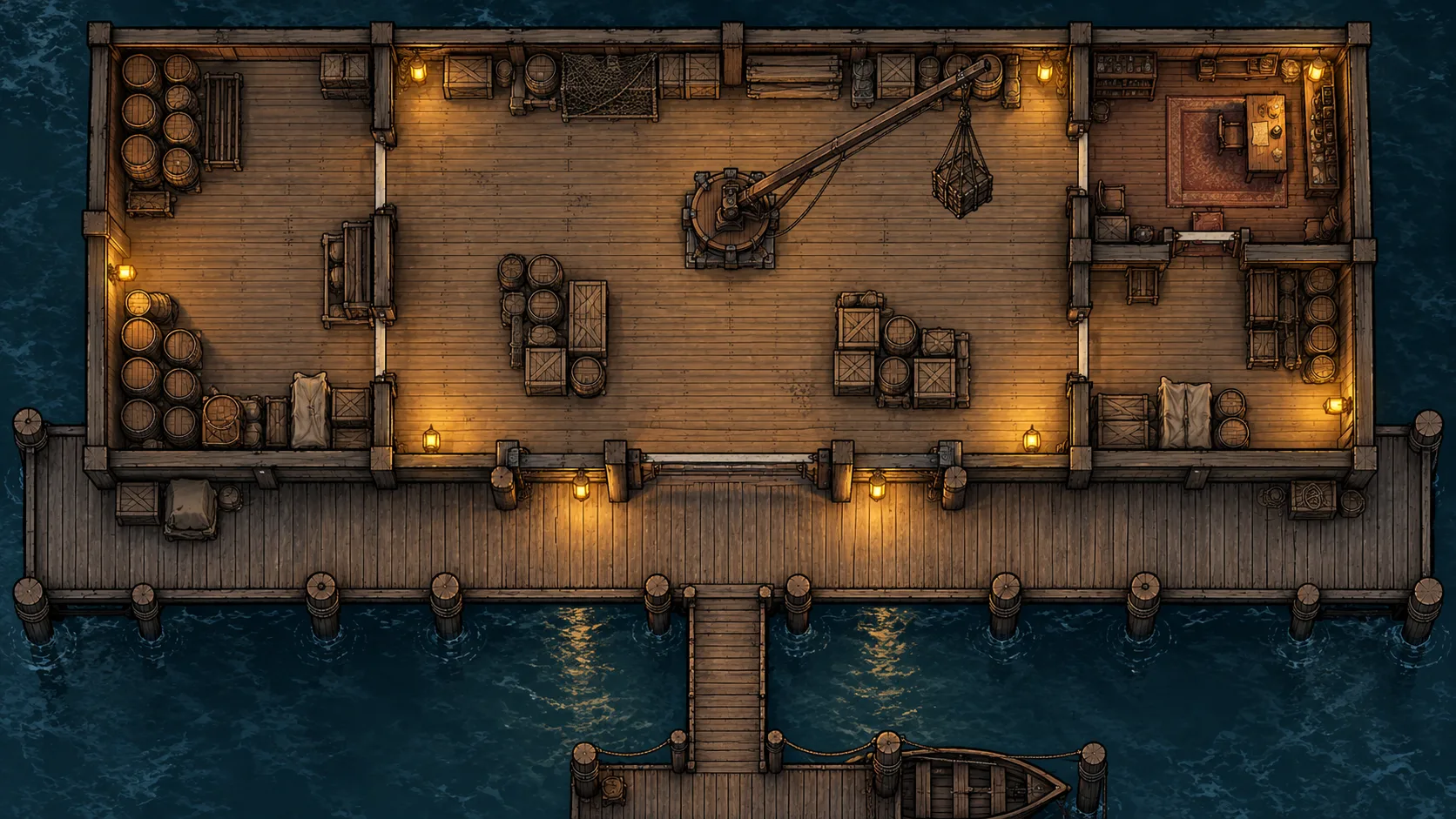
A useful plan has enough detail to support movement. It does not need a description of every chair. I check these parts first:
- Each room has a reason to exist during the encounter.
- The route between rooms is wide enough for the tokens I expect.
- Doors sit on walls, not in the middle of a room.
- Stairs connect the floors or spaces I intend them to connect.
- A hazard has a clear edge, so players can see where it begins.
- Important entrances remain visible when tokens stand nearby.
For a warehouse ambush, I might add two loading doors, a narrow office, a crane base and barrels for cover. I would leave a clear aisle between the doors. That gives the party a route across the room and gives the smugglers a reason to hold the centre.
Name rooms before you paint
Select a room to edit its name and note. Use names that help you check the map, such as Office, Upper bunks, or Flooded passage. Add a short note with visible contents, such as “map table, brass key, lantern”.
The painter reads those notes. “Kitchen, iron stove, hanging pans” gives it a stronger direction than “busy room”. I keep the note short. A list of every plate and spoon makes the prompt harder to check.
The plan still needs a visual review. A draft can place the office beside the wrong entrance. It can make the bridge too short or leave a room with no useful exit. Correct that now. You can compare the finished art with the plan after painting, but changing the geometry later means another paint.
If exact control matters, draw the rooms yourself. If speed matters more, draft the layout and repair the parts that do not fit your encounter. Both routes lead to the same editable plan.
For another view of current map tools, see my AI battlemap generator comparison. That guide compares tools and handoffs. This walkthrough focuses on the CharGen plan and export steps.
Paint a version you can test
Select Paint after the plan is ready. Choose one of four styles: Painted, Inked, Photoreal, or Hand-drawn. The style changes the appearance. It does not move the walls you drew.
The Maker keeps painted versions, so I start with Draft when I am still deciding whether the map reads well. A Draft costs 2 gold. A Final costs 10 gold and adds more detail. The current cost appears beside each option.
I would not spend Final gold to solve a plan problem. If the east entrance is missing, fix the plan first. If the rooms make sense but the timber looks too clean, change the style or room notes and paint again.
After you paint, check the plan and picture together. Does the map show the rooms in the right order? Can you identify each door? Are there clear spaces for tokens? Does the bridge connect to the bank? A picture can be attractive and still give the encounter poor routes.
The Export tab also warns you when the plan has changed since the last painted version. Its files use the last painted plan. Paint again if you want those later changes in the export. This avoids a common mistake: editing a doorway, then exporting a file that still has the old doorway.
Choose Foundry JSON, Universal VTT, or PNG
Select Foundry scene when Foundry is your target and you want scene data from the plan. The file is a JSON scene. It includes the background image reference, walls, doors and lights.
Use Universal VTT (.dd2vtt) when your target VTT has a compatible importer. The file embeds the image. Some VTTs need an add-on to read it. Check the import route and your VTT version before you build the session around it.
Keep PNG with grid for a simple image. Select GM, with numbers for the version with room numbers. Select Players, no numbers for the clean image. The PNG has a 70-pixel grid. Your VTT may draw its own grid, so avoid using both unless they align.
The two structured exports do not carry every feature in the same way. Universal VTT has no secret-door state. CharGen exports a secret door as a wall in the .dd2vtt file. The Foundry Scene JSON keeps the secret door type. A locked door also has a locked state in the Foundry file.
Pick the format that answers the question you have. Do you want editable Foundry scene data? Use the JSON. Does your importer expect Universal VTT? Use .dd2vtt. Do you only need a background image? Use PNG.
Import a Foundry Scene into a new scene
Download Foundry scene from the Maker's Export tab. In Foundry, open the Scene Directory and create a new empty scene. Use its Import Data action to load the JSON file.
Foundry's Scene guide explains scene import and warns that imported data replaces the selected scene. I use an empty scene so I do not overwrite an encounter I already prepared.
After import, check the grid before you add more walls or tokens. Foundry's scene guide warns that changing grid size can move walls, lights, tokens and tiles. Set the scene dimensions first. Then place one token and check a known room width.
The JSON file points to the image URL. If Foundry cannot load it, check whether that URL opens in your browser. A missing image does not mean the wall data is gone. It means the scene cannot find its background.
Test a doorway with a token. Check that a closed door blocks movement, then open it and try again. Foundry's Walls guide explains how wall settings affect movement and sight. Also check one light radius and one blocked sight line.
Do not trust a map because the scene imported without an error. Walk a token along the route the party will use. Look at the room boundaries at the zoom level you use in play. Fix one problem while the scene is still empty.
Import the .dd2vtt file with a compatible tool
The Universal VTT file is useful when your VTT already has an importer. The exact steps depend on that tool. Choose the .dd2vtt download, open the import feature, and follow its prompts for the file.
Foundry users often add an importer for this format. Check the package listing for your Foundry release before installing it. A module built for a different release may not load or may handle doors differently.
The file includes the map image. That makes the .dd2vtt export different from the Foundry Scene JSON, which points to an image URL. Both files use the same plan, but their import paths are not interchangeable.
Test the result as soon as it imports. Place one token in a room. Walk it across a doorway. Check a wall blocks movement. Check one light and one line of sight. If you use a secret door, expect it to arrive as a normal wall in Universal VTT.
Keep the art and the scene data in sync
The painted image is a single background. Chairs, crates, beds and tables that appear in the picture are not separate Foundry tiles. The wall and light data come from the plan.
That limit is useful to know before you spend time on props. If players need to move a crate, add a Foundry tile or token after import. If a painted bookcase should block movement, put a wall in the plan or add one in Foundry.
The plan is the source for its exported geometry. It does not read the image and decide where hidden walls should go. I compare the room edges, doors and light sources against the final painting. If the art puts a door somewhere else, I fix the plan or the scene before play.
For a plain image workflow, the Battlemap page also covers prompt-first map generation. The Maker is the better fit when I need the rooms and doors planned before the image is painted.
A final Foundry check before the session
I keep a short handoff check beside the scene:
- The scene background loads at the right size.
- The grid sits on the floor tiles or room edges.
- One token can move through every intended opening.
- Closed doors block movement and sight as expected.
- Lights stay inside the rooms where I placed them.
- A secret door behaves as a secret door in Foundry JSON.
- The player copy has no GM room numbers.
- Any furniture that must move has a separate tile or token.
It takes a minute to run that check. It can save a longer interruption after players enter the scene. The art sets the tone. The scene data decides what the table can do.
If you want to build the plan now, open the CharGen Battlemap Maker. Draw one room and one doorway first. Paint a Draft, import the JSON into a new Foundry scene, then test the doorway before you add the rest.
Open the Battlemap MakerFrequently asked questions
- Can an AI battlemap maker add walls to Foundry VTT?
- CharGen's Battlemap Maker exports a Foundry Scene JSON file with walls, doors and lights from the plan. Check those lines after import, because they follow your plan, not every detail in the painted image.
- What is the difference between Foundry Scene JSON and Universal VTT?
- Foundry Scene JSON references the painted image and carries Foundry scene data. The .dd2vtt file embeds the image and uses the Universal VTT format. Choose the file that matches your importer.
- Does the Universal VTT export keep secret doors?
- No. Universal VTT has no secret-door state, so CharGen exports a secret door as a wall. The Foundry Scene JSON export preserves the secret-door type.
- How do I import a Foundry Scene JSON file?
- Use the Import Data action in Foundry's Scene Directory. Import into a new scene, because importing data replaces the selected scene's data.
- Can I make a battlemap without spending gold?
- You can draft or draw the plan without gold. Painting the map costs gold. CharGen shows 2 gold for Draft and 10 gold for Final in the maker.