
AI Sprite Sheet Generator for D&D: 4 Tools Compared
Choosing an AI sprite sheet generator for D&D? Compare four tools for character consistency, animated moves, frame edits and Discord, VTT or game exports.
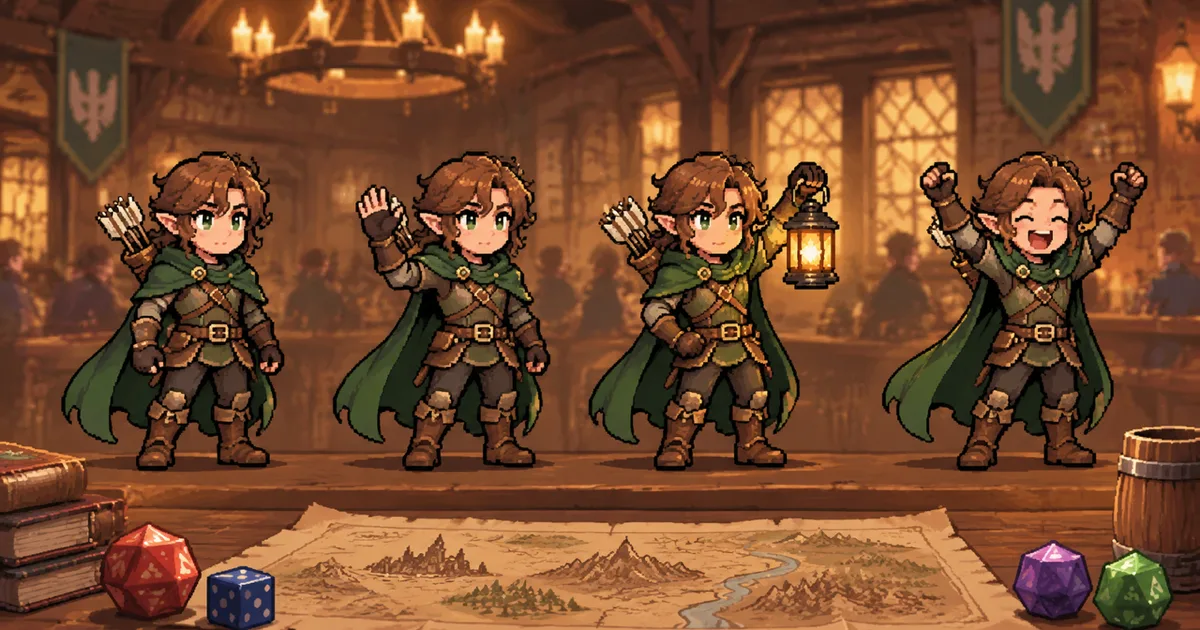
An AI sprite sheet generator can give a D&D character more than one still portrait. It can show a wave, a spell, a hit reaction or a short idle loop. I compare four tools for one job: turning character art into usable animated pixel art.
CharGen Pixel Sprites is built for campaign characters and short moves. The other tools below lean further into game assets, frame control and directional views. That difference matters when you choose an export.
I checked each tool's public feature pages on 28 October 2026. I did not run a controlled generation test on every platform. Use the table as a feature comparison. Test a sample before you pay or build a project around it.
What an AI sprite sheet generator actually gives you
People use “sprite sheet” for a few different files. One tool may give you an animated GIF. Another may give you a horizontal strip of frames. A game-focused tool may give you a grid, separate frame files or a project-ready export.
Those formats solve different problems. A GIF is easy to share in chat or a campaign recap. A PNG strip gives you the frames in one image. A grid can be easier to slice in a game engine. The cells must have consistent sizes, and the engine must read the layout.
The animation also needs to keep the character readable. The face, hair, armour and weapon should belong to the same person in each frame. Check the hands and feet too. A single wonky frame can make a six-frame attack look like six different ideas.
An October discussion in r/aigamedev describes this problem. The creator says a lantern-holding arm shifts between views, and some poses change. That is one person's report, not a benchmark. It still gives me a useful check: compare the source pose with the move before you order a full set.
For a D&D character, identity often comes from two or three details. A copper braid, a blue scarf and a broken sword are easier to check than a paragraph of backstory. Keep those anchors in the source picture. Then judge whether they survive the motion.
Frame layout matters too. A row of images can look like a sheet without having equal cells. A game engine needs to know where one frame ends and the next begins. If a weapon or a cape sticks outside one frame, automatic slicing can crop it. Check the exported image before you import it.
Here is how the four tools differ:
| Tool | Starts from | Documented output | A good fit when |
|---|---|---|---|
| CharGen Pixel Sprites | A character, NPC or monster picture | GIF, 128 px emoji GIF and PNG strip | You want reactions or short moves for a campaign |
| SpriteGen | A character description, view and style | Transparent PNG sheet with 6, 8 or 12 frames | You want a sheet for a game project |
| SpriteLab | A sprite and a motion brief | Frame-aligned sheet, separate frames and GIF | You already have a sprite and want to animate it |
| PixelLab | Text, animation controls or reference art | Animations, directional views, scenes and tilesets | You need broader game art and 4 or 8 directions |
1. CharGen Pixel Sprites: move a character from your campaign
CharGen starts from an existing picture. Open Pixel Sprites, choose a character, NPC or monster image, then pick a style and moves. The maker offers eight ready moves: Idle, Hello, Attack, Cast, Victory, Laugh, Defeat and Angry. You can also type your own move.
The typed move works best when it describes one short action. For a halfling innkeeper, I would try: “lifts a tankard, offers a toast, then returns to the starting pose”. That gives the animation one clear start and finish. “Runs across the room, fights a goblin, pours a drink and waves” asks for four scenes at once.
Choose Fine pixels when the face or equipment must stay clear. Choose Chunky pixels when the sprite needs to read at emoji size. The two styles are separate generations. The model draws each style, so a resized Fine sprite is not the same as a Chunky one.
The base character sprite and all downloads are free. Each move costs 10 Gold. A custom move has the same price. Eight ready moves cost 80 Gold, with no bundle discount. You can make one move first, check the result, then decide if the other seven are worth it.
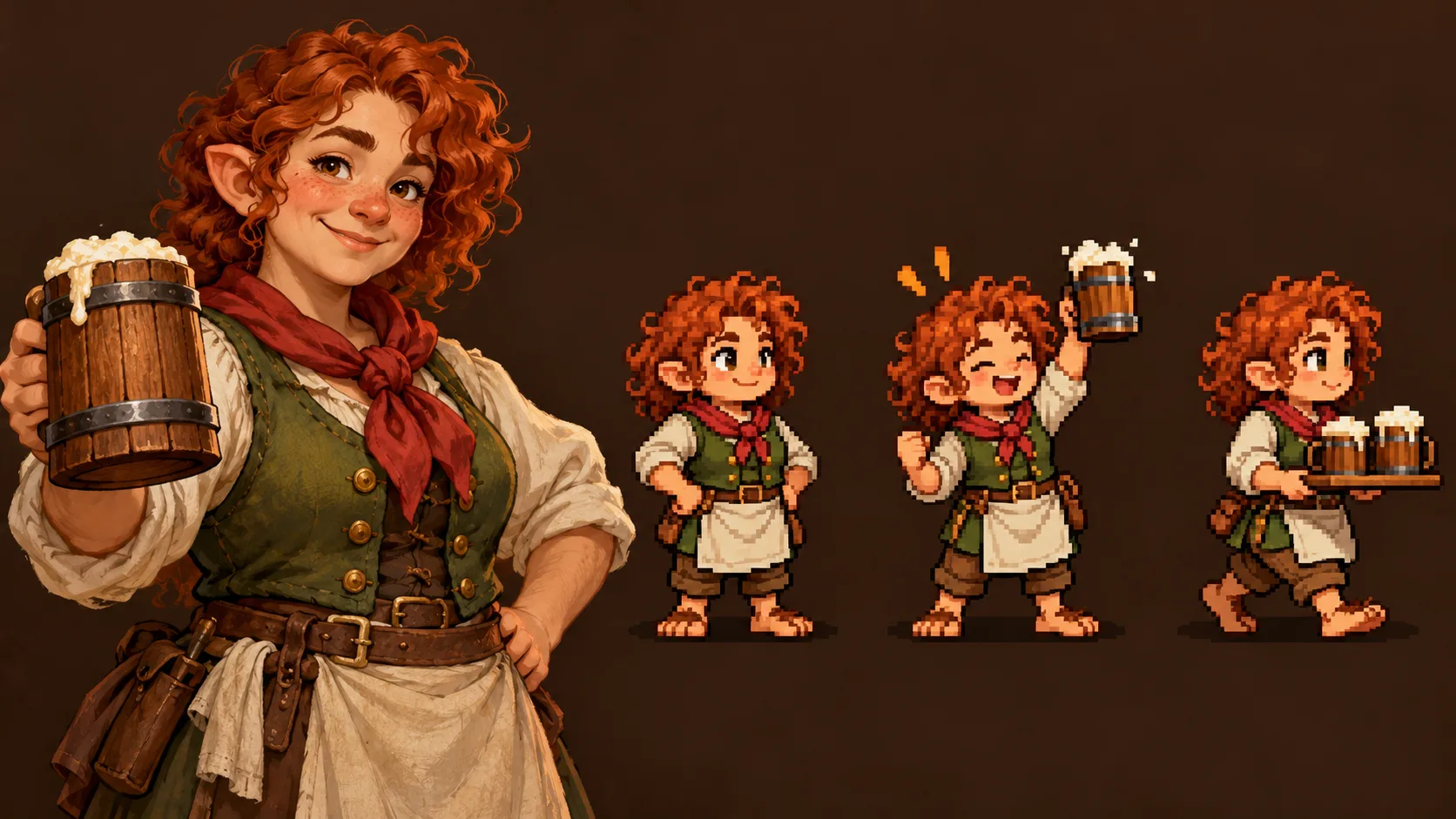
The Pixel Sprites library has a Touch up tab. Recolour a colour across every move or edit one move. The pencil, eraser, colour picker and onion skin help with individual frames. Touch up is free, and the original drawing stays available.
There is one format detail to check. Pencil and eraser edits apply to Classic files. HD files receive recolouring, but not pencil or eraser changes. The HD download explains this. Keep the Classic export if you need the pixel-level correction.
Pixel Sprites also makes spell effects and items. A fireball can have Forming, Flying and Burst parts. The first part costs 10 Gold. Each extra part costs 8 Gold, so this three-part fireball costs 26 Gold. The image workflow guide explains how the other image workflows fit around campaign art.
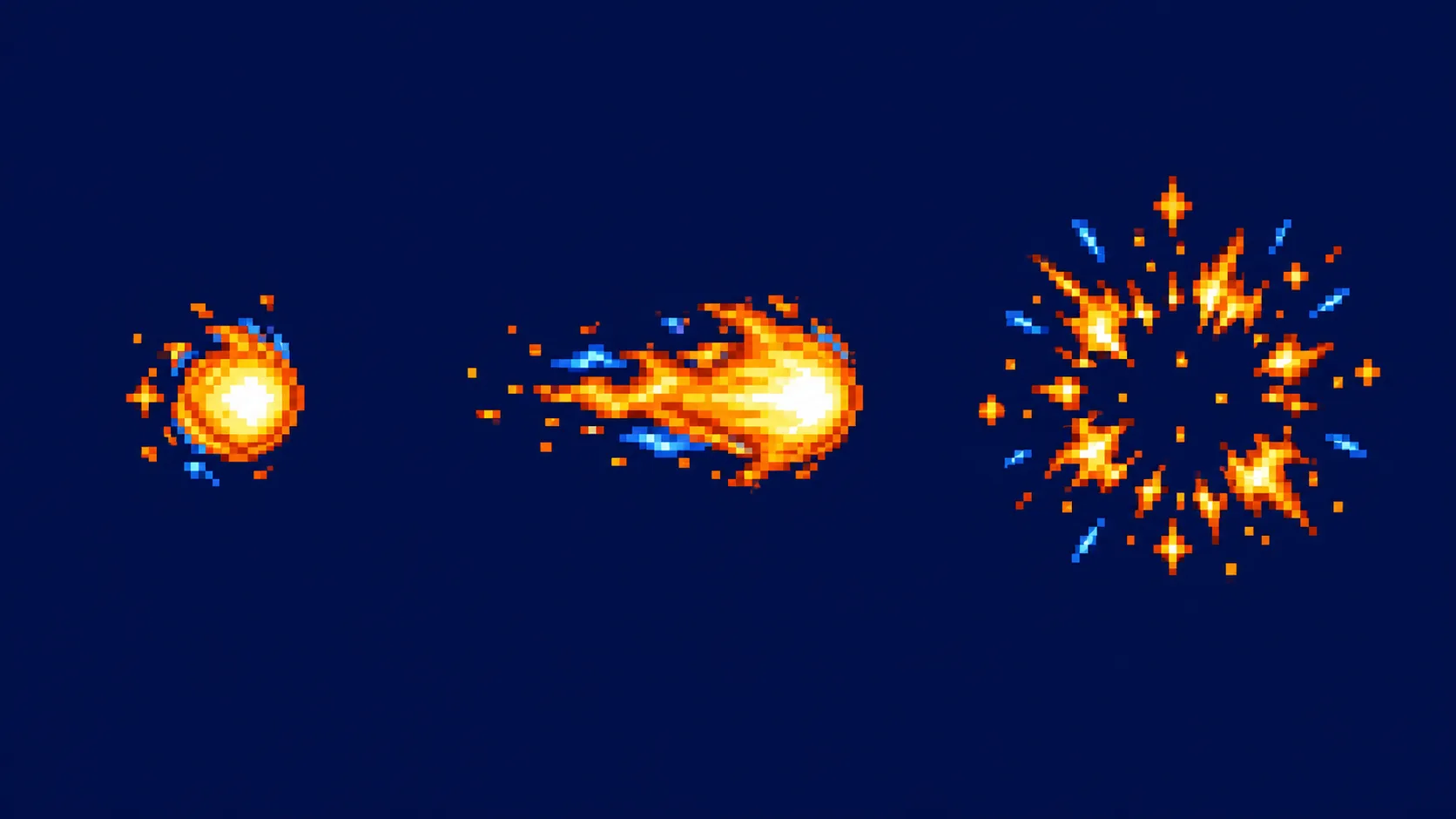
This is the best fit in this comparison when you already have campaign art and want a small moving reaction. It is not a circular token editor or an automatic game-engine importer. Use the Token Maker for a still token. Use a game-focused tool when your project needs a strict grid, timing data or a full character moveset.
2. SpriteGen: choose the view, style and frame count
SpriteGen is aimed at game developers. Its public composer lets you choose a view, a style, a facing and an action. The listed actions include idle, walk, run, jump, attack, cast, hurt, death and fly. You can also write a custom move.
The frame selector offers 6, 8 or 12 frames. The site describes its result as a transparent PNG sprite sheet with evenly spaced frames. That makes it a better starting point than a GIF when you plan to slice frames in an engine.
I would choose SpriteGen for a small RPG prototype that needs a specific frame count and view. Before generating a whole cast, test one character at the target size. Check whether each cell has the same dimensions and whether the weapon stays in the character's hand.
SpriteGen's product page also shows a reference and history area. I would still inspect the output instead of assuming the sheet will preserve every detail from a portrait. Its description is useful. The downloaded frames are the evidence that matters for your project.
3. SpriteLab: animate a sprite you already have
SpriteLab begins with a sprite and a motion. The product can suggest actions based on the image, or accept a move that you describe. It lists idle, walk, run, attacks, spells, jumps, flight, defeats and other custom motions.
You can choose 4, 6 or 9 key poses. Smooth mode adds frames between them, for totals of 8, 12 or 18. The downloads include a horizontal PNG sheet, separate frames in a ZIP and a GIF preview. SpriteLab also lists engine packs for Godot, Unity and GameMaker.
That makes SpriteLab a useful choice when you have a hand-drawn pixel sprite or a generated base image. You can ask it to move without starting the design again. It is also more explicit than CharGen about frame counts and engine handoff.
The trade-off is the same one I apply to every animation tool. A tidy sheet can still have a weak action. Play the GIF at normal speed. Look for a foot that slides, a sword that changes length or a cloak that jumps between frames. Use the strongest frames, then correct the rest.
4. PixelLab: add directions and more game art
PixelLab is the broadest game-art option in this comparison. Its feature page lists text and skeleton animation, four- and eight-way views, style control, inpainting, scenes, tilesets and interface assets.
Use it when a character must face more than one direction or when a game needs matching tiles and backgrounds. Its reference-based workflow can keep a visual style across multiple assets. Its animation controls also give a game maker more room to direct a pose than a simple text-to-GIF tool.
That extra range can be unnecessary for a D&D recap or Discord reaction. For one wizard spell, choose a tool with a clear move and an easy export. Save directional views and tilesets for projects that need them.
Pick by the place you will use the sprite
The right AI pixel art animation tool depends on the destination. A campaign chat, a VTT and a game engine do not expect the same file.
| Your job | Start here | Check before you finish |
|---|---|---|
| Show an NPC waving in a campaign recap | CharGen Pixel Sprites | Compare the face and outfit across the loop |
| Add a short reaction to a Discord server | CharGen Pixel Sprites | The GIF must be under Discord's 256 KB limit |
| Make a frame-counted game character | SpriteGen or SpriteLab | Check frame dimensions and playback order |
| Make a character face four or eight directions | PixelLab | Compare the silhouette and gear in every view |
| Keep drawing by hand, then add motion | SpriteLab | Inspect every frame and fix weak poses |
| Make a still circular token | CharGen Token Maker | Set the token footprint in your VTT |
For a player character, I would start with one portrait and one move. An elf ranger might wave in a campaign recap. A dwarf smith might raise a hammer once. A goblin shopkeeper might shake their head. Those are easier to judge than a full sheet of eight actions.
The product only solves the image job. A D&D table still decides where that art belongs. Some groups welcome generated campaign images. Others do not want them in a shared wiki. A July discussion on r/dndnext shows how different those preferences can be. Ask before you add a generated portrait to a shared player space.
Resolution alone does not decide which tool to use. A large file can still have poor frame alignment. A small GIF can be more useful if the face stays clear at chat size and the loop reads well. I start with the final destination, then choose the format and frame count that it can use.
For campaign art, a move may only need to show a change in mood. A shopkeeper can wave once. A guard can lower a spear. A spell can form, travel and burst. Those short actions work as reactions in a recap or as a visual cue during play. They do not need eight walking directions.
For a game prototype, the bar is higher. The sprite needs a stable scale, a known frame order and a repeatable baseline. A walk cycle should return to a pose that can loop. A spell attack should have a clear start and end. Check each action in the target engine, because playback speed and frame timing change how the motion feels.
Check the animation before you share or import it
I use four checks before I call an AI sprite sheet ready.
Check the starting image. Use one clear character. Keep the face, outfit and main item visible. Avoid a pose where the character hides their own sword or wand. The generator has less to infer when the picture has one subject and a readable silhouette.
Generate one move first. Choose a simple action, such as waving or casting. If the character changes clothes or loses a hat, revise the source or the move. Do not spend Gold on a full set until one example holds together.
Preview at the size people will see. A sprite can look detailed at full screen and unreadable in chat. Shrink it to the target size. Check the face, weapon, effect and loop seam. For an attack, look at the first and last frames. They should not jump unless the action is meant to stop.
Choose the export for its job. Use a GIF for a quick preview or chat post. Use a 128 px emoji GIF for a Discord reaction. Use a PNG strip when another app needs the frames. Save the source portrait with the exports so you can make a different move later.
Keep a character's identity across each move
I keep stable details in the source image, then vary only the action. For example, a tiefling scout might have one pale horn, a brass compass and a split green cloak. I would ask for a wave first, then a spell, while checking those three details in both results.
If the face changes, fix the source before adding more moves. If the hands change shape during a single loop, use Touch up where it supports the exported file. A new generation can also help, but it may change other details. Keep the first version until the revised one passes the same check.
Discord's current custom emoji guide accepts GIF files under 256 KB. A server owner or someone with the right expression permission must add the emoji. Animated emoji slots require Nitro or Nitro Basic for that server. A 128 px export still needs a file-size check.
Foundry needs one extra check. Its canvas does not play GIFs by itself. The GM Tools: Animation Control module adds playback for GIF, WebP and APNG on supported Foundry versions. Read the module's current compatibility notes before a session. A PNG strip is different from a Foundry Scene file, so check the importer before you use it.
Godot's 2D sprite animation guide shows how AnimatedSprite2D uses frames or a sprite sheet. CharGen gives you a horizontal PNG strip. You may need to slice or adapt it before playback.
Which AI sprite sheet generator should a D&D player choose?
Choose CharGen Pixel Sprites for a campaign portrait and short move in notes, chat or a supported VTT. Choose SpriteGen or SpriteLab for frame layout and engine exports. Choose PixelLab for multiple directions, tilesets or larger game art.
My practical recommendation is to start with one existing character image and one action. Check the face, equipment and loop at the size you plan to share. Then keep the original portrait beside the GIF or PNG strip.
Make an animated D&D spriteFrequently asked questions
- What is an AI sprite sheet generator?
- It creates several poses or animation frames for one character in a single image or set of files. Check the frame layout before you import it into a game or VTT.
- Can I turn a D&D character portrait into an animated sprite?
- Yes. CharGen Pixel Sprites starts from a character, NPC or monster picture and makes preset or typed moves. Check the face, clothing and equipment across the finished frames.
- Can I use CharGen Pixel Sprites in Foundry VTT?
- You can download GIFs and PNG strips. Foundry does not play GIFs on the canvas by itself. Use a compatible animation module for GIF playback, or check the PNG strip layout against your importer.
- Can I upload an animated sprite as a Discord emoji?
- Discord accepts GIF emoji files under 256 KB. Animated emoji slots require Nitro or Nitro Basic on the server, and you need permission to add the emoji.
- How much does CharGen Pixel Sprites cost?
- The base character sprite and downloads are free. Each character move costs 10 Gold. A spell effect or item starts at 10 Gold, then each extra part costs 8 Gold.