
How to Organise D&D Campaign Art in 7 Simple Steps
Learn how to organise D&D campaign art with clear folders, useful names and a short session routine for finding NPC portraits, maps and handouts.
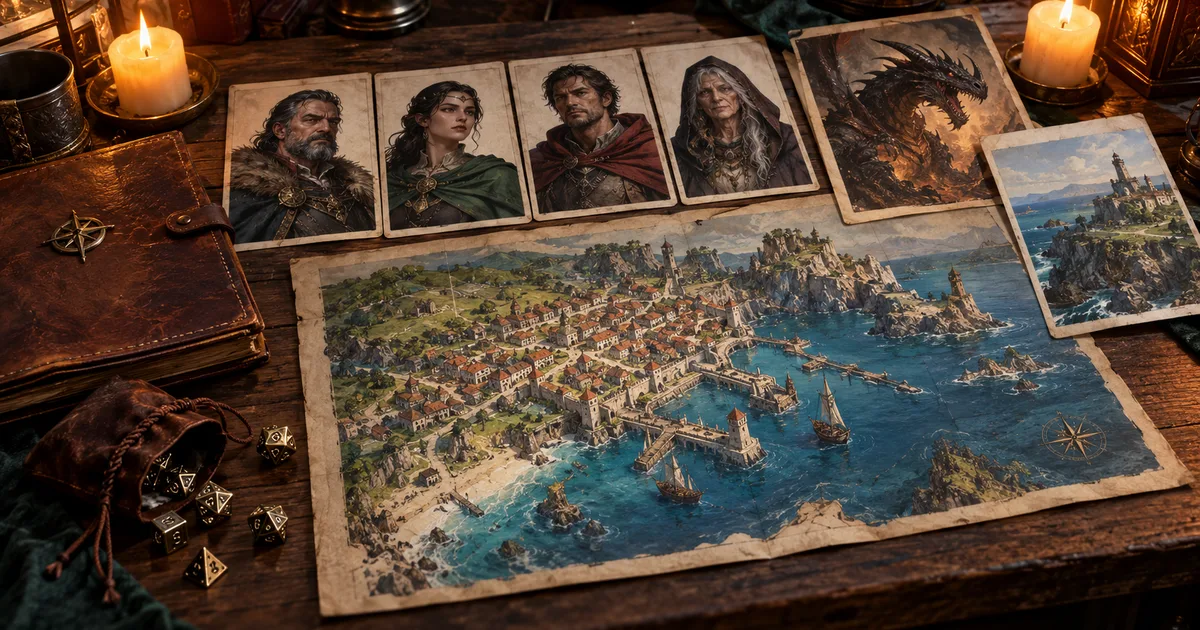
A campaign art folder can fill up before the party reaches its second town. One file is a finished innkeeper portrait. Another is a rough draft. The map is in Downloads, and the handout is in a chat. Before the next session, you have to open each one to see what it is.
To organise D&D campaign art, give each campaign one home, sort by use, and name pictures so you can find them again. You do not need a perfect archive. You need to find the ferry keeper’s portrait before the party boards the boat.
I use the same simple structure in a file folder, a shared drive, or CharGen’s Library. The exact buttons vary. The habits do not.
How to organise D&D campaign art in CharGen or your own folders
Start with one place for the campaign. Make a few groups that answer a practical question: “Where is the portrait?”, “Which map do I show?”, or “Is this handout ready?” Give each group a name people use at the table. If a file system needs a top folder, use the campaign name.
For example, a campaign called Tideglass might need four folders:
| Folder | What I put there |
|---|---|
| NPC portraits | Player-facing portraits of named people |
| Places and maps | Towns, rooms, roads and battle maps |
| Creatures | Monsters the party may meet |
| Handouts | Letters, notices and other items to show players |
Keep it small at first. Four folders can hold a whole campaign’s first few sessions. Add a folder when you have a real retrieval problem, not because the archive looks empty.
In CharGen’s unified app, open Library to see Campaigns and Folders. The Library also has a search field, media filters and Save to. You need to sign in to use it. If the Library sends you to My Gallery, your account is using the older app view. The campaign and folder steps below need the unified app.
1. Give each campaign one clear home
Make one campaign the top level for the art you use at that table. Do not mix a current campaign’s NPCs with pictures for a one-shot or a different world. You will search less and show fewer wrong images by mistake.
If the tool has campaign albums, start there. In CharGen, the Library lists your campaigns in the Albums rail. Use a campaign album when the picture belongs to that campaign. Use a folder when you need a smaller group, such as “Tideglass handouts” or “Winter market”.
Some DMs do not use a campaign manager. A folder named Tideglass works just as well. Inside it, add only the groups you expect to reuse. Keep the structure shallow. A path like Tideglass / NPCs / North coast / Ferries / Staff / Current is hard to remember when a player asks for a portrait.
If you run several games, include a short system or group name in the campaign label. Tideglass, Thursday group is easier to scan than Campaign 3. Avoid dates unless the group uses them to distinguish two active versions.
2. Sort by what the picture does
Organise by use before you organise by creature type, colour, or art style. A DM looking for a face usually knows the character’s name. A DM looking for a map usually knows the place. Those are stronger search clues than “blue” or “painted”.
Four groups are enough for most early campaigns:
- NPC portraits for named characters the players can meet.
- Places and maps for settlements, rooms and travel routes.
- Creatures for foes, pets and strange wildlife.
- Handouts for letters, signs and player-facing images.
Keep images that are still under review apart from art you plan to show. A folder called Needs a check can hold alternate portraits and rough ideas. Move the chosen version into the normal group after you decide. This stops a draft from appearing on screen during play.
Do not make one folder for every character. Give each portrait a useful name instead. If your campaign has 60 named NPCs, create a new folder only when the list is slow to scan. You can also group by location or faction.
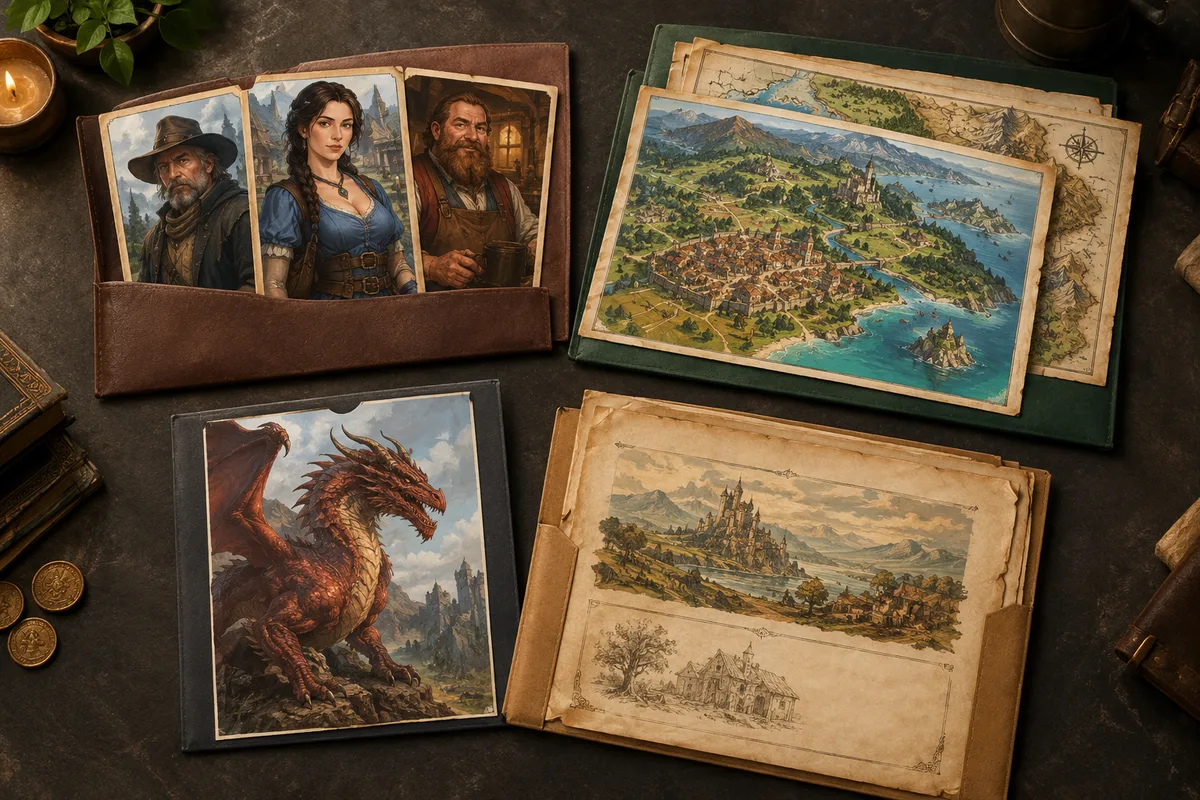
3. Put names and search words in the right places
Use the name a player will say at the table. Edda Vell, ferry keeper is easier to find than portrait-final-3. Flooded chapel, lower room gives you more than map-new.
Add one short clue when two items might have the same name. A useful pattern for files you export is:
- tideglass-edda-vell-ferry-keeper.webp
- tideglass-flooded-chapel-map-player.webp
- tideglass-marsh-hound-creature.webp
Put the campaign and purpose first. That helps when your computer sorts files alphabetically, and it makes a downloaded file easier to recognise outside CharGen. Do not add every prompt detail to the name. “Edda, ferry keeper” is enough. “Edda, tired, wet cloak, blue-grey dusk, second try, maybe final” is not.
CharGen’s Library search says Search names and text. Search for the name or location you would use in a session. If your stored content has no useful text, choose a better name when the app lets you edit it. When you export art to another folder, use a clear file name there too. Google’s Drive guide to organising files recommends clear names and folders for the same reason: people need to retrieve work later.
Check the version at the size you will show
A full portrait and a VTT token can look like two different files, even when they use the same art. Keep them in the same NPC group, but mark which one is the portrait and which one is the token. A face that reads well on a large card can disappear inside a small circle.
The same check helps with maps. A clean map for players should not contain the notes or marks you use behind the screen. Open the final file once before you move it into Ready for session. Check the crop, the label and the version. If you need a token from a portrait, the D&D token maker guide explains that separate step.
4. Keep draft art apart from table-ready art
Image generation often gives you more than one usable choice. Save the candidates, but make the final choice visible. A player should not see four versions of the same NPC unless you intend to ask for a vote.
Use plain folder names, such as Needs review, Ready for session, or Do not show yet. A label helps you remember the status. It does not control who can view an image. If you use a shared folder or a public gallery, check each picture’s access before you share the folder.
Keep secrets separate from player-facing pictures. A portrait is usually fine to show. A map with the villain’s route marked in red may reveal too much. Save a clean version for players and keep the annotated version with your private notes. Do not rely on a folder name to hide a spoiler.
When you choose the final version, make the decision easy to see. Move it into Ready for session, or add “player” to the file name. Keep an alternate in Needs review if you might use it later. You can then make the right choice quickly while the table waits.
5. Search and filter before adding more folders
A large folder tree can feel tidy while making each search slower. Try the search field and filters first. In CharGen’s Library, Everything, Pictures and Films narrow the view by type. The Wall and List controls change how you browse. Search for a person or place, then choose the view that helps you compare the results.
For a session with Edda, search Edda Vell. For an image that has no character name, search the location, such as salt road or flooded chapel. If a broad search returns too much, add one clue. Do not split a 15-picture folder into 15 one-picture folders.
Use folders when they represent a lasting group. Use search when you need one record. That difference keeps your setup useful after you add more NPCs, side quests and maps.
If your campaign lives outside CharGen, apply the same rule with your computer’s search. Keep names short. Use one or two useful terms. Do not expect a folder path to tell you what is inside a file.
6. Use Save to while you are already looking at the picture
Filing is easier when it happens at the moment you choose an image. In CharGen, use Save to on a picture or record to add it to a campaign or folder. You can also select several items in the Library and save them together. On a desktop, you can drag items onto a campaign or folder in the Albums rail.
I would do this after a batch of NPC portraits, not six weeks later. Save the likely keeper to Tideglass / NPC portraits. Put the other options in Needs review if you may come back to them. File the chapel map under Places and maps when you decide to use it.
The same habit works in any tool. When you download a map, move it from Downloads before you close the session. When a player sends a handout, save it to the campaign folder and name it. A minute of filing now can save several minutes of searching at the table.
CharGen’s RPG Workshop can create campaign content, while the NPC Generator helps when you need another face or name. The Library is where the unified app groups saved pictures and records.
Open the RPG Workshop7. Make a small session set
Your full art library is not your session view. Before play, gather only what the next session needs. A ferry scene might need Edda’s portrait, one image of the dock, a route map and the notice that sends the party there.
Keep that selection in a Session 12 folder or a short checklist in your notes. If you use CharGen’s campaign tools, open the relevant campaign and save those pictures there. Do not make a duplicate every time you reuse an image. A link or campaign record is enough when your tool supports it.
This smaller set has two benefits. You can open the right picture quickly, and you can check each one for spoilers before you share your screen. Remove stale shortcuts from the session set after play, but keep the original art filed where it belongs.
For the Tideglass campaign, my session set could have four items:
- Edda Vell’s player-facing portrait.
- The public ferry notice.
- A clean map of the eastern crossing.
- A GM-only version of the flooded chapel map in private notes.
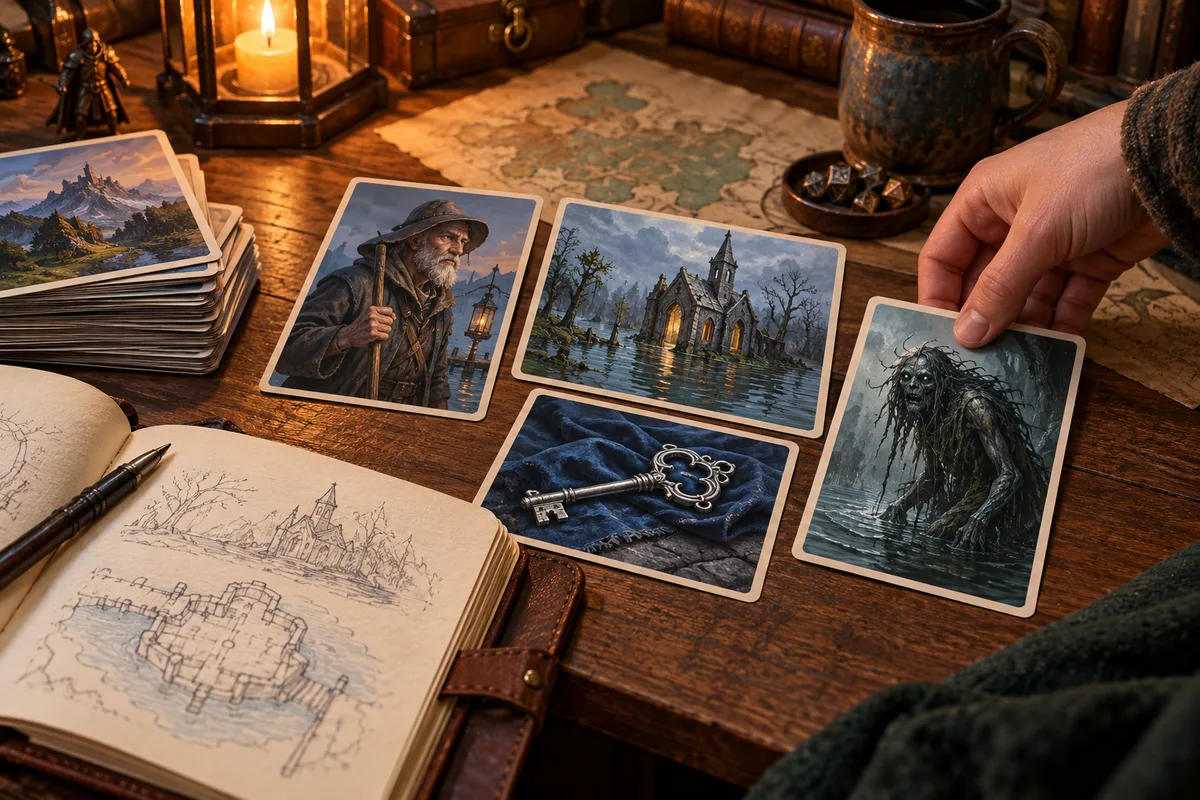
That is enough for a scene. I do not need every image from the campaign open at once.
Save public pictures as your own copy
You may find a useful image that another CharGen member has made public. The Library’s Save to flow can save eligible public still pictures as your own private copies. It blocks private, NSFW, uploaded, edited and workflow pictures. Saving a copy does not change the original. CharGen currently limits these copies to 200 pictures per day, so save the ones you plan to use.
Treat the copy as a working file for your campaign. Give it a useful name or add it to the right campaign. Keep track of who made the original if you want to credit them at your table. A private copy is not a licence to claim someone else’s work as your own.
Folders and visibility are separate choices. Midjourney’s October 2026 alpha changelog makes the same distinction for its shared folders: folder access does not change the privacy of each image. Check an image’s visibility before you send a link or share your screen.
A ten-minute art filing routine
Try this after each session or after a large batch of generation. Set a timer for ten minutes. Stop when you can find the next session’s likely pictures.
- Pick the current campaign and open its art home.
- Search for new pictures by character or location name.
- Keep one or two candidates for each important person or place.
- Move the chosen art into its use folder.
- Put drafts and alternates into Needs review.
- Check the player-facing set for notes, labels or map marks that reveal a secret.
- Add four or five likely pictures to the next session set.
Do not spend that time rewriting every file name from the last year. Fix the names you need now. If you can find the ferry keeper, the map and the handout for the next game, the setup works.
Keep the system simple enough to use
A filing system is useful only if you keep using it. If it takes longer to choose a folder than to generate the image, the structure is too detailed. Start with the campaign, then use a few groups. Add folders after a real search shows where the current structure fails.
Character appearance is a separate problem from storage. If you want the same character to look similar across several pictures, use references and notes. I explain that workflow in how to keep D&D character art consistent across a campaign. For storage, keep the chosen portrait easy to find and keep draft versions out of the session set.
Your next session needs a short set, not a perfect archive. Save the keeper to its campaign, name it for search, and check what players can see before you share it.
Open your CharGen LibraryFrequently asked questions
- How should I organise D&D campaign art?
- Give each campaign one home. Sort pictures into a few useful groups, such as NPC portraits, places, creatures and player handouts. Use names that you can search before you add more folders.
- Can I organise campaign art in CharGen?
- In CharGen’s unified app, the Library has campaign albums, folders, search, media filters and Save to. You need to sign in to use your Library.
- Can I save another member’s CharGen picture?
- You can save eligible public still pictures from other members as your own private copy. CharGen blocks private, NSFW, uploaded, edited and workflow pictures. Saving a copy does not change the original.
- Should I use a folder for every NPC?
- Usually no. Keep portraits together and search by the character’s name. Add a separate folder only when a group has enough pictures to make browsing slow.
- Do folders make campaign images private?
- A folder name does not set an image’s visibility. Check the visibility of each image before you share it or show it to players.