
Use Pixel Sprites for Recurring D&D NPCs
Choose a portrait move, 8-direction walk or game move for a recurring D&D NPC, then organise its downloads for your next session.
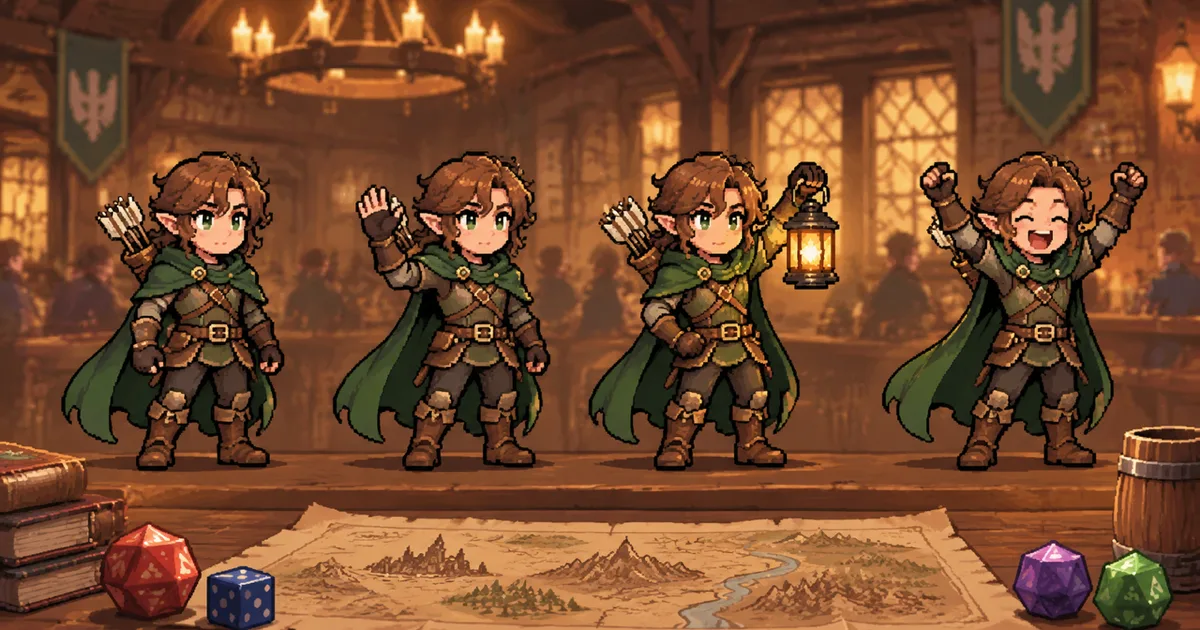
A recurring NPC needs an image that players recognise quickly. Use a portrait move when they only need one reaction. Use an 8-direction walk when they move across a top-down map. Use a game move when you need a specific action in selected facings.
CharGen Pixel Sprites starts from a picture of a character, NPC or monster. The base sprite is free. A standard portrait move costs 10 Gold. An 8-direction walk costs 80 Gold. A game move costs 25 Gold for each facing you select.
Choose the smallest useful animation
Start from the moment the NPC will appear at the table. Do not create a full set because the options exist.
A standard move suits a named NPC who appears in recaps, player handouts or chat. An innkeeper raising a tankard, a guard shaking their head or an informant pointing at a map gives the group a clear visual reaction. These moves are short and work well when the art is supporting a scene rather than representing position.
An 8-direction walk suits a recurring figure in a top-down chase, tavern brawl or travel scene. It creates a looping walk for front, back, left, right and the four diagonals. Use it when the same NPC may approach, retreat or cross the map in more than one direction.
A game move suits a specific table event. CharGen offers looping Idle, Walk, Run and Sprint moves. Weapon swing, Punch, Cast, Hurt, Jump, Roll and Death have a defined end state. Choose only the facings your scene needs. A side-on alley fight may only need left and right. A map encounter with open movement can need all eight.
The practical rule is simple: make one animation that will be used in the next session. Add more only after the group has seen the first one.
Start with a readable NPC picture
The source picture does most of the consistency work. Use an image with one visible subject, a clear silhouette and the NPC's important details in view.
For a fictional example, Captain Nera Vale is the recurring harbourside guard in a Saltmere campaign. Her players recognise three things: a red officer's sash, a hooked spear and a brass monocle. Her source picture should show those details before you make any animation.
Avoid crowded scenes, hidden hands and cropped equipment. A walk or weapon move has to infer parts of the character that are not visible in the source. The fewer hidden details it must invent, the easier it is to check the result.
If the NPC has already appeared in your campaign, start from the existing image rather than making a new portrait. That keeps the campaign's visual reference stable.
Make the right Pixel Sprites order
Open Pixel Sprites, select New, then choose the NPC picture. You can also start from a character, NPC or monster page, or select Sprites then Character in Generate.
For a portrait reaction, use the Moves tab. Pick a ready move or describe one short action. “Raises a lantern, scans the dock, then returns to the first pose” gives the motion one clear sequence. Do not ask it to chase, fight, shout orders and draw a map in the same animation.
For map movement, use 8 directions. Check the standing views and the walk loop in the library. The first walk or game move for a picture creates the standing views used by later game moves. That shared starting point helps each facing look like the same NPC.
For an action, use Game moves. Select Choose facings when the table only needs a subset. Captain Vale needs left and right for a dockside side view, so a two-facing Weapon swing costs 50 Gold. A complete eight-facing version costs 200 Gold.
Animations already made for that picture are marked in the maker. Do not order the same move twice by mistake.
Check the sprite before game night
Open the sprite in the Pixel Sprites library. Select a move to see it large. For a walk or game move, use the facing bar or arrow keys to compare directions. Select All facings when you need to check the complete set.
Check these four points:
- The face, clothing and main item remain recognisable.
- The first and last frames loop cleanly for a looping move.
- A one-time move ends in a pose that makes sense for the scene.
- The animation remains clear at the size your players will see.
The library lets you pause, step through frames and change speed. Use that before exporting. A frame that looks acceptable in a moving preview can still show a missing spear, changed sash or unclear hand when you pause it.
If one Classic export needs a small correction, use Touch up to recolour frames or correct individual pixels. Keep the original result available until the revised version passes the same check.
Export for the table, not for the gallery
Each facing can download as a GIF, 128 px emoji or PNG strip. Choose based on where you will use it.
| Destination | Export to start with | Check first |
|---|---|---|
| Campaign chat or a recap | GIF | The loop is clear at chat size |
| Discord reaction | 128 px emoji GIF | Your server has the required animated emoji access and the file meets Discord's limits |
| VTT or map tool | PNG strip or GIF, depending on the tool | The tool supports the format and animation method |
| A record of the NPC's art | Download all moves as a zip | Use a name that identifies the NPC and move |
Do not assume every VTT plays an animated image in the same way. Test one exported file in the exact tool and scene before you prepare the whole cast. A PNG strip is a set of frames in one image. Your VTT or importer may need its own slicing or animation settings.
For Captain Vale, export the two-facing Weapon swing for the harbour fight, then keep the red-sash portrait next to it in the campaign records. If she becomes central to a later chase, add the 8-direction walk then. This avoids spending on animation that never reaches the table.
Keep the asset connected to the campaign
Save the NPC picture to the relevant campaign or Library folder. The Pixel Sprites library can show sprites by folder or campaign when the picture or character is already in that place. You do not need to file the sprite separately.
Use a consistent name in your prep notes, such as “Captain Vale, walk, east-facing” or “Captain Vale, weapon swing, left”. This helps when a session has several guards, effects and creature sprites.
If the animation reveals a change you want to make permanent, update the NPC's visual reference and note it in the campaign record. Do not let the sprite become the only place that carries a new canonical detail.
Next step
Choose one recurring NPC from your next session. Make one standard move if the NPC needs a reaction, or an 8-direction walk if the NPC needs to travel on a map. Preview every frame, export only the format your table uses, and test it before the session begins.
Start in Pixel Sprites.